

This error means your Plex server’s processor cannot convert (transcode) the video fast enough to send it to your player, so playback stops before it starts. The fix is usually one of three things: stop the conversion from being needed at all, turn on hardware-accelerated transcoding so the conversion uses dedicated video hardware instead of the CPU, or reduce the load so the CPU can keep up.
Why is Plex trying to convert the file in the first place?
Plex only converts, or “transcodes,” a video when the file your player would normally get isn’t something that player can handle as is. A few things trigger this. The video resolution, codec, or container might not match what the app or TV supports. The audio track might use a format like DTS or TrueHD that the player can’t decode. Or you, or the app, might have the playback quality set lower than the original file, which forces Plex to shrink it down in real time.

When a file plays without any of this work, that’s called direct play, and it costs almost nothing in CPU. When only the container needs to change but the video and audio stay the same, that’s direct stream, which is also light. Full transcoding, where the video itself is being re-encoded, is the heavy one, and it’s the one that overloads a weak CPU.
What actually causes the CPU error?
The message itself is plain: your server looked at the file, decided a conversion was needed, and judged that its processor couldn’t do that conversion in real time without falling behind the stream. A handful of specific situations lead there.
| Cause | What’s happening |
| Weak CPU | The server’s processor is too slow, or too old, to convert the file’s video or audio format on the fly. |
| Wrong quality setting | The player is asking for a lower resolution or bitrate than the original file, which forces a conversion even on files the device could otherwise play. |
| Incompatible codec | The file uses a video or audio codec, like DTS or certain HEVC profiles, that the player can’t handle natively. |
| Transcoding disabled | The server owner turned off video transcoding in the server settings to protect CPU resources for other tasks. |
| Too many sessions | Several streams are transcoding at once, and the CPU can’t keep up with the combined load. |
How do you get direct play working instead of a conversion?
This is the fastest fix, because it removes the need to transcode at all. Open the playback quality setting in your Plex app, usually found in the player controls under a gear or quality icon, and set it to Original or Maximum, rather than a fixed number like 1080p or 720p. A lower quality setting is one of the most common reasons Plex converts a file that the device could otherwise play untouched.
If the quality setting is already at Original and the error still shows up, the file itself needs converting because of its codec or container, not because of a setting. In that case, jump to hardware acceleration or, as a manual workaround, play the file on a device that supports the format natively, such as a computer with the desktop Plex app, which decodes far more codecs locally than a smart TV or streaming box does.
How do you turn on hardware-accelerated transcoding?
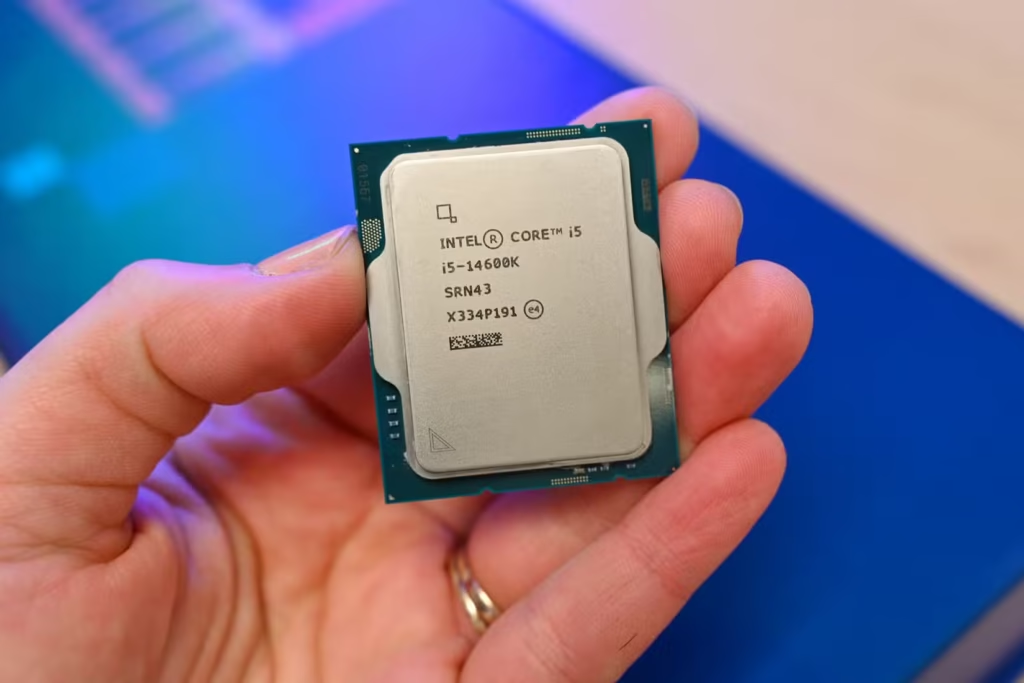
Hardware acceleration uses the dedicated video engine built into many CPUs and GPUs, commonly Intel Quick Sync Video or an Nvidia NVENC-capable graphics card, to do the conversion instead of relying on general CPU cores. Plex’s own hardware-accelerated streaming guide confirms it uses far less processing power for the same job, which is usually enough to fix the error on a server that has the right hardware but not enough raw CPU power.
- Confirm your processor supports it. Most Intel CPUs from the last decade with integrated graphics include Quick Sync. Check the model against Intel’s Quick Sync product filter, which lists every CPU with Quick Sync support.
- In the Plex web app, go to Settings, then Server, then Transcoder.
- Turn on “Use hardware acceleration when available” and, if you also want hardware-based encoding, “Use hardware-accelerated video encoding.”
- Save the changes. Plex doesn’t need a restart for this to take effect.
- Play a file, force a conversion by setting the quality to something other than Original, and check the Activity dashboard. A stream that says Transcode (hw) is using hardware acceleration; one that just says Transcode is still running on the CPU.
Hardware-accelerated streaming is restricted to active Plex Pass subscribers, and it needs an actual compatible chip behind it. On a NAS, this usually means installing a vendor package (QNAP calls it VAAPI HW Transcoding) and confirming the integrated graphics are enabled in the device’s settings, since some NAS boxes ship with it switched off by default.
If your server runs in Docker, the host’s graphics device, typically /dev/dri on Linux, has to be passed through to the container before Plex can see it. Without that step, hardware acceleration stays greyed out or simply doesn’t get used, even with the setting turned on.
What if you don’t have Plex Pass or compatible hardware?
Software transcoding, the free, CPU-only kind, is the only option without Plex Pass, so the goal becomes reducing how much work the CPU has to do. A few changes help directly:
- Lower the transcoder quality preset under Settings, Server, Transcoder, away from a slower, higher-quality setting and toward a faster one, which trades a small amount of video quality for noticeably less CPU use.
- Limit simultaneous transcoding sessions in the bandwidth and transcoding settings, so one stream doesn’t have to compete with two or three others for the same CPU cores.
- Re-encode your library ahead of time into a widely supported format, like H.264 in an MP4 container at a resolution your devices actually use, so playback becomes direct play on most apps instead of a live conversion every time.
- Play on devices that decode more formats locally. A modern phone, tablet, or computer running the Plex app handles far more codecs without help than an older smart TV or streaming stick.
None of these need a hardware upgrade, and combined they often get a server that struggles with one stream to the point where it handles everyday playback comfortably.
How do you check if your CPU can actually handle transcoding?
A rough but useful test is to play a 1080p file and force a conversion by changing the quality setting in the player, then watch CPU usage on the server while it plays. If usage sits near 100 percent and the stream still buffers or stutters, the processor is the bottleneck, not your network or storage.
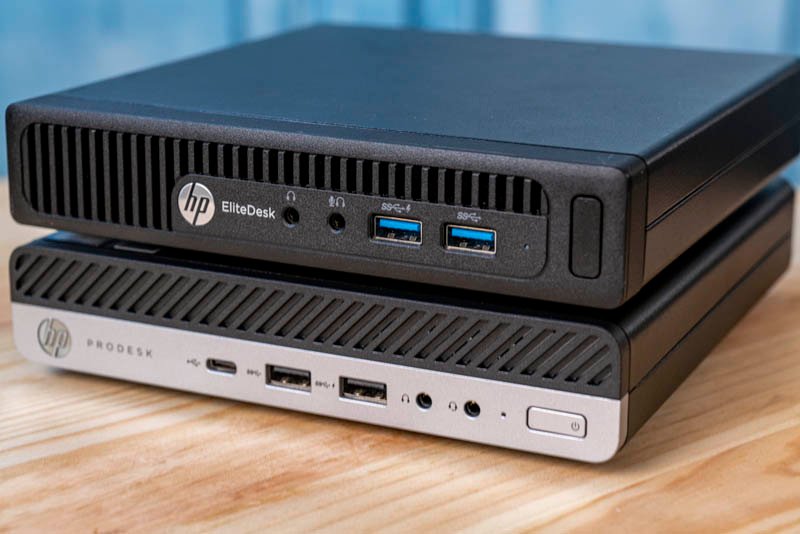
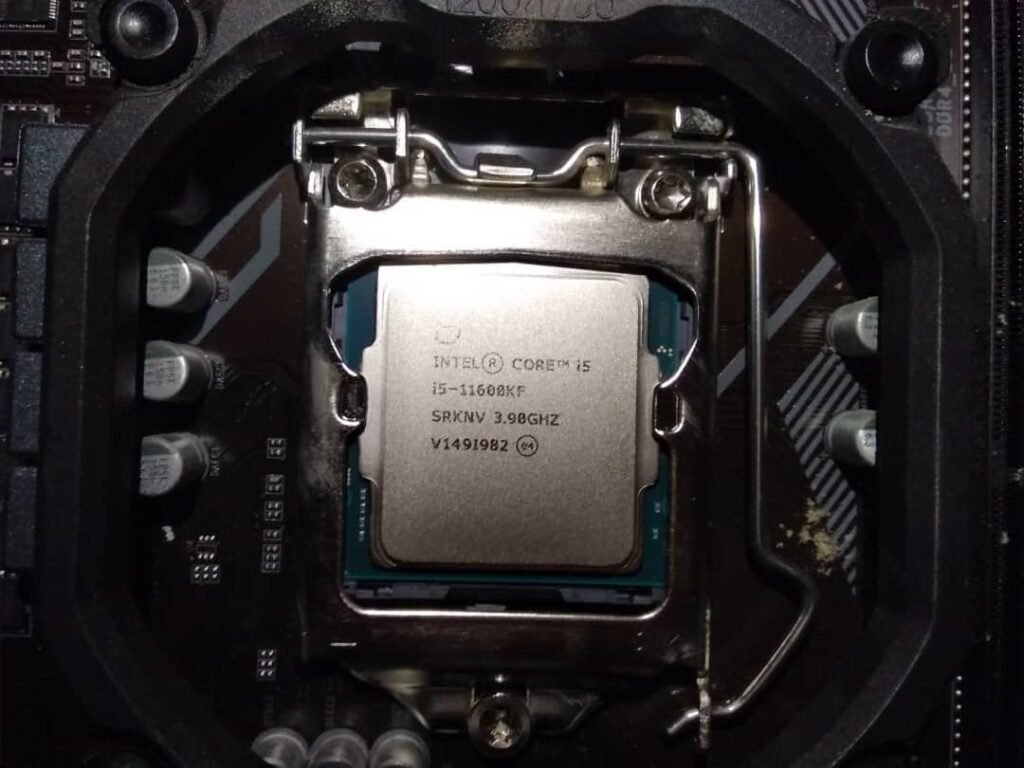
As a general benchmark, a modern quad-core desktop or laptop CPU from the last several years can usually transcode one 1080p stream in software without strain, while low-power NAS processors, especially older ARM-based models, often cannot transcode at all, with or without hardware acceleration support. Devices built for storage, not video processing, are the ones most likely to hit this error consistently.
Why did this error appear after the server worked fine before?
A server that handled the same library without trouble and then suddenly shows this error has usually changed in one of a few ways. A Plex Media Server update, an app update on the playback device, or an operating system update on the TV or NAS can all shift which formats are treated as compatible, turning a file that used to direct play into one that now needs converting.
New media added to the library is the other common trigger, particularly 4K files, HDR content, or anything encoded in HEVC, all of which demand far more from the CPU to convert than standard 1080p H.264 video. If the error only shows up on specific files rather than the whole library, checking the file’s codec and resolution against what direct played fine before usually points straight at the cause.
How many simultaneous streams can your server actually handle?
Each transcoding stream draws on the same shared CPU, so the limit isn’t about Plex, it’s about how much processing power is available to split between them. A processor that handles one 1080p transcode comfortably will often choke on two running at once, even though each one alone was fine. Setting a maximum number of simultaneous transcoding sessions, under Settings, Server, Bandwidth and transcoding limits, stops the server from accepting more streams than it can actually convert, which avoids every stream degrading at once.

If a single stream transcodes without issue but the error only shows up when a second person starts watching, the problem is total CPU capacity, not the server’s basic ability to transcode.
Frequently asked questions
Does this error mean my Plex server is broken?
No. It means the file needs converting and your CPU can’t do that fast enough in real time. The server itself is working correctly; the processor is just the bottleneck for this specific stream.
Will buying a Plex Pass fix this on its own?
Only if your hardware supports hardware acceleration, since Plex Pass unlocks the feature but doesn’t add the chip needed to use it. Check for Intel Quick Sync or a compatible Nvidia GPU before subscribing for this reason alone.
Can I fix this without spending any money?
Yes. Setting playback quality to Original, lowering the transcoder preset, limiting simultaneous sessions, and re-encoding heavy files into a widely supported format all reduce CPU load for free.
Why does this happen on 4K files specifically?
4K and HEVC-encoded video need far more processing power to convert than standard 1080p H.264, so a CPU that handles regular files fine can still fail on a single 4K transcode.
Does a faster internet connection fix this error?
No. This is a processing limit, not a bandwidth limit, so a faster connection won’t help. The server has to finish converting the video before it can send any of it, regardless of connection speed.
Conclusion
The “not enough CPU for conversion of this item” error simply means your server’s processor can’t convert the file fast enough to keep up with playback. Fix it by setting playback quality to Original so direct play can take over, turning on hardware-accelerated transcoding if your CPU and Plex Pass support it, or cutting CPU load with a faster transcoder preset and a session limit. A good result looks like the stream showing Direct Play or Transcode (hw) in the Plex dashboard instead of a stalled, CPU-bound transcode.
Recommended Articles: