
You can’t manually clear the cache on a CPU, and the good news is you don’t need to. The cache built into a processor empties and refills itself many times a second while the chip works, and it wipes completely the moment you shut down. There’s no button, command, or setting that lets you flush it by hand, and trying to would not make your computer faster.
If you landed here because your machine feels slow, the cache you actually want to clear is a different thing: the software cache. That means temporary files, the DNS cache, and similar leftovers that pile up on Windows and Mac. Clearing those is quick, safe, and often does fix sluggish browsing and low disk space. Here’s the full picture, then the exact steps.
Can you clear the CPU cache?
No, not in any way that matters to you. CPU cache is hardware, a small block of very fast memory built right onto the processor. It is managed entirely by the chip itself. The processor decides what to keep there and what to throw out, line by line, far faster than any person or program could step in.
This cache uses a type of memory called SRAM, which is volatile. Volatile just means it forgets everything when the power goes off. So every time you restart or shut down, the cache is already wiped clean for you. There is nothing left to clear.
You may have seen claims that an “old” CPU has a full cache that needs emptying to run at normal speed. That isn’t how it works. A cache is never “full” in a way that slows things down, because the processor is constantly overwriting the oldest entries with new ones. Age has nothing to do with it.
| Quick takeaway: If a tool or seller tells you to “clear your CPU cache” to fix speed, treat it as a red flag. The fix you want is clearing software cache, covered below. |
What CPU cache actually is (L1, L2, and L3)
CPU cache is the processor’s personal scratchpad. Pulling data from your main memory (RAM) takes time, and reaching all the way to a drive takes much longer. So the chip keeps copies of the data and instructions it uses most in cache, right next to the cores, where it can grab them almost instantly. This is what keeps a fast processor from sitting idle, waiting for data.
There are three levels, and they trade size for speed:
- L1 cache is the smallest and fastest, often around 64KB per core. Each core has its own. It can keep pace with the processor itself.
- L2 cache is larger, commonly 256KB to 1MB per core, but slower than L1. It catches data the chip needs that didn’t fit in L1.
- L3 cache is the biggest, often tens of megabytes, and it is usually shared across all the cores. It is slower than L1 and L2 but still far quicker than RAM.
When the processor needs something, it checks L1 first, then L2, then L3, and only goes to RAM if it strikes out everywhere. You can view these sizes on your own chip with a free tool like CPU-Z, but viewing is all you can do. There’s no clearing involved.
The cache you really want to clear
“Cache” is a word that gets used for several different things, and that’s the root of the confusion. The hardware cache on your CPU is off-limits and self-managing. The caches you can clear, and the ones that actually cause slowdowns, are made of files sitting on your drive.

The main ones worth knowing:
- Temporary files: leftovers from app installs, Windows updates, and everyday system tasks. These can build up to tens of gigabytes over time.
- DNS cache: a list of recent website addresses your system saved so pages load faster. When an entry goes stale, sites can fail to load or redirect to the wrong place.
- Browser cache: images and page files your browser stores. This is usually the single biggest source of a sluggish, glitchy browsing experience.
Clearing these is safe. It won’t touch your documents, photos, or installed programs, and it won’t sign you out of anything unless you specifically choose to delete passwords or cookies. The next sections walk through each one.
How to clear cache on Windows
On Windows 10 and 11, two quick jobs cover most slowdowns: deleting temporary files to free up space, and flushing the DNS cache to fix loading problems. Neither needs extra software.
Clear temporary files
This is the safe, visual way, and it’s the method to reach for first.
- Press the Windows key + I to open Settings.
- Go to System, then click Storage.
- Wait a moment for Windows to scan your drive, then click Temporary files.
- Review the boxes. The pre-checked items are safe to remove. Be careful with Downloads and any “Previous Windows installation,” which you may want to keep.
- Click Remove files. On a PC that hasn’t been cleaned in months, you can recover anywhere from a few gigabytes to 20GB or more.
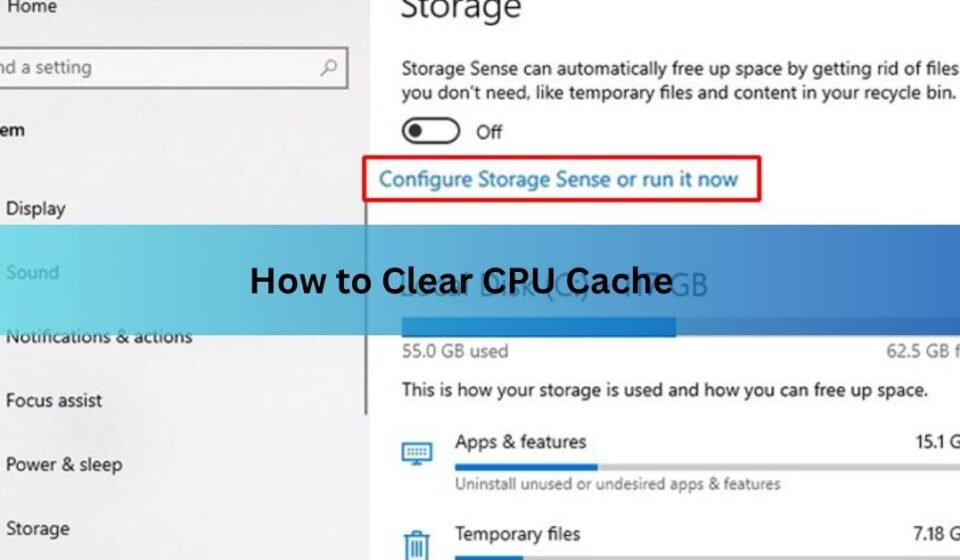
To keep this tidy on its own, turn on Storage Sense from the same Storage page. Set it to run monthly and it will delete temporary files for you in the background.
Flush the DNS cache
Do this when websites won’t load, load slowly, or send you to the wrong page, especially after changing networks or using a VPN.
- Press the Windows key, type cmd, then right-click Command Prompt and choose Run as administrator.
- Type ipconfig /flushdns and press Enter.
- Look for the message “Successfully flushed the DNS Resolver Cache.” That’s it.
Prefer PowerShell? Open it and run Clear-DnsClientCache instead, which does the same job.
How to clear cache on a Mac
Macs handle this a little differently, but the same two caches are worth clearing: app cache files and the DNS cache.
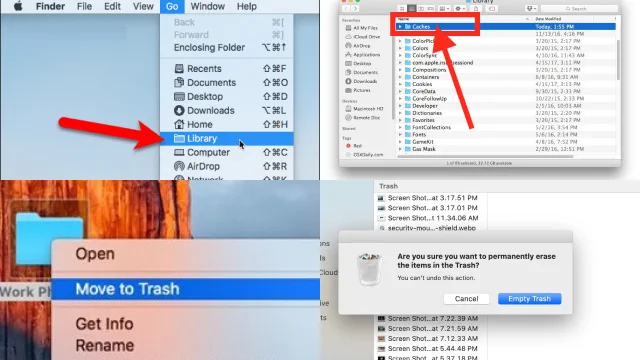
For app and system cache files, open Finder, click Go in the menu bar, hold the Option key, and choose Library. Open the Caches folder, then drag the contents of the subfolders to the Trash. Leave the folders themselves in place and empty the Trash when you’re done. Skip anything you’re unsure about; apps will simply rebuild what they need.
To flush the DNS cache on recent macOS versions (Sonoma, Sequoia, and Tahoe):
- Open Terminal from Applications, then Utilities (or search for it with Spotlight, Command + Space).
- Type sudo dscacheutil -flushcache; sudo killall -HUP mDNSResponder and press Return.
- Enter your Mac password when asked. Nothing shows on screen as you type it, which is normal. Press Return again.
macOS gives no success message. If you get back to the prompt with no error, it worked.
When clearing cache helps, and when it won’t
Clearing software cache is good basic upkeep, but it’s worth being honest about what it can and can’t do. The table below sorts the common reasons people try it.
| Clearing cache usually helps with | Clearing cache won’t fix |
| A website that won’t load or shows an old version | A genuinely underpowered or aging processor |
| Low disk space from months of temp file buildup | Too little RAM for the apps you run |
| A glitchy, stuttering web browser | Malware or a virus slowing things down |
| Stale DNS entries after a network or VPN change | A failing hard drive or overheating chip |
If your computer is still slow after a good clean, the cause is usually one of the items in the right column. A reliable next step is a simple restart, which clears the hardware cache and your RAM in one go and resolves a surprising number of temporary slowdowns. From there, check how much free space and memory you have, and run a malware scan if anything still feels off.
For the truly curious who want to confirm what’s inside their chip rather than clear it, you can read the sizes and levels directly with AMD’s Ryzen Master utility on Ryzen systems, or the free CPU-Z app on any PC. They show the cache, but there’s nothing to flush.
Frequently asked questions
Does clearing cache speed up your computer?
Sometimes. Clearing software cache like temp files and browser data frees up space and fixes glitches, which can feel faster. It won’t help if the real problem is low RAM, a weak processor, or malware.
How often should I clear my cache?
Once a month is plenty for most people. Clear temp files when storage runs low, and flush the DNS cache only when websites act up. Turn on Storage Sense or use a browser setting to automate it.
Will clearing cache delete my files or passwords?
No. Clearing temp files and system cache leaves your documents, photos, and apps untouched. You only lose saved passwords or logins if you specifically check those boxes when clearing browser data.
Is there a command to clear the CPU cache?
No command available to you can flush the L1, L2, or L3 cache. The processor controls it automatically. A restart is the closest thing, since it wipes the cache and your RAM completely.
What’s the difference between CPU cache and RAM?
CPU cache is tiny, ultra-fast memory built into the processor for the data it uses most. RAM is much larger and slightly slower, holding everything your open apps need. Both clear when you shut down.
Conclusion
The hardware cache on your CPU manages itself and wipes clean every time you power down, so there is nothing for you to clear there. To actually speed up a slow computer, clear the software caches: delete temporary files to reclaim space, and flush the DNS cache to fix loading problems. Do those, restart if things still drag, and you’ve done everything that clearing cache can realistically achieve.