

If your computer slows down because the endpoint protection service high cpu problem keeps appearing, the issue is usually fixable without removing your security software. High CPU usage often happens when the protection service is actively scanning files, updating malware definitions, or checking suspicious programs. In some situations, outdated software, damaged files, or conflicts with other security programs can make CPU usage stay high for much longer than it should.
The good news is that endpoint protection is designed to use more system resources only when necessary. Under normal conditions, CPU usage should return to a low level after scans or updates finish. If it does not, there is usually another reason behind the problem.
This guide explains why endpoint protection services use high CPU, how to identify the real cause, and the safest ways to reduce processor usage while keeping your device protected.
What Is an Endpoint Protection Service?
An endpoint protection service is software that protects computers, laptops, and servers from malware, ransomware, phishing attacks, and other cyber threats. It continuously watches system activity and scans files before they can cause damage.
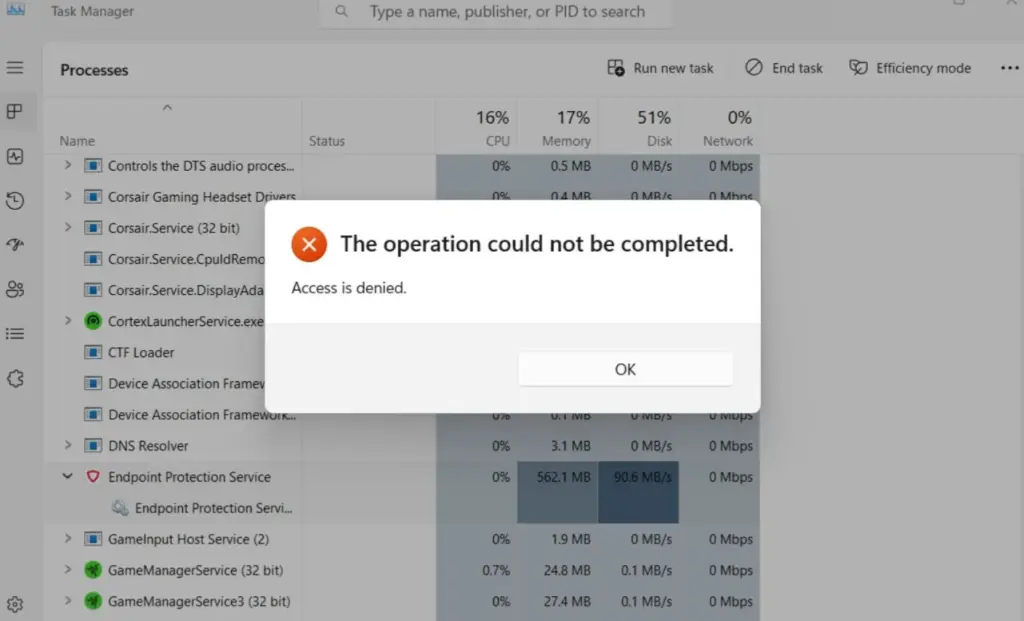
Unlike traditional antivirus software, endpoint protection combines several security features into one platform. These may include:
- Real-time malware protection
- Behavioral threat detection
- Firewall management
- Exploit protection
- Device control
- Cloud-based threat intelligence
- Automatic security updates
Many organizations use solutions such as Microsoft Defender for Endpoint, Sophos Intercept X, CrowdStrike Falcon, Bitdefender GravityZone, SentinelOne, Trend Micro Apex One, or Symantec Endpoint Protection.
Because these services monitor activity around the clock, temporary increases in CPU usage are completely normal.
How Much CPU Usage Is Considered Normal?
The answer depends on what the software is doing.
| Activity | Typical CPU Usage |
| Idle protection | 0–5% |
| Opening files | 5–15% |
| Security update | 10–30% |
| Quick scan | 20–50% |
| Full system scan | 40–100% (temporary) |
Short spikes are expected.
The problem starts when CPU usage remains above 40–60% for long periods, especially when the computer is sitting idle.
Persistent high usage usually points to a configuration issue rather than normal security activity.
Why Does Endpoint Protection Service Use High CPU?
Several different situations can cause the processor to stay busy.

Real-Time File Scanning
Real-time protection checks every file that is opened, copied, downloaded, or modified.
If you’re transferring thousands of files or installing large software packages, the endpoint protection engine may inspect every file individually. During this process, CPU usage naturally increases.
This usually ends once the task is complete.
Scheduled Full System Scans
Many organizations schedule full scans outside working hours.
If your computer was asleep or turned off during the scheduled time, the scan may begin automatically when you log in.
A full scan can easily consume a significant amount of processor power until every drive has been checked.
Large Software Installations
Installing development tools, games, virtual machines, or enterprise applications creates thousands of new files.
The protection service scans these files as they are created.
As a result, CPU usage can temporarily rise much higher than normal.
Windows Updates
Major Windows updates replace thousands of system files.
Endpoint protection scans many of these new files before allowing them to run.
This is one reason why computers often feel slower immediately after a Windows update.
Keeping both Windows and your security software current helps avoid compatibility issues. Microsoft’s official guidance on Microsoft Defender Antivirus performance is available at:
https://learn.microsoft.com/windows/security/threat-protection/microsoft-defender-antivirus
Outdated Security Definitions
Threat definitions tell the software what malware looks like.
Old definitions may force additional cloud lookups or inefficient scanning.
Allowing automatic updates usually improves both protection and performance.
Corrupted Program Files
Unexpected shutdowns, failed updates, or disk errors can damage security components.

When this happens, the endpoint protection engine may repeatedly restart internal processes, causing CPU usage to remain unusually high.
Repairing or reinstalling the software often resolves the issue.
Running Two Antivirus Programs
One of the most common causes of endpoint protection service high cpu is having multiple security products installed.
For example:
- Microsoft Defender
- Malwarebytes Premium
- Avast
- AVG
- Norton
- McAfee
If two real-time scanners inspect the same files at the same time, both programs repeatedly trigger each other.
This creates unnecessary processor activity and noticeably slows the computer.
A single active antivirus solution is usually the safest and fastest configuration.
Quick Tip: High CPU usage during a scan is normal. High CPU usage for hours after the scan has finished usually indicates a software conflict, damaged installation, or another underlying issue.
How to Identify the Exact Cause
Before changing settings, identify what the protection service is actually doing.
Start by opening Task Manager and sorting processes by CPU usage.
Look for:
- MsMpEng.exe
- NisSrv.exe
- SecurityHealthService.exe
- Symantec Service Framework
- CrowdStrike Sensor
- Sophos File Scanner
- Sentinel Agent
- Trend Micro service
How to Fix Endpoint Protection Service High CPU
Once you know what is causing the CPU spike, work through the following fixes one at a time. After each change, monitor CPU usage in Task Manager for several minutes before moving to the next solution.
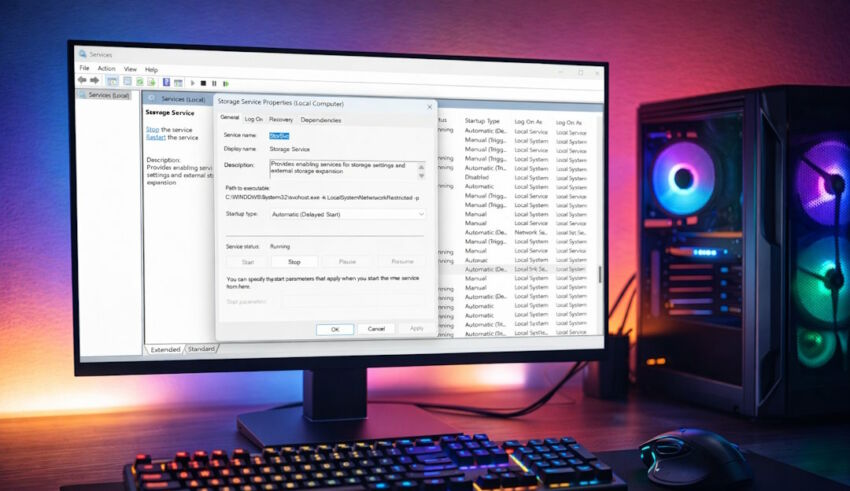
1. Let the Scan Finish
The simplest fix is often to wait.
A quick scan may finish within a few minutes, while a full system scan can take much longer on computers with large hard drives or hundreds of thousands of files.
If CPU usage gradually drops after the scan ends, the software is working normally and no further action is needed.
2. Restart the Computer
A restart clears temporary processes, memory, and pending updates.
If the endpoint protection service became stuck after an update or an interrupted scan, restarting Windows often restores normal behavior.
3. Update the Endpoint Protection Software
Running an older version of your security software can lead to bugs, compatibility issues, and unnecessary CPU usage.
Open your security application’s update section and install:
- The latest program version
- Current malware definitions
- Available engine updates
Keeping the software current improves both protection and performance.
If you use Microsoft Defender, Microsoft provides official guidance and troubleshooting documentation here:
https://learn.microsoft.com/windows/security
4. Install Windows Updates
Security software depends on Windows components.
If Windows itself is outdated, communication between the operating system and the protection service may become inefficient.
Install all important updates, then restart the computer.
5. Schedule Full Scans Outside Working Hours
Running a complete scan while you’re editing videos, compiling code, or using business applications can noticeably slow the computer.
A better approach is to schedule scans:
- Overnight
- During lunch breaks
- On weekends
- Outside business hours
This keeps protection active without interrupting daily work.
6. Review Scan Exclusions Carefully
Some trusted folders change constantly and create heavy scanning workloads.
Examples include:
- Virtual machine folders
- Software build directories
- Backup folders
- Large archive repositories
Adding carefully selected exclusions can reduce CPU usage.
Only exclude folders you fully trust. Never exclude the entire system drive simply to improve performance, as this weakens your security.
7. Remove Duplicate Antivirus Software
Having two real-time antivirus products active at once causes both applications to scan the same files repeatedly.
If multiple security suites are installed:
- Decide which product you want to keep.
- Uninstall the others.
- Restart Windows.
- Verify only one real-time protection service is running.
This alone often resolves persistent high CPU usage.
8. Check Disk Health
A failing SSD or hard drive forces the antivirus engine to wait longer while reading files.
Slow storage means longer scans and higher CPU usage.
Signs of storage problems include:
- Extremely slow file access
- Clicking sounds from older hard drives
- Frequent read errors
- Windows disk warnings
Repairing or replacing a failing drive improves overall system performance.
9. Repair the Endpoint Protection Installation
Corrupted program files may cause the service to loop through the same scanning tasks repeatedly.
Most enterprise security products include a repair option.
If not, uninstall the software completely, restart the computer, and install the latest version from the vendor’s official website.
Advanced Troubleshooting
If CPU usage remains high after trying the common fixes, investigate these areas.
Check Event Logs
Windows Event Viewer records software errors and service failures.
Look for:
- Application crashes
- Security service errors
- Update failures
- Driver conflicts
Repeated errors often reveal why the protection service keeps restarting or rescanning files.
Look for Software Conflicts
Some applications create thousands of temporary files every minute.
Examples include:
- Video editing software
- Database servers
- Development environments
- Backup software
- Virtual machine platforms
If CPU usage rises only while using one application, that workload may be triggering constant file scans.
Monitor Resource Usage
Don’t focus only on CPU.
Also check:
- Memory usage
- Disk activity
- Network activity
- GPU usage
A system with low available RAM may rely heavily on the page file, making endpoint protection appear to use more CPU than it actually does.
Ways to Prevent High CPU Usage
Prevention is easier than troubleshooting.

Following a few best practices helps keep endpoint protection running efficiently.
- Keep Windows updated.
- Update security software automatically.
- Schedule scans during off-hours.
- Avoid running multiple antivirus programs.
- Restart computers regularly.
- Remove unused software.
- Keep enough free disk space available.
- Upgrade older hard drives to SSDs if possible.
Small maintenance tasks often prevent larger performance issues later.
When High CPU Usage Is Normal
Not every spike indicates a problem.
Temporary high CPU usage is expected when:
- Running the first scan after installation
- Performing a scheduled full scan
- Installing Windows updates
- Downloading thousands of files
- Recovering after malware removal
- Updating threat definitions
In these situations, processor usage should decrease once the task finishes.
When High CPU Usage Indicates a Problem
Persistent high usage deserves further investigation if:
| Symptom | Possible Cause |
| CPU remains above 70% for hours | Stuck scan |
| High CPU while computer is idle | Software conflict |
| CPU increases after every restart | Corrupted installation |
| System freezes during scans | Disk or memory issues |
| Constant scanning of the same files | Incorrect exclusions or application conflict |
If these symptoms continue even after updates and repairs, contact your endpoint protection vendor’s technical support. They can analyze diagnostic logs and identify product-specific issues.
Performance Tips for Business Networks
Organizations managing dozens or hundreds of devices should also review their endpoint protection policies.

Some practical improvements include:
- Stagger scheduled scans so every computer does not scan at the same time.
- Use centralized management consoles to monitor device health.
- Apply exclusions only after careful testing.
- Keep endpoint agents on the latest supported version.
- Review security policies regularly to remove unnecessary scans.
- Monitor endpoints for unusual CPU trends that may indicate malware or hardware issues.
These practices help maintain strong security while minimizing performance impacts across the network.
Frequently asked questions
Why is my endpoint protection service using 100% CPU?
A full system scan, a major Windows update, or a software conflict can temporarily push CPU usage close to 100%. If it continues long after these tasks finish, check for corrupted files, duplicate antivirus programs, or a stuck scanning process.
Can I disable endpoint protection to reduce CPU usage?
You can, but it is generally not recommended because it leaves your computer vulnerable to malware and ransomware. It is better to identify the cause of the high CPU usage and fix it while keeping protection enabled.
Does more RAM reduce endpoint protection CPU usage?
Not directly. More RAM reduces disk paging and improves overall system performance, which can make scans complete faster and reduce the time CPU usage remains elevated.
Should I add antivirus exclusions to improve performance?
Yes, but only for trusted folders that generate large numbers of safe files, such as virtual machine images or software build directories. Avoid excluding critical system folders or the entire drive.
How do I know if high CPU usage is caused by malware?
Check whether the endpoint protection service is actively detecting or removing threats, review Windows Event Viewer, and run a complete malware scan. If CPU usage remains high without any detected threats, the issue is more likely related to software configuration or system performance than active malware.
Conclusion
The endpoint protection service high cpu issue is usually caused by active scans, software updates, conflicting security programs, or damaged installations rather than malware itself. Start by identifying what the service is doing, then apply the appropriate fix instead of disabling protection. With updated software, sensible scan schedules, and proper system maintenance, CPU usage should return to normal while your device remains fully protected.
Recommended Articles: