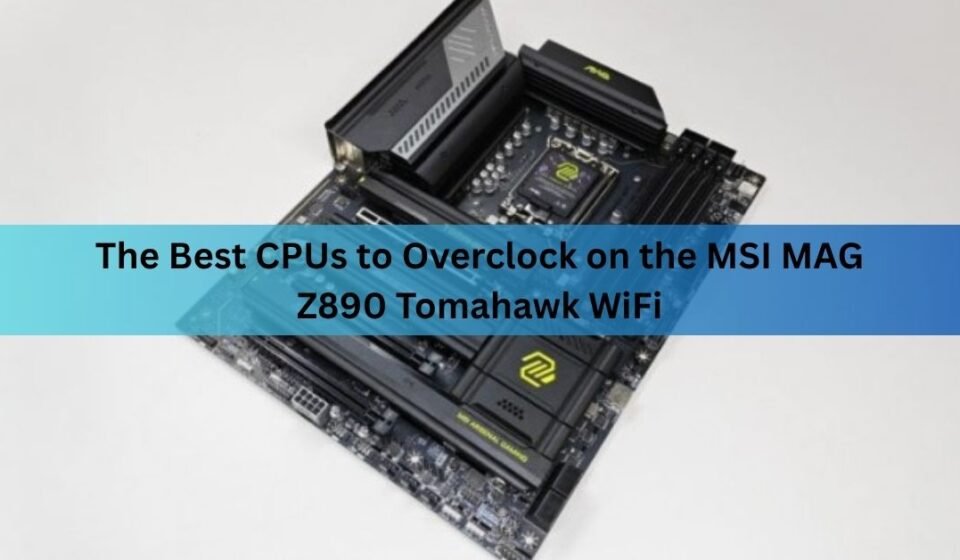

If you want to overclock a CPU on the MSI MAG Z890 Tomahawk WiFi, you have three chips to choose from: the Intel Core Ultra 5 245K, the Core Ultra 7 265K, and the Core Ultra 9 285K. Those are the only processors this board can actually overclock, because they are the only unlocked “K” models in Intel’s current desktop lineup. For most people the Core Ultra 7 265K is the smart pick. It gives you nearly flagship speed for a lot less money, and it tunes well on this board’s power delivery.
Below you’ll find which CPU fits your use case, what overclocking really does on this platform, whether the Tomahawk’s power stages can keep up, and a clear walkthrough for both the easy one-click route and a proper manual tune.
Which CPUs can the Tomahawk WiFi overclock?
The board uses the LGA 1851 socket and the Z890 chipset, so it works with Intel’s Core Ultra 200S “Arrow Lake” desktop processors. But working with a CPU and being able to overclock it are two different things. Only Z890 boards allow CPU overclocking, and only unlocked K-series chips have the open multiplier that overclocking needs.
That leaves three real candidates. A fourth and fifth chip, the 265KF and 245KF, are the same as the K versions but with the built-in graphics switched off, so they overclock the same way if you don’t need a display output from the CPU. They usually cost a little less, which makes them a quiet bargain if you already run a dedicated graphics card and never plan to use the motherboard’s video ports.
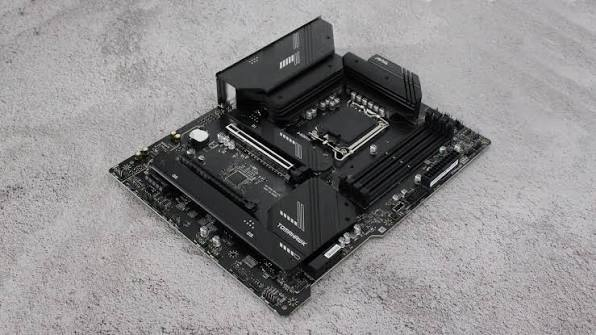
It is worth being clear about what won’t work, since this trips people up. A locked, non-K Core Ultra chip will run fine in this board, but you cannot raise its core clocks no matter what BIOS settings you change, because the multiplier is locked at the factory. The same goes for cheaper B-series and H-series boards: even with a K chip installed, those chipsets block CPU overclocking entirely. The combination you need is a K-series chip and a Z890 board, and the Tomahawk WiFi is one of the more affordable ways to get that pairing.
| CPU | Cores (P + E) | Base / boost (P-core) | Max power | Best for |
| Core Ultra 5 245K | 6 + 8 (14) | 4.2 / 5.2 GHz | 159 W | Budget builds and tight thermals |
| Core Ultra 7 265K | 8 + 12 (20) | 3.9 / 5.5 GHz | 250 W | The value sweet spot for most users |
| Core Ultra 9 285K | 8 + 16 (24) | 3.7 / 5.7 GHz | 250 W | Heavy multi-core and content work |
A quick note on naming. The 245K runs more cores at a higher base clock than the older Core i5 it replaces, but it tops out at 5.2 GHz. The 285K is the fastest, reaching 5.7 GHz out of the box across 24 cores. Whatever you pick, make sure it is on the board’s CPU support list and that you flash a recent BIOS, since early firmware caused stability and memory training issues that later updates fixed.
Quick pick: which one should you buy?
Here’s the short version, sorted by what you actually do with the PC.
- Mostly gaming, mid budget: Go with the Core Ultra 7 265K. It costs far less than the 285K, lands within a few percent of it in games, and holds boost clocks longer than you might expect. It is the chip most builders should pick for this board.
- Heavy multitasking, rendering, or video work: The Core Ultra 9 285K. Those extra eight E-cores genuinely help in multi-threaded jobs like exporting video or 3D rendering, and that is exactly where the chip pulls ahead.
- Budget build or a smaller cooler: The Core Ultra 5 245K. It draws less power, runs cooler, and still overclocks. For a 1440p gaming rig that isn’t doing heavy production work, it is plenty.
If you only plan to flip on the one-click profile and move on, the 265K gives you the best mix of price, gaming speed, and headroom on this board.
What does overclocking actually do on Arrow Lake?
Arrow Lake overclocking is a bit different from older Intel chips, so it helps to know what you’re changing. There are three main areas you can push, and each one helps different tasks.
CPU core clocks
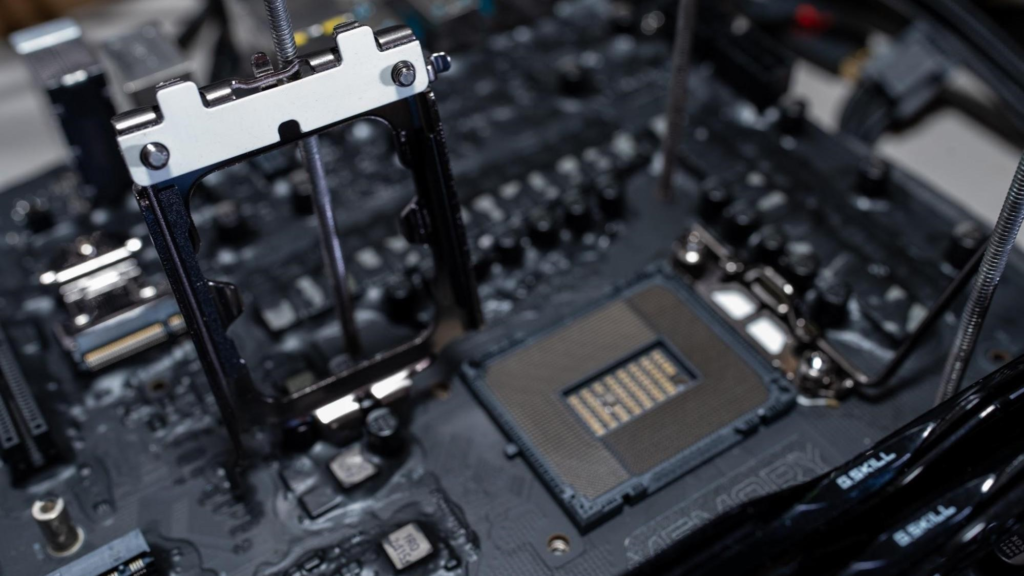
You can raise the P-cores (the big performance cores) and the E-cores (the small efficiency cores) separately, and you can set the voltage for each on its own. The multiplier is unlocked on K chips, and the frequency steps are very fine, down to 16 MHz, so you can dial things in precisely. In testing, a typical 285K reaches around 5.4 to 5.5 GHz all-core on the P-cores and roughly 4.9 to 5.0 GHz on the E-cores before it needs risky voltage. Those numbers vary chip to chip.
One real shift with this generation: pushing the E-cores often gives you more usable gain than chasing the highest P-core number, because the E-cores handle a lot of background and multi-threaded load.
The fabric: Ring, D2D, and NGU
Arrow Lake splits the CPU into separate tiles, so there are extra links between the cores and memory. Three clocks control how fast data moves across those links: the Ring (the cache ratio), the die-to-die bus (D2D), and the next-gen uncore (NGU). Raising these speeds up data transfer and lowers latency, which mostly helps memory-sensitive work and gaming. On many chips you can nudge the Ring and D2D up a step without adding voltage.
Memory
This is where Z890 really pays off. The Tomahawk supports DDR5 speeds well past the stock JEDEC limit, with rated support listed up to DDR5-9200 and beyond when you overclock. Loading an XMP profile is technically a memory overclock, and for many builds the jump from DDR5-6400 to a faster kit is the single biggest performance win available.
Memory tuning gives a bigger real-world boost on this platform than core clocks for most people. Don’t skip it.
Can the Tomahawk WiFi’s VRM handle a CPU overclock?
Yes, for a sensible daily overclock. The MAG Z890 Tomahawk WiFi uses a 16+1+1+1 power design built on 90-amp smart power stages, fed by dual 8-pin CPU connectors. In plain terms, that is enough power delivery to run any of the three K chips at a stable everyday overclock without the VRM running hot, thanks to the extended Frozr heatsinks and thermal pads covering the power stages.
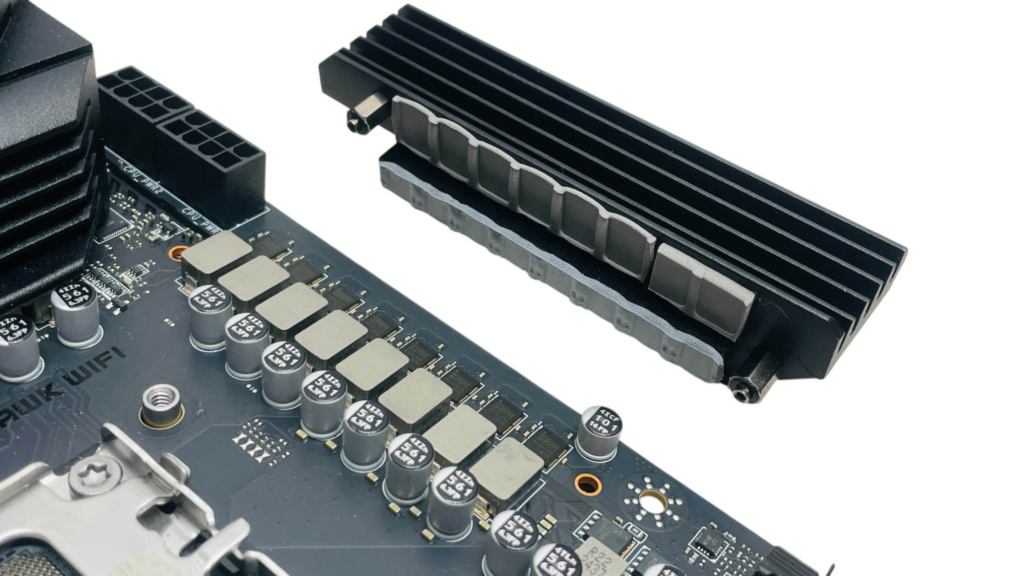
Where it shows its price is at the extreme end. This is a mainstream board, not a high-end overclocking model with oversized heatsinks and a POST-code display. If your goal is record-chasing on exotic cooling, a pricier board makes more sense. For the 95 percent of users who want a solid, stable boost, the Tomahawk has the muscle. Make sure both 8-pin CPU cables are plugged in, since the board expects both for overclocking.
The easy route: Intel 200S Boost (one click)
The simplest way to get free performance is Intel’s 200S Boost profile, a one-click overclock that Intel itself validates. It raises the fabric, die-to-die, and memory frequencies in a single setting, and the headline benefit is that it keeps your CPU’s three-year warranty, unlike a manual overclock.
It works only with the unlocked K and KF chips (the 245K, 265K, 285K and their KF versions), on a Z890 board, with a supported XMP memory kit and an up-to-date BIOS. In testing it delivered around a 7.5 percent average gaming gain at 1080p, and most of that came from the memory jump to DDR5-8000. With slower memory the gain shrinks sharply, so pair it with a fast kit to see the full benefit.
How to turn it on
- Update your BIOS first. Grab the latest version for the MAG Z890 Tomahawk WiFi from MSI and flash it, since 200S Boost arrived through a firmware update.
- Enter the BIOS. Tap Delete during boot to open MSI’s firmware, then switch to Advanced mode.
- Find the profile. Look near the memory and XMP settings. MSI exposes the option under its overclocking menu; the wording can vary slightly by BIOS version.
- Enable it and set XMP. Turn on the 200S Boost profile and make sure your memory’s XMP profile is active so the faster memory ratio applies.
- Save and reboot. Save changes and exit. Run a quick stability check and you’re done.
The manual route: a safe step-by-step overclock
If you want more control, a manual tune isn’t hard on this board, and Arrow Lake makes it easier than past Intel chips because the processors run cool and the multiplier is open. Go slowly and change one thing at a time. A manual overclock can affect your warranty, so weigh that against the one-click profile above.
- Set a baseline. Boot into Windows at stock settings and run a benchmark so you have numbers to compare against. Note your temperatures and clocks.
- Raise the power limits. In the BIOS, use MSI’s performance preset to lift the power limits. This alone lets the CPU hold higher boost clocks for longer and is the safest first gain.
- Enable XMP. Switch on your memory’s XMP profile so the RAM runs at its rated speed instead of the slow default. Test for stability before moving on.
- Tune the P-cores. Add a small voltage offset, then raise the P-core multiplier in 100 MHz steps. After each step, run a short stress test. When it crashes or errors, drop back one step.
- Tune the E-cores. Lower the P-cores slightly first so any instability points clearly at the E-cores, then raise the E-core multiplier the same way. This is often where the best real gains hide.
- Lift the fabric. Raise the Ring, and if you’re comfortable, nudge D2D and NGU. Small bumps here often need no extra voltage and help memory-heavy tasks.
- Stress test for real. Run a longer multi-hour stability test and watch temperatures. If it passes cool and stable, you’re set. If not, back off a step and retest.
Change one setting, test, then move on. Stacking several changes at once makes a crash impossible to diagnose.
How much faster will an overclock actually make it?
Be realistic about the payoff, because it varies a lot by task. An all-core CPU overclock mainly helps heavy multi-threaded jobs like rendering and video export, where a few hundred extra megahertz across every core adds up. In games, raw all-core clocks matter less, since most games lean on a handful of cores and on memory speed instead.
That is why the memory and fabric side carries so much weight here. The one-click 200S Boost showed roughly a 7.5 percent average gaming gain at 1080p, and the bulk of that came from moving the memory to DDR5-8000. Drop back to a slower DDR5-7200 kit and the same profile gave closer to a 1 percent gain. The lesson is simple: a CPU overclock without faster memory leaves most of the performance on the table. Treat core clocks, fabric, and memory as one package rather than three separate jobs.
It is also worth knowing where the chip naturally stops. Once the P-cores pass roughly 5.5 GHz or the E-cores pass about 4.7 GHz, many chips start clipping back under load as they hit the thermal limit, so the last 100 to 200 MHz often costs far more heat and voltage than the small gain is worth. Stopping just short of that wall usually gives the best mix of speed, temperature, and long-term stability.
Cooling and memory: the parts that decide your result
Your overclock is only as good as your cooling and your memory, so don’t cheap out on either.
Cooling
Arrow Lake is genuinely easier to cool than the previous Core i9 chips. It draws less power and runs cooler, and Intel raised the thermal limit to 105°C, with the option to push it to 115°C. Even so, a strong air cooler or a 240mm-or-larger liquid cooler is the sweet spot for the 265K and 285K. The cooler the chip, the higher it will hold its boost before clipping back, which is exactly what limits many overclocks once you pass roughly 4.7 GHz on the E-cores or 5.5 GHz on the P-cores.
Memory
Buy a kit with an XMP profile, and for the best results a 2x16GB or 2x32GB pair rather than four sticks, since two sticks reach higher speeds more easily. A faster kit feeds the fabric tuning above and is often the difference between a small gain and a noticeable one. If you hit memory training failures with a very fast kit on first boot, update the BIOS and try the speed in steps.
Frequently asked questions
Can I overclock a non-K Core Ultra CPU on this board?
No. Locked, non-K chips don’t have the open multiplier that CPU overclocking needs, and they aren’t covered by Intel 200S Boost. You’re limited to the unlocked K and KF models: the 245K, 265K, and 285K.
Is the MAG Z890 Tomahawk WiFi good enough for overclocking?
Yes, for a stable daily overclock. Its 16+1+1+1 power design with 90-amp stages comfortably runs any of the three K chips. It isn’t built for extreme record-chasing, but for everyday tuning it has plenty of headroom.
Does overclocking void my Intel warranty?
Manual overclocking can affect it, but Intel’s 200S Boost profile is the exception. Enabling that one-click profile keeps your three-year Intel warranty while still raising fabric and memory speeds.
Which CPU gives the best value on this board?
The Core Ultra 7 265K. It reaches close to the flagship 285K in games for a lot less money and tunes well on the Tomahawk’s power delivery, making it the value pick for most builders.
What memory speed should I run?
Start with your kit’s XMP profile. The board supports DDR5 speeds past 9200 MT/s when overclocked, and moving up from the DDR5-6400 default is usually the single biggest performance gain you can get.
Conclusion
To overclock on the MSI MAG Z890 Tomahawk WiFi, you need an unlocked Intel Core Ultra K chip: the 245K, 265K, or 285K. The 265K is the best all-round pick, the 285K is for heavy multi-core work, and the 245K suits tighter budgets. Start with Intel’s one-click 200S Boost to keep your warranty, pair it with fast XMP memory and a capable cooler, and a stable, worthwhile boost is well within reach on this board.
Recommended Articles: