
Your mouse stutters when CPU usage climbs because Windows is not a real-time operating system. Moving the cursor looks simple, but it depends on a chain of small jobs that all need slices of CPU time: reading data packets from the mouse, running them through a driver, and drawing the new position on screen. When a heavy task fills the processor, and in particular the one core that handles most hardware interrupts, those small jobs wait in line. That wait is what you see as a cursor that freezes for a moment, jumps across the screen, or moves in little steps.
The right fix depends on what is eating the CPU and which link in the chain is being starved. This guide covers what actually happens between your hand and the screen, how to find the exact cause on your PC in about five minutes, and the fixes that work, starting with 30-second changes and ending with driver and firmware repairs.
What happens when you move your mouse
A modern mouse samples its sensor and sends a movement report over USB at its polling rate. A 1,000 Hz mouse sends one report every millisecond. Each report fires a hardware interrupt, which is a signal that tells the CPU to pause its current work for an instant and deal with new data.
Windows handles that interrupt in two stages. The first stage, an interrupt service routine (ISR), does the bare minimum and hands off. The second stage, a deferred procedure call (DPC), does the real processing a moment later. The movement then lands in an input queue, Windows updates the cursor position, and the graphics side draws the pointer in its new spot. This whole chain repeats up to a thousand times per second, and every link needs CPU time.
ISRs and DPCs run at a higher priority than normal programs, which is why the cursor usually stays smooth even when an app hangs. But higher priority does not mean instant. Interrupt work from every device in the system shares the same lanes, and on many PCs most of it runs on a single core, usually core 0. That one detail explains almost every case of CPU-linked mouse stutter.
Why high CPU usage makes the cursor stutter
When the processor gets saturated, several things go wrong at once, and they stack.
Interrupt handling gets delayed. If the program hammering your CPU keeps core 0 busy, mouse reports pile up before the system can process them, and the cursor moves in bursts instead of a smooth line. This is also why two workloads that both show 100% usage can feel completely different. A stress test that spreads evenly across all cores may leave the interrupt core enough breathing room, while a game, an encoder, or a compile job that leans hard on that specific core makes the mouse choke.
Drawing falls behind. Position updates are only half the job; the pointer also has to be drawn. On the desktop, Windows usually draws it with a cheap hardware overlay on the GPU. Inside games and some full-screen apps, the cursor or crosshair is drawn in software as part of each frame. If the CPU cannot prepare frames on time, the pointer stutters along with the frame rate, even though the mouse data itself arrived fine. This is the classic case where the GPU reports a healthy frame rate but aiming still feels broken.
Memory pressure joins in. Heavy tasks often fill RAM at the same time they fill the CPU. When Windows runs out of memory, it swaps data to disk, and any thread that touches swapped-out data stops cold until the disk delivers it. These pauses are called hard page faults, and they freeze input processing along with everything else. They are one of the most common hidden causes of stutter because they never show up as CPU usage.
Heat and power saving pile on top. A CPU that hits its temperature limit drops its clock speed, so the same workload now leaves even less headroom for input. On laptops, aggressive power saving makes it worse: Windows can park cores, cut clocks, and put USB ports into low-power states, which adds latency exactly when you need responsiveness the most.
The load is not always yours. Antivirus scans, search indexing, cloud sync, and update installers all schedule themselves in the background and can spike the CPU while you are mid-game or mid-render. If the stutter comes and goes on its own schedule rather than tracking what you are doing, one of these is a prime suspect, and most of them let you set quiet hours or scan windows.
How do you find what is actually causing it?
Spend five minutes on diagnosis before changing settings at random. The fix goes much faster once you know if you are dealing with a hungry program, a misbehaving driver, or full RAM.
Start with Task Manager (Ctrl + Shift + Esc). Open the Processes tab, sort by the CPU column, and reproduce the stutter. Note which process sits at the top while the cursor misbehaves. Then glance at the Memory column and the overall memory graph on the Performance tab. If memory sits above roughly 90% while the stutter happens, paging is probably part of the problem, no matter what the CPU is doing.
If no single program stands out, or the stutter feels far worse than the load should explain, test your drivers with LatencyMon, a free tool from Resplendence that measures exactly this. Run it while you reproduce the stutter for a few minutes, then check two things: which drivers show the highest DPC and ISR execution times, and which processes rack up hard page faults. The driver file names point straight at the device to blame.
To see the single-core bottleneck with your own eyes, open Task Manager’s Performance tab, click CPU, right-click the graph, and choose Change graph to > Logical processors. Now reproduce the stutter and watch the first graph in the grid. If that one core sits pinned while others have room, you are looking at the exact mechanism described above, and the fixes that lower interrupt load or background priority will help the most.
| Driver file named by LatencyMon | What it points to |
| ndis.sys, tcpip.sys, netwtw*.sys | A network adapter, very often Wi-Fi |
| dxgkrnl.sys, nvlddmkm.sys, amdkmdag.sys | The graphics driver |
| storport.sys, stornvme.sys | A storage driver, often a vendor SSD driver |
| USBXHCI.sys | The USB controller your mouse hangs off |
| Wdf01000.sys, ACPI.sys | A chipset-level or vendor utility driver hiding behind a Windows framework |
Test like an engineer: change one thing at a time and retest the same scenario after each change. If you flip five settings at once and the stutter fades, you have no idea which one worked, and you may have traded one problem for three new ones.
Quick fixes that solve most cases
Work through these in order. Each one takes a minute or two, and together they clear up the large majority of CPU-linked mouse stutter.
- Close or pause the heavy task. Obvious, but it confirms the diagnosis. If the stutter vanishes the moment you pause the encode, the download, or the antivirus scan, you know the cause and can manage it instead of hunting ghosts. Also prune startup apps in Task Manager so background load does not creep back after every reboot.
- Lower the priority of background work. If the heavy task has to keep running, open Task Manager, go to the Details tab, right-click the process, and set its priority to Below normal. Windows will then feed it whatever CPU time is left over instead of letting it fight the input path. This is the cleanest fix for video encodes, backups, and code compiles that you want running while you keep working.
- Cap your frame rate in games. An uncapped frame rate pushes the CPU to its limit producing frames you may not even see. Set a cap a little below the frame rate your CPU can hold steadily, using the in-game limiter or your GPU driver’s frame limiter. This one change often removes mouse lag and frame-time spikes at the same time, because it hands the input path a guaranteed slice of CPU every frame.
- Drop the polling rate to 1,000 Hz. High polling rates multiply interrupt load. An 8,000 Hz mouse generates eight times the reports of a 1,000 Hz mouse, while the latency gain from going above 1,000 Hz is a fraction of a millisecond. On a system that is already loaded, the extra reports create the very stutter they were supposed to prevent. Change it in your mouse software and test again at 1,000 Hz, then 500 Hz if needed.
- Set the power mode to Best performance. On Windows 11, go to Settings > System > Power & battery and pick Best performance (Microsoft’s power mode guide shows the exact steps for each setup). This stops Windows from parking cores and dropping clocks under load. While you are at it, open the advanced power options in Control Panel and disable USB selective suspend, which stops Windows from powering down the port your mouse is on.
- Move the mouse to a different USB port. Ports are grouped under controllers, and a controller shared with a bandwidth-hungry device (a capture card, an external drive, a VR headset) can delay mouse reports under load. Rear motherboard ports are usually the safest bet on a desktop. Try a port physically far from the current one, since distant ports often sit on a different controller.
Deeper fixes when the quick ones are not enough
If the stutter survives the list above, the cause is usually a driver, firmware, or memory problem rather than raw load. These fixes take longer but reach the root.
Update the chipset and USB drivers. Get them from your motherboard or laptop maker’s support page rather than relying only on Windows Update, which often ships older versions. The chipset driver controls how interrupts and USB traffic are routed, so a stale one can cause exactly this symptom on an otherwise healthy PC.
Update the BIOS. Firmware updates fix input problems more often than people expect. AMD, for example, shipped firmware fixes in 2021 for USB dropouts on 500-series boards, delivered through motherboard BIOS updates, and board makers on both platforms regularly bundle interrupt and USB fixes into new releases. Check your board’s support page for the changelog before assuming your hardware is fine.
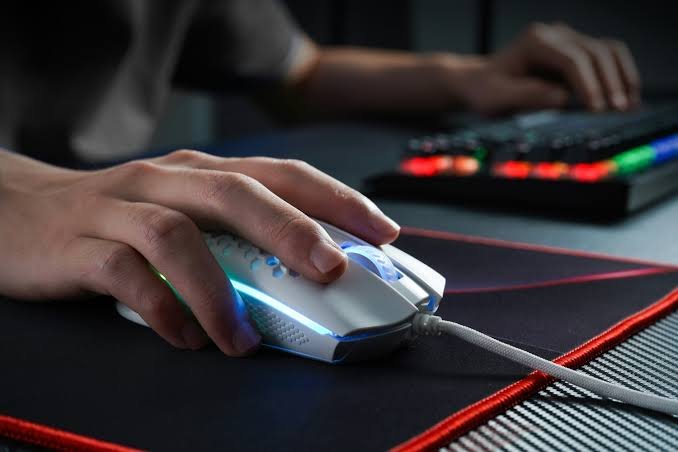
Clean-install the GPU driver and kill the overlays. Graphics drivers are a frequent source of DPC spikes, and LatencyMon will name them (dxgkrnl.sys or the vendor file). Do a clean installation of the current driver, and if that makes things worse, test the previous stable release. Then disable overlays from Xbox Game Bar, Discord, Steam, and the GPU vendor’s own app while testing. Every overlay hooks into rendering and spends CPU on each frame.
Fix the memory side. If Task Manager or LatencyMon showed heavy paging, treat RAM as the real problem. A browser with a few dozen tabs next to a modern game can fill 16 GB on its own. Close what you can, trim browser extensions, and if the pattern repeats daily, add RAM. More memory removes the hard page faults that no CPU tweak can hide.
Turn off hardware acceleration in the browser, as a test. If the stutter triggers during video playback or busy web apps, switch off hardware acceleration in the browser settings and retest. On systems with integrated graphics this matters more, because the iGPU shares power and memory bandwidth with the CPU cores.
Test with Memory Integrity off. Windows 11’s Memory Integrity feature (Settings > Privacy & security > Windows Security > Device security > Core isolation) adds real security but changes how the kernel runs driver code, and on some machines it adds measurable latency. Turn it off, reboot, and rerun your test. If nothing improves, turn it back on and keep the protection.
Skip the registry ‘latency fix packs’. Bundles of timer, HPET, and interrupt tweaks copied from forums change low-level behavior blindly and regularly create new problems. Every fix above targets a measurable cause. If you cannot measure an improvement after a change, undo it.
What if it only happens in games?
Games are the worst case for this problem because they load the CPU, draw the cursor in software, and demand precise aim all at once. The GPU can be producing a perfectly healthy frame rate while the CPU-side simulation and input threads fight for the same saturated cores, so the game looks fine in benchmarks and feels awful in your hand.
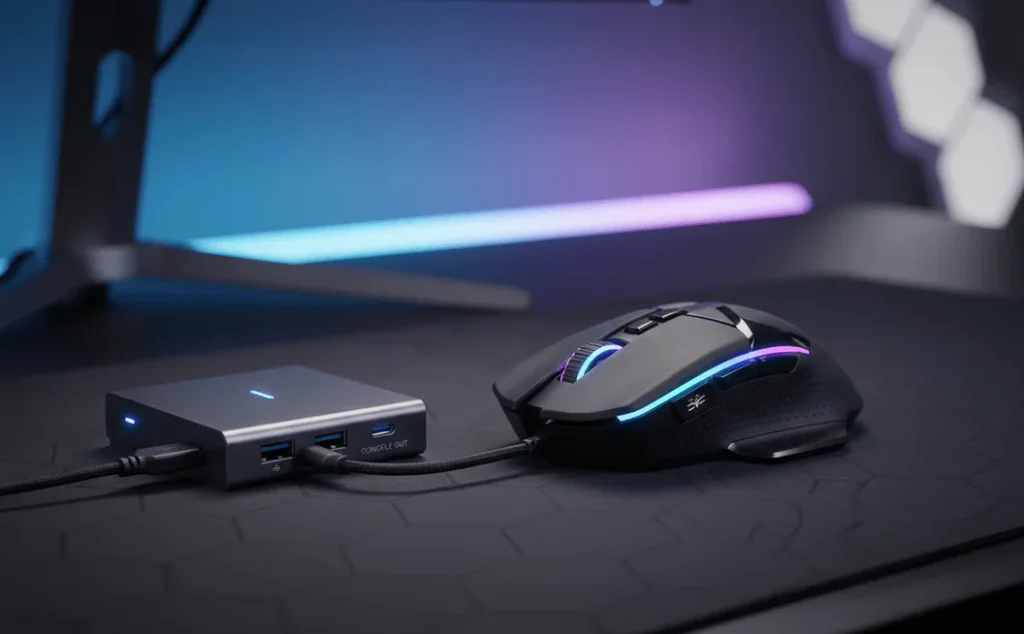
The playbook: cap the frame rate first, since that is the single biggest CPU saving available. Then lower the settings that cost CPU rather than GPU, which are usually draw distance, crowd or NPC density, physics detail, and simulation-heavy options. Close the browser and any launcher you do not need. If the game allows it, you can raise its priority one step to Above normal in Task Manager’s Details tab.
Never set a game to Realtime priority. At that level the game can outrank the very input and system threads you are trying to protect, and the stutter usually gets worse, sometimes all the way to a frozen desktop.
When it is a hardware limit
Sometimes everything is configured well and the machine is simply out of headroom for the work you give it. The signs: all cores pinned for minutes at a time, RAM at its ceiling, and CPU temperatures sitting at the throttle point. In that case, fix the cheapest bottleneck first. Cleaning dust from the cooler and repasting an old CPU restores lost clock speed for the cost of an afternoon. Adding RAM kills paging stutter and is usually the best value upgrade. A CPU with more cores comes last, and it pays off most if your stutter comes from running big background jobs while you work or play. And before spending anything, try simply rescheduling: an encode that runs overnight costs nothing and stutters for nobody.
Frequently asked questions
Why does my mouse only stutter at 100% CPU usage and not at 80%?
Below full load, Windows can still slot interrupt work into the gaps between tasks. At full saturation, especially on the core that services most interrupts, mouse reports queue up behind other work and the cursor moves in bursts. The threshold is about that one core, not the overall percentage.
Does a 4,000 Hz or 8,000 Hz polling rate cause mouse stutter?
It can on a loaded system. Every report is an interrupt, so 8,000 Hz creates eight times the processing work of 1,000 Hz, while the latency gain above 1,000 Hz is a fraction of a millisecond. If you stutter under load, drop to 1,000 Hz and retest.
Can low RAM make the mouse stutter?
Yes. When RAM fills up, Windows pages data to disk, and threads freeze on hard page faults while they wait for it, input processing included. If memory sits above roughly 90% while the stutter happens, close memory-heavy apps or add RAM.
Will switching to a wired mouse fix stutter that happens under CPU load?
Usually not. The delay happens inside the PC after the signal arrives, so wired and wireless reports both queue behind the busy CPU. A wired mouse only helps if you also have wireless interference, which shows up at idle too, not just under load.
Is it normal for the mouse to stutter when the CPU is maxed out?
A brief hitch during a spike can happen on any PC, but constant or severe stutter under load is not normal and is fixable. Interrupt work is tiny, so a healthy system keeps the cursor usable even at 100%. If yours does not, a driver, power setting, or core-loading issue is the usual culprit.
Conclusion
A mouse stutters under high CPU usage because input handling and cursor drawing have to wait for processor time, usually on one overloaded core. Find the hungry process in Task Manager, check whether RAM is full, and let LatencyMon name any driver at fault. Then free that core: lower background priorities, cap your frame rate, keep polling at 1,000 Hz, and bring chipset drivers and BIOS up to date. A good result is simple to spot: the cursor stays smooth even with the CPU pinned at 100%.
Recommended Articles:
CPU Schematic Explained: How to Read the Diagram Inside a Processor
Why WindowServer Is Using So Much CPU on Your Mac (and How to Fix It)
The Most CPU-Intensive Games You Can Play Right Now
CPU Core Unpark: What It Does and How to Turn It Off in Windows
Games That Are CPU Heavy: The Titles That Really Punish Your Processor