

WindowServer is the built-in macOS process that draws everything you see on screen, so it uses more CPU when your Mac has too much to render at once. The usual causes are external monitors, a pile of open windows and browser tabs, and the transparency and blur effects in the interface. Most of the time the fix is simple: give your Mac less to draw. Here is what the process does, when its CPU use is normal, and the exact steps to bring it back down when it is not.
What is WindowServer?
WindowServer is the part of macOS that puts pixels on your display. Every window, menu, icon, animation, the Dock, and anything shown on an external monitor passes through it. It sits between the apps you run and the picture you actually see, and it runs from the moment you log in until you log out.

Think of it as the layer that assembles the final image. When you drag a window, switch desktops, or watch something move on screen, WindowServer redraws the affected areas many times per second. That work costs CPU and GPU time. A quiet screen costs almost nothing. A busy, animated, high-resolution screen costs a lot.
You cannot quit or turn off WindowServer, and you should not try. It is essential to the graphical interface, and force-quitting it logs you out and closes every open app at once. The goal is never to stop it. The goal is to reduce how hard it has to work.
How much CPU is normal?
At rest, on a single built-in display with a few windows open, WindowServer should sit low, usually in the low single digits of CPU. Brief spikes are also normal. Open an app, drag a window, or scroll a long page and you will see the number jump for a second as the screen redraws, then settle again.
The number worth paying attention to is the one that stays high. If WindowServer holds above 60% of CPU for long stretches while you are doing light work, something is making it redraw far more than it should. You can check it yourself in about thirty seconds:
- Open Activity Monitor. Find it in Applications, then Utilities, or search for it with Spotlight.
- Click the CPU tab at the top of the window.
- Click the % CPU column heading to sort processes from highest to lowest.
- Look for WindowServer in the list and read the percentage next to it.
While you are in Activity Monitor, glance at the Memory tab too. WindowServer’s CPU and memory tend to move together, so a process that is high on one is often high on the other. If the memory figure keeps climbing the longer your Mac stays awake and never drops back, that points to a leak rather than a busy screen, and a restart is the quickest cure. It also helps to watch the number for a minute rather than trusting a single glance, since a one-second spike as a window opens is meaningless while a reading that sits high for a full minute is worth acting on.
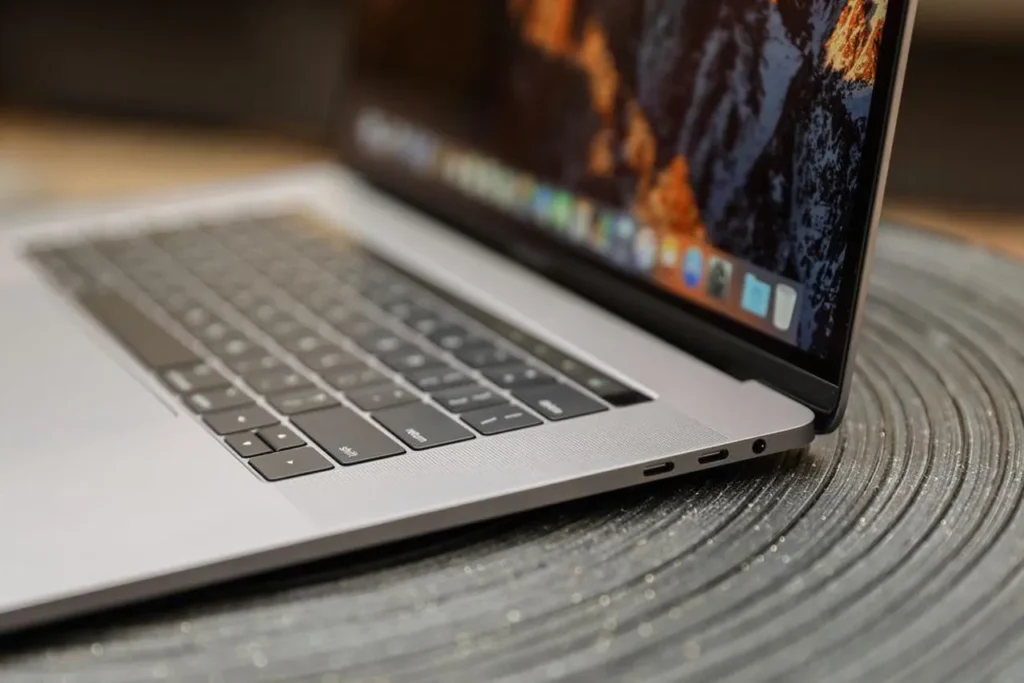
One caveat: if you are running something graphically heavy, like video editing, a 3D app, or a game, high WindowServer use is expected and fine. The workload demands it. The same goes for screen recording, running a virtual machine, or mirroring your screen to a TV, all of which give the compositor extra work by design. The fixes below are for when the number is high and your work is light.
| Quick rule: A steady reading under about 60% during everyday tasks is normal. Sustained high usage while you are just browsing or writing is the signal to act. |
Why is WindowServer using so much CPU?
Almost every case comes down to the same thing: your Mac is being asked to draw too much. A few specific setups are behind most of the trouble.
External monitors
This is the biggest single cause. Each extra display is another full screen of pixels for WindowServer to paint, and a 4K or 5K monitor multiplies that count several times over. Add a second external display and the load roughly doubles again, because your Mac now renders multiple screens in step. High refresh rates and mismatched resolutions between displays add even more redraw work.
Too many windows, apps, and browser tabs
The more that is on screen, the more WindowServer tracks and redraws. Browser tabs are a common culprit. A tab running an animation, an autoplaying video, or a live dashboard keeps sending fresh frames for the compositor to draw, even when it is hidden behind other windows. Twenty such tabs create a steady stream of work you never see but always pay for.
Chrome is worth calling out here. With hardware acceleration switched on, each tab hands its rendered graphics to WindowServer to place on screen, and a tab with active animation can do this up to sixty times a second. Stack up a dozen background tabs doing that and the compositor never gets a rest. The cleanest fix is to close or suspend tabs you are not using, but if you would rather keep them open, turning off hardware acceleration in the browser’s settings can also take that load off WindowServer, at the cost of slightly less smooth video.

Transparency and visual effects
The current macOS interface, called Liquid Glass, leans heavily on translucency, blur, and reflections. Those effects look nice, but each one asks WindowServer to composite a blur pass over window edges in real time. On a Mac with several windows open, that is a lot of extra drawing happening every frame. This is why a fresh macOS version can feel heavier than the one before it.
A cluttered desktop
Every file and folder icon on your desktop is a small thing WindowServer has to render and keep current. A desktop buried in icons adds a low, constant tax. It is rarely the whole story, but on an older Mac it adds up.
Memory leaks and long uptime
Sometimes WindowServer holds onto memory it should have released, a pattern known as a memory leak. It is usually triggered by a buggy app or a display glitch, and it tends to build up the longer your Mac goes without a restart. When memory fills, the system works the CPU harder to keep the screen moving, so CPU and memory use often climb together.
The table below maps common setups to what you can expect and what tends to help most.
| Setup | Typical WindowServer load | What helps most |
|---|---|---|
| Single built-in display | Low, a few percent at rest | Usually nothing needed |
| One 4K external monitor | Moderate, climbs while you work | Lower resolution or refresh rate |
| Two or more displays | High, especially when dragging windows | Turn off separate Spaces per display |
| Many browser tabs open | High and sustained | Close or suspend background tabs |
| Cluttered desktop | Slightly higher at all times | Move files off the desktop |
How to fix high WindowServer CPU usage
Work through these from the top. They are ordered roughly by impact and ease, so the earliest steps fix the most cases with the least effort. Check Activity Monitor after each one so you can see what actually moved the number for your Mac.
1. Restart your Mac
Start here. A restart clears memory leaks, drops stale caches, and gives the graphics system a clean slate. If a leak or a stuck rendering job was the cause, this alone often brings WindowServer back to normal. Use the Apple menu, then Restart, and it is worth unticking “Reopen windows when logging back in” so you start fresh rather than reloading the same heavy setup. Many people never fully restart and just close the lid, so this simple step is skipped more often than you would think.

2. Close what you are not using
Quit apps you have finished with, and close browser tabs you no longer need. Press Command, Option, and Escape together to open the Force Quit window and shut down anything frozen or idle. Pay special attention to browser tabs with video, animation, or live-updating content, since those keep WindowServer busy in the background. Fewer things on screen means less to draw.
3. Turn off transparency
Reducing transparency removes the blur and translucency work that WindowServer does on every window, and the drop can be immediate. Here is the path, which you can confirm on Apple’s accessibility display settings guide:
- Open the Apple menu and choose System Settings.
- Click Accessibility in the sidebar.
- Select Display.
- Turn on Reduce transparency.
No restart is needed. The interface loses some of its glassy look, but the whole system tends to feel snappier, not just WindowServer.
4. Fix your external display setup
If the spikes appear only when a monitor is plugged in, this is your fix. Try these in order and watch the effect:
- Lower the resolution or switch the external display to its default scaling, which cuts the number of pixels to draw.
- Lower the refresh rate if the monitor runs high, since each frame is redraw work.
- Match resolution and refresh rate across displays so macOS does not fight to sync them.
- Use a certified cable or adapter, because a flaky signal can force extra redraws.
If you run two or more displays, turn off separate Spaces for them. Go to System Settings, then Desktop & Dock, scroll to the Mission Control section, and switch off “Displays have separate Spaces.” You will need to log out and back in for it to take effect. This stops macOS doing duplicate desktop management across screens.
5. Clean up your desktop
Move files off the desktop into folders in your Documents folder, or right-click the desktop and choose Use Stacks to group them automatically. With fewer loose icons to render, WindowServer has slightly less to keep current at all times. It is a small win, but a free one.

6. Update macOS
Apple regularly ships fixes for graphics and performance bugs, and some WindowServer spikes are resolved in point updates. Open System Settings, go to General, then Software Update, and install anything waiting. Keeping the system current is one of the easiest ways to avoid problems that were already fixed for everyone else.
7. Try Safe Mode if it persists
If the number stays high after everything above, Safe Mode helps you work out whether the cause is macOS itself or something you added. Safe Mode starts your Mac with only the essentials and skips third-party startup items. If WindowServer behaves normally there, one of your own apps or login items is the trigger, and you can re-enable them one at a time to find the guilty one. How you enter Safe Mode depends on your chip: on Apple Silicon, shut down, then hold the power button until startup options appear and choose your disk while holding Shift; on Intel, restart and hold Shift until the login screen shows.
| Tip: You can restart the graphical layer without a full reboot by logging out and back in (Apple menu, then Log Out). It clears WindowServer’s temporary state in seconds, which is handy when a quick reset is all you need. |
Apple Silicon vs Intel: does the chip matter?
It does, a little. Macs with Apple Silicon (the M-series chips) handle graphics more efficiently than older Intel Macs, because the GPU is built into the same chip and tuned for macOS. Running the same visual workload, an Intel Mac often shows higher WindowServer CPU numbers, while an M-series Mac stays lower.
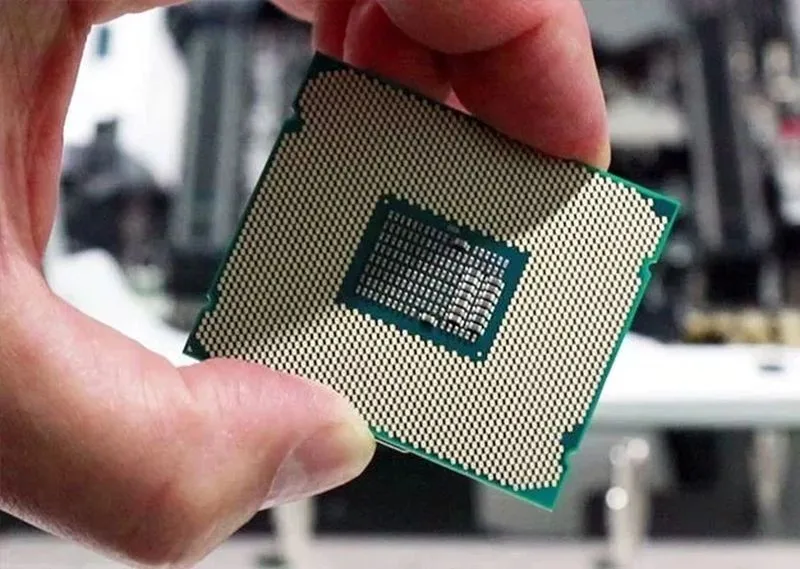
There is a twist on Apple Silicon, though. These chips use unified memory, meaning the CPU and GPU share one pool of RAM. WindowServer’s drawing work competes for the same memory as your apps, so on a Mac with less RAM, heavy graphics and memory-hungry apps can squeeze each other. If you plan to run demanding apps or juggle many tabs and displays, more memory helps keep everything smooth. Worth knowing: the current macOS Tahoe is the last version to support Intel Macs, so if you are on Intel, this is the final release you will get.
When it is not WindowServer at all
Sometimes WindowServer takes the blame for a slowdown that another process is causing. A quick test settles it: log out and back in. If usage returns to normal, one of your apps or a background agent was the real trigger, and you can start closing things one at a time to find it.
A few processes are often mistaken for WindowServer trouble. If Spotlight is rebuilding its index, a process named mds_stores can run hot for a while, and that is unrelated to WindowServer even though your Mac feels slow at the same time. A Time Machine backup can also load the system briefly. In rare cases, badly made malware, adware, or a hidden crypto miner disguises itself as a normal system service and drives usage up. If your Mac stays hot and slow after everything above, and especially if it started after installing something you do not fully trust, it is worth running a reputable malware scan and checking Apple’s guidance on keeping your Mac secure.
Frequently asked questions
Can I kill or disable WindowServer?
No. WindowServer runs the entire graphical interface and cannot be turned off. Force-quitting it logs you out and closes every open app at once. Instead of stopping it, reduce its workload by closing windows, cutting transparency, and simplifying your displays.
Is high WindowServer CPU a sign of a virus?
Usually not. It is almost always heavy on-screen activity like extra monitors, many tabs, or visual effects. If usage stays high after all the standard fixes, and it began after installing something untrusted, then run a reputable malware scan to rule it out.
Why does WindowServer use so much CPU with an external monitor?
Each display is a full screen of pixels to draw, and a 4K or 5K monitor multiplies that count. Lower the resolution or refresh rate, match settings across screens, and turn off separate Spaces per display to bring the load down.
How do I check WindowServer CPU usage?
Open Activity Monitor from Applications, then Utilities. Click the CPU tab, then click the % CPU column to sort by highest, and find WindowServer in the list. A steady reading under about 60% during light work is normal.
Does WindowServer also use a lot of memory?
It can. CPU and memory use often rise together, since a memory leak or a very busy screen pushes both up. A restart clears leaked memory and usually brings both back to normal at the same time.
Conclusion
WindowServer draws your screen, so it uses more CPU when there is more to draw. If the number stays high during light work, give your Mac less to render: restart it, close spare windows and tabs, turn on Reduce transparency, and simplify your external display setup. A good result is WindowServer sitting low at rest with only brief spikes as you work. If it stays high after all of that, look past WindowServer to indexing, backups, or malware.
Recommended Articles:
The Most CPU-Intensive Games You Can Play Right Now
CPU Core Unpark: What It Does and How to Turn It Off in Windows
MS Office Click-to-Run High CPU: Why It Happens and How to Fix It
Windows Explorer High CPU: Why It Happens and How to Fix It
Games That Are CPU Heavy: The Titles That Really Punish Your Processor