
Windows Explorer should barely touch your processor. At idle, the explorer.exe process normally sits between 0 and 5 percent CPU. If Task Manager shows it stuck at 20, 50, or even 80 percent, something is feeding it work it can’t finish. The usual suspects are a faulty right-click extension, a cloud sync client, a corrupt thumbnail cache, damaged system files, or, less often, malware pretending to be Explorer.
The fastest first move is to restart the Explorer process, which clears the symptom in seconds. To stop it from coming back, you need to find what is driving the load. This guide walks you through that in order, starting with the quickest checks and ending with the fixes for stubborn cases.
Why so many things can push Explorer’s CPU up
Explorer is not just the window you browse files in. The same process draws your desktop, taskbar, and Start button, generates thumbnails and previews, builds the right-click menu, and shows sync badges for services like OneDrive. It also hosts add-ons from other programs, called shell extensions, which run inside Explorer itself. That is why a problem in a completely different app, say an old archive tool or a cloud drive, can show up in Task Manager as “Windows Explorer” eating your CPU.
First, restart the Explorer process
Before anything else, restart Explorer. It takes ten seconds, loses nothing, and fixes one-off glitches on the spot.
- Press Ctrl + Shift + Esc to open Task Manager.
- On the Processes tab, scroll to Windows Explorer.
- Right-click it and choose Restart. Your taskbar and desktop icons will vanish for a moment, then come back. That flicker is normal, and no open files are harmed.
Now watch the CPU column for a few minutes. If usage settles near zero and stays there, you are done. If it climbs back up within minutes or hours, the problem has a real cause, and the rest of this guide is about finding it.
What causes Windows Explorer to use high CPU?
The pattern of the problem usually points to the cause. Match what you are seeing against this table, then jump to the fix that fits.
| What you notice | Most likely cause |
| CPU spikes when a folder is open, especially photos or videos | Thumbnail generation or a corrupt thumbnail cache (Fix 1) |
| Constant load even when you are doing nothing | A cloud sync client, the search indexer, or malware (Fixes 2, 5, 6) |
| Spikes when you right-click or hover over files | A faulty third-party shell extension (Fix 3) |
| Started right after a Windows update | An update bug, common on Windows 11 24H2 (Fix 7) |
| Happens in your account but not in a fresh one | A corrupt user profile (Fix 8) |
Fix 1: Clear the File Explorer history and the thumbnail cache
Explorer keeps a running history of the files and folders you open, plus a cache of every thumbnail it has ever drawn. When entries in either one go bad, Explorer can get stuck re-reading them over and over. Clearing both is quick and safe.
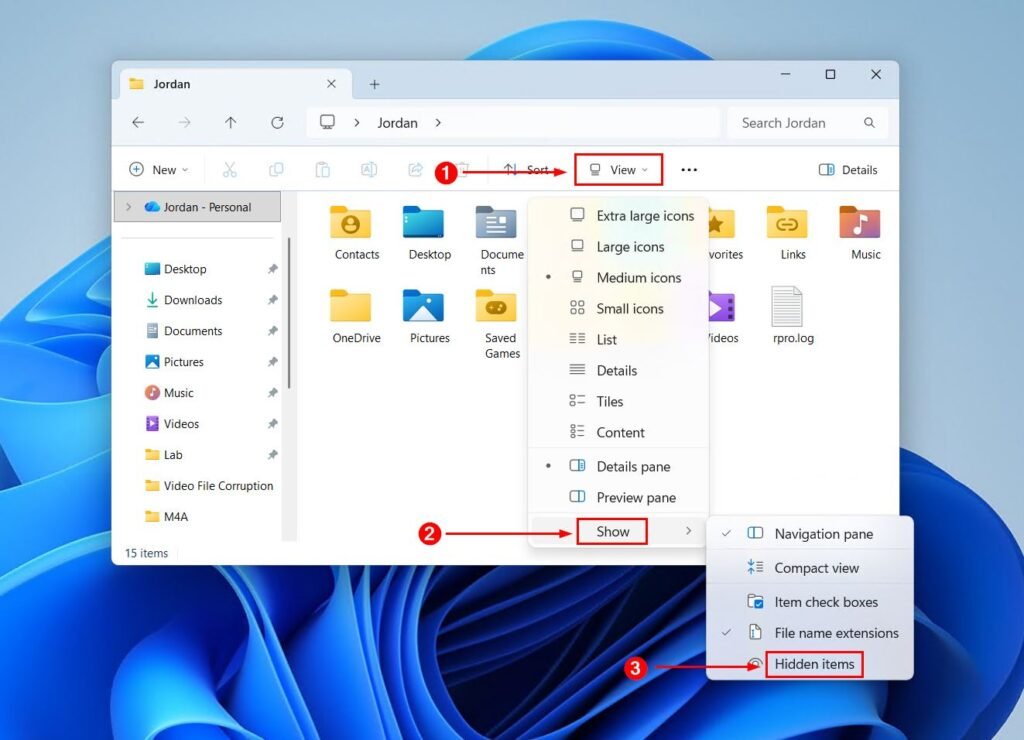
- Open File Explorer, click the three-dot menu (or the View menu on Windows 10), and choose Options.
- On the General tab, click Clear next to “Clear File Explorer history,” then OK.
- Press the Windows key, type disk cleanup, and open it.
- Pick your C: drive, tick Thumbnails (and Temporary files while you are there), and click OK.
Windows rebuilds thumbnails as you browse, so folders full of images may feel slow for a minute or two afterward. That is expected and passes quickly.
Fix 2: Pause your cloud sync client
OneDrive, Google Drive, and Dropbox all plug into Explorer. They add sync badges to file icons, entries to the sidebar, and items to the right-click menu. During a big sync, or when the client hits a file it cannot process, Explorer redraws constantly, and its CPU climbs with it.
The test is simple: click the sync client’s icon in the system tray and pause syncing for two hours, then watch Task Manager. If Explorer calms down, you have found your cause. From there, you have options that keep the service useful. Turn on files on demand so files stay in the cloud until you open them, exclude very large folders from sync, or, if one client is a repeat offender, unlink it and sync through its website instead.
Fix 3: Find and disable a bad shell extension
This is the single most common root cause when CPU spikes on right-clicks or when you hover over files. A shell extension is a small piece of another program that runs inside Explorer, which is how WinZip gets its own right-click menu and how an antivirus adds a “Scan this file” option. One buggy extension can drag the whole process down.
The free ShellExView utility from NirSoft lists every extension on your system and lets you switch them off one by one, with no installation needed. Here is the fastest way to use it:
- Download the 64-bit version, extract the ZIP, and run shexview.exe as administrator.
- Open the Options menu and choose “Hide All Microsoft Extensions,” so only third-party ones remain.
- Select all the remaining entries and press F7 to disable them, then restart Explorer when prompted.
- Use your PC normally for a while. If the CPU problem is gone, re-enable extensions in halves (press F8) until it comes back. The last batch you re-enabled contains the culprit; narrow it down the same way.
Tip: Disabling an extension is not uninstalling it. The program keeps working; it just stops loading its add-on into Explorer. You can re-enable anything with one keypress, so this whole process is reversible.
The usual offenders are context-menu entries from old antivirus suites, cloud drive handlers, archive tools, and video preview handlers. Once you know which one it is, update that program or leave its extension off.
Fix 4: Repair damaged system files
Explorer leans on hundreds of Windows system files, and if any of them are corrupt, it can misbehave in exactly this way. Windows ships two repair tools that fix this without touching your personal files. Run them back-to-back:
- Press the Windows key, type cmd, right-click Command Prompt, and choose Run as administrator.
- Type DISM /Online /Cleanup-Image /RestoreHealth and press Enter. This repairs the system image Windows uses as its reference copy and can take several minutes.
- When it finishes, type sfc /scannow and press Enter. This scans every protected system file and replaces damaged ones.
If the scan reports corrupt files that it cannot fix, run it again after a restart; it sometimes takes two or three passes to repair everything. Microsoft’s System File Checker page covers the exact messages you might see and what each one means.
Fix 5: Rebuild the Windows Search index
Windows keeps an index of your files so search results appear instantly, and the indexer works hand in hand with Explorer. A damaged index makes both of them grind, especially the moment you type into the search box.
- Press the Windows key, type indexing options, and press Enter.
- Click Advanced, then click Rebuild under Troubleshooting, and confirm.
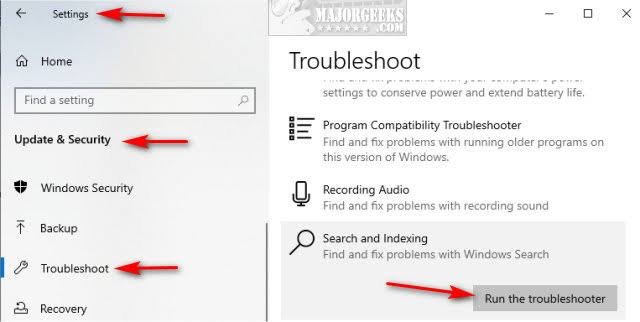
Fair warning: rebuilding pushes CPU and disk usage up for a while, sometimes a few hours on a drive with a lot of files. That spike is the fix working, not a new problem. If the indexer stays hungry even after the rebuild settles, open Modify in the same window and untick huge folders you never search, such as Downloads or a media archive.
Fix 6: Rule out malware
Crypto miners and other malware love to disguise themselves as explorer.exe or inject their code into the real one, because a busy Explorer looks less suspicious than an unknown process. Two quick checks settle it.
First, in Task Manager, right-click the busy Windows Explorer entry and choose “Open file location.” The real file lives in C:\Windows. If you land anywhere else, treat the machine as infected. Second, run a full scan: open Windows Security, go to Virus & threat protection, choose Scan options, and pick Full scan. For anything stubborn, run the Microsoft Defender Offline scan from the same menu; it restarts the PC and scans before Windows fully loads, which catches malware that hides while the system is running.
Fix 7: Install pending Windows updates
Sometimes the bug is not on your machine at all; it shipped with Windows. The Windows 11 24H2 release caused Explorer performance problems on a subset of PCs, including high CPU usage at idle and slow thumbnails. Microsoft addressed several of these in cumulative updates starting with the April 2025 preview update (KB5055627) and follow-up patches through 2025.
Open Settings, go to Windows Update, and install everything pending, then restart. The reverse case matters too: if your problem began within a day or two of an update installation, go to Windows Update, then Update history, then Uninstall updates, and remove the most recent one. If Explorer calms down, hide or delay that update until a fixed version arrives.
Fix 8: Create a new user profile
When nothing above works, the settings and cached data in your user profile may be the problem. Plenty of people have chased this issue for weeks, only to find a fresh account fixed it instantly. Test it before committing:
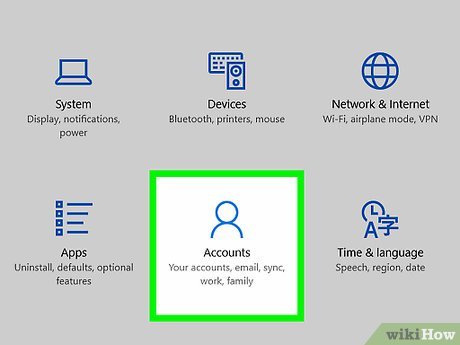
- Open Settings, go to Accounts, then Other users, and click Add account.
- Choose “I don’t have this person’s sign-in information,” then “Add a user without a Microsoft account,” and create a local account.
- Sign out, sign in to the new account, and use it for a while with Task Manager open.
If Explorer behaves normally there, your old profile is corrupt. Copy your files across from C:\Users\YourOldName, sign in to your apps again, and make the new account your daily one. It is tedious, but far faster than reinstalling Windows.
Still stuck? Find the exact culprit
In the rare case that nothing above survives, Microsoft’s free Process Explorer tool (part of the Sysinternals suite) can identify the exact file responsible. Run it, double-click explorer.exe, open the Threads tab, and sort by CPU. The busiest thread’s start address indicates which DLL is doing the work, and that DLL’s name usually points directly to the program to update or remove. A clean boot, which starts Windows with all third-party services off, is another way to confirm that outside software, not Windows itself, is to blame.
Frequently asked questions
Why is explorer.exe using so much CPU?
Something is loading work into the Explorer process: usually a faulty shell extension, a cloud sync client, a corrupt thumbnail cache, or damaged system files. Explorer hosts add-ons from other programs, so the real culprit is often a third-party app, not Windows itself.
Is it safe to end or restart the Windows Explorer task?
Yes. Restarting Windows Explorer in Task Manager makes the desktop and taskbar disappear for a second or two, then reload. No open files or documents are lost. It is the standard first fix for Explorer problems and is completely safe.
Why does Explorer’s CPU spike when I move my mouse?
Hover spikes almost always trace back to a broken third-party shell extension or a corrupt thumbnail. As the pointer passes over files, Explorer asks its add-ons to draw previews and tooltips, and one faulty handler turns that into heavy work. Fix 3 (ShellExView) targets this directly.
Can malware disguise itself as explorer.exe?
Yes, and it is a common trick. Right-click the process in Task Manager and choose Open file location: the real explorer.exe lives in C:\Windows. If the file sits anywhere else, run a full scan plus a Microsoft Defender Offline scan right away.
Does Windows 11 24H2 cause Explorer to use high CPU?
On some PCs, yes. The 24H2 release introduced Explorer performance regressions, including high CPU at idle. Microsoft shipped fixes in cumulative updates from April 2025 (KB5055627) onward, so installing all pending updates is the first thing to try on 24H2.
Conclusion
Windows Explorer high CPU is a symptom with a short list of causes: a bad shell extension, cloud sync churn, a corrupt thumbnail cache or search index, damaged system files, malware, an update bug, or a broken profile. Restart Explorer for instant relief, match your symptom to the table above, and apply the fix that fits. A healthy Explorer sits under 5 percent CPU at idle; once yours does too, you are done.
Recommended Articles:
How to Find CPU Usage in Linux: 6 Commands That Actually Work
CPU Scheduling Calculator: How to Work Out Waiting, Turnaround, and Response Time by Hand
Why Your Motherboard’s BIOS Might Be Limiting Your CPU (And How to Fix It)
Minecraft Server CPU Requirements: What You Actually Need
Plex Says “Not Enough CPU for Conversion of This Item”: How to Fix It