
Most desktop CPUs run between 60°C and 80°C while gaming. Anything under 85°C is fine and needs no action at all. Gaming laptops run hotter, usually 80°C to 95°C, and that is normal for them too.
There is no single safe number for every machine, because each processor ships with its own rated ceiling. Some stop at 89°C. Others are built to sit at 105°C all day. What matters is where your chip’s limit sits and how much room you have below it. The goal is steady frame rates and fans you can ignore, not the lowest reading you can get.
What is a normal CPU temperature while gaming?
A desktop with a decent cooler and a clean case usually lands in the 60s and 70s during a game, with short jumps into the 80s. Games rarely load every core at once, so gaming temperatures normally sit below what a stress test or a video export produces.
| What you are doing | Desktop | Gaming laptop |
| Sitting on the desktop (idle) | 30 to 50°C | 40 to 60°C |
| Gaming | 60 to 80°C | 80 to 95°C |
| Rendering or stress testing | 75 to 95°C | 90 to 100°C |
Short spikes are part of how these chips work. A modern processor pushes its clock speed and voltage up until it runs into a power, current, or temperature limit, then eases off. So a quick jump to 90°C while a level loads means the boost behaviour is doing its job. Judge the average across fifteen minutes of play rather than the highest number you ever caught.
How hot can your CPU get before it is a problem?
Right up to its rated maximum. Every processor comes with a temperature ceiling, written on the spec sheet as Tjunction or Tjmax, and that is simply the point where the chip starts slowing itself down to stay safe.
| Processor | Rated ceiling |
| AMD Ryzen 7000 and 9000 desktop, including the Ryzen 7 9800X3D | 95°C |
| AMD Ryzen 7 7800X3D | 89°C |
| Intel 13th and 14th Gen Core desktop | 100°C |
| Intel Core Ultra 200S desktop | 105°C |
| Most gaming laptop chips | 100°C or higher |
Look yours up before you judge your numbers. Intel gives the figure for each model under Package Specifications on its product pages and explains the terms on its temperature support page. AMD lists the same thing as Max. Operating Temperature (Tjmax) on every processor page. Two minutes of checking beats a week of worrying.
The differences between models are deliberate. AMD’s X3D gaming chips carry a layer of stacked cache on the die, and some of them stop lower than the standard versions because of it. Your motherboard also lets you set a limit below the rated one in BIOS, which is worth knowing if you would happily trade a hundred megahertz for quieter fans.
Hitting the rated limit is not damage. It is the temperature at which your CPU starts trading speed for safety.
Is 80°C too hot? What about 85 or 90?
80°C is comfortable and 85°C is nothing to worry about. Below 80°C you have plenty of headroom, fans stay quiet, and a warm afternoon will not change much.
Between 80°C and 90°C you are still in normal territory, especially on a Ryzen 9 or Core i9 class chip that draws a lot of power. If your frame rate is steady and the fans are not screaming, leave it alone.
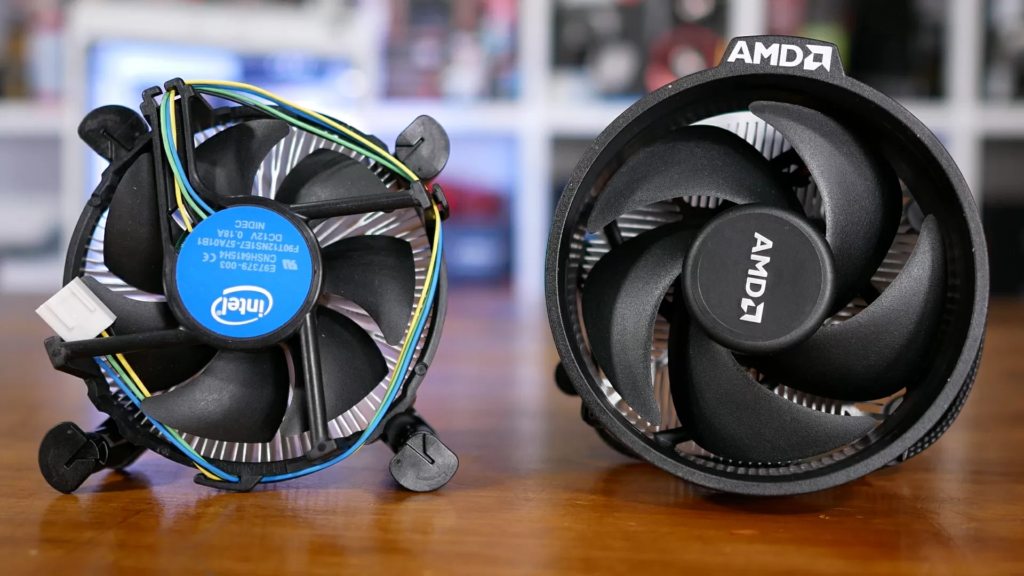
From 90°C up to the rated limit the chip is safe but out of headroom. It holds that temperature by shaving clock speed, so you lose a little performance and gain a lot of fan noise. That is worth fixing, and it is usually cheap to fix.
Sitting right at the limit during an ordinary game is different. That points to a real fault: a cooler that is not making proper contact, a fan that has stopped, a case packed with dust, or a cooler far too small for the chip.
What happens when a CPU runs too hot?
It slows down. Thermal throttling means the processor cuts its clock speed and voltage to shed heat, and you feel that as stutter, uneven frame pacing, and weaker lows rather than a crash. If throttling is not enough, the system shuts itself off. Both protections are built into the silicon, which is why overheating almost never kills a modern CPU outright.
The shutdown point sits well above the throttling point, so a chip rated to 95°C does not cut out the second it touches 95°C. It parks there and gives up clock speed instead. That is also why a temperature number on its own cannot tell you if your cooling is good enough. Watch the clock speed at the same time, and you will know straight away if the chip is holding its boost or falling back.
Long-term wear is real but slow. Heat and voltage together age the transistors over years, and chips are validated to run at their rated temperature for their full service life. The practical cost of running hot is the performance you paid for and the noise you have to sit next to, not a processor that dies next month.
How do you check your CPU temperature while gaming?
Use a monitoring app, because Windows Task Manager reports CPU usage but not CPU temperature. HWiNFO is the usual pick, and its sensors-only mode logs a minimum, average, and maximum for every reading, which is exactly what you want to see after a session. On a Ryzen system, AMD’s own Ryzen Master utility shows per-core clocks, voltages, and temperature in real time. Intel’s Extreme Tuning Utility does the same job on the other side. Your motherboard BIOS shows a temperature too, but only at idle, so it tells you almost nothing about gaming.
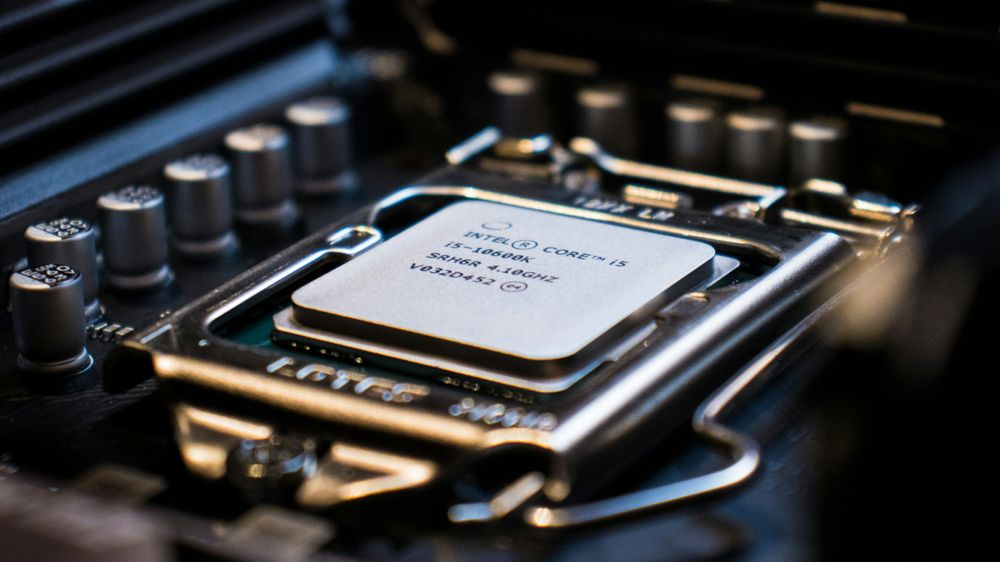
If you would rather watch as you play, an on-screen overlay such as the one in MSI Afterburner puts temperature, clock speed, and frame rate together in a corner of the game. Seeing all three at once is the quickest way to spot throttling.
Watch the right sensor. On Ryzen that means Tctl/Tdie or CPU die average. On Intel it means CPU package. Play for fifteen or twenty minutes, then read the average and the maximum together, because one brief peak on its own proves nothing.
Why is your CPU running hotter than you expected?
Nearly always the cooler, the paste, or the air around it.
- The cooler is too small for the chip. A slim tower rated for a 65W processor cannot keep up with one that pulls 250W under load.
- The cooler is not seated properly. Uneven mounting pressure or a loose bracket can cost 15°C on its own.
- The thermal paste has dried out. After three or four years it stops moving heat the way it should.
- Dust has clogged the fins and filters. This is the usual reason a PC that ran cool last year does not now.
- The case has no through-draft. Air needs a clear path in at the front and out at the back and top.
- The room is warm. Your CPU temperature rides on top of ambient, so a 30°C room lifts every reading with it.
- Background software is loading cores. Shader compilation, cloud sync, updates, and antivirus scans all add heat while you play.
How do you lower your CPU temperature while gaming?
Work through these in order, because the cheap fixes usually do the most.
- Clean it out. Get the dust off the cooler fins, the fans, and the filters. On a neglected machine this alone can take off 10°C.
- Fix the fan curve. Default profiles keep fans slow and quiet for far too long. In BIOS, set the CPU fan to ramp steadily from around 50°C instead.
- Sort out the airflow. Two intake fans at the front and one exhaust at the back covers most cases. Check that nothing is pressed against the front panel.
- Reseat the cooler and repaste. A pea-sized blob of fresh paste and an even remount is the biggest single gain on an older build.
- Undervolt instead of downclocking. On Ryzen, a negative Curve Optimizer offset trims voltage while keeping boost clocks. On Intel, lowering the PL1 and PL2 power limits caps sustained draw. Either one drops temperature with little effect on frame rate, since games rarely use the whole power budget anyway.
- Upgrade the cooler last. If the chip still runs hot after all that, match the new cooler to the processor’s peak power draw rather than its TDP figure.
Are gaming laptop temperatures different?
Yes, and higher is normal. A laptop pushes a hundred watts or more through a chassis a couple of centimetres thick, often with heat pipes shared between the processor and the graphics chip. Readings of 85°C to 95°C during a game are routine there, and brief throttling is part of the design rather than a fault.
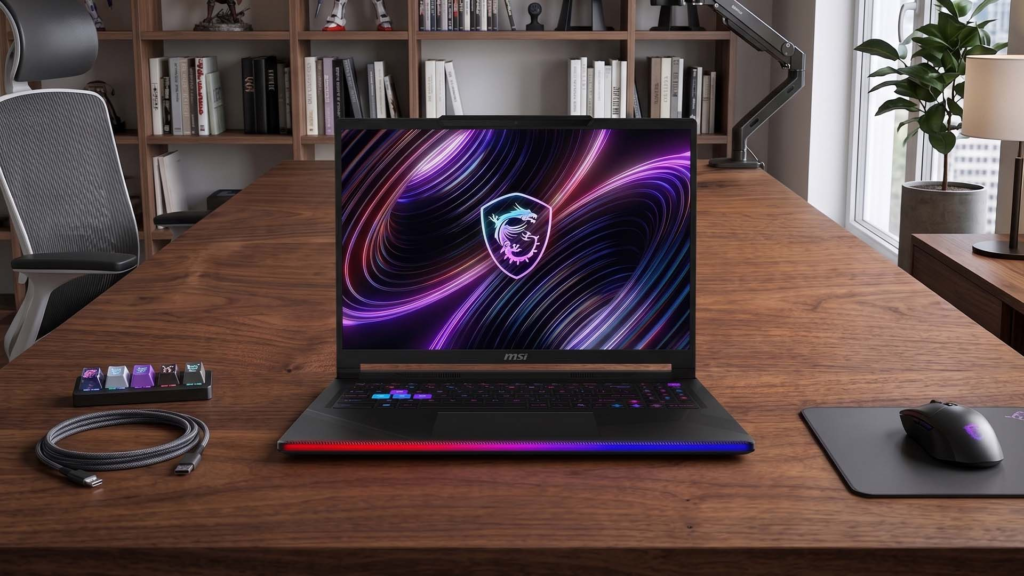
You still have a few levers. Play on a hard flat surface so the intakes underneath stay clear, blow the dust out of the vents every few months, and cap your frame rate so the CPU is not preparing frames your screen cannot show. A stand that lifts the back of the machine helps more than most cooling pads. If a laptop is three or more years old and runs much hotter than it used to, fresh paste is usually the answer.
Frequently asked questions
Is 90°C safe for a CPU while gaming?
Yes, for most current chips, because their rated limits are 95°C or higher. It does mean you have no headroom left, so expect a little lost clock speed and loud fans. Cleaning the cooler and repasting usually brings it down.
Why is my CPU hotter than my GPU while gaming?
Graphics cards carry far bigger heatsinks and fans than CPU coolers do, so they shift more heat at a lower temperature. A CPU at 75°C next to a GPU at 65°C is a perfectly normal pairing.
Does a high CPU temperature lower my FPS?
Only once the chip starts throttling. At that point it drops clock speed to stay inside its limit, which shows up as stutter and weaker lows rather than a big fall in average frame rate.
What is a normal idle CPU temperature?
Around 30°C to 50°C on a desktop and 40°C to 60°C on a laptop, depending on the room. Idle readings bounce a lot because background tasks keep waking cores, so brief spikes to 60°C mean nothing.
Do I need liquid cooling to keep gaming temperatures down?
No. A good dual-tower air cooler matches most 240mm and 280mm liquid coolers. Liquid only pulls ahead on high-power chips under long all-core loads, which gaming rarely produces.
Conclusion
Aim for 60°C to 80°C on a desktop and 80°C to 95°C on a laptop while gaming, and treat anything under 85°C on a desktop as fine. Look up your own processor’s rated ceiling and judge your readings against that. If you are sitting close to it, clean the dust, fix the fan curve, and repaste before spending money. A good result is steady frame rates with fans you barely hear.
Recommended Articles: