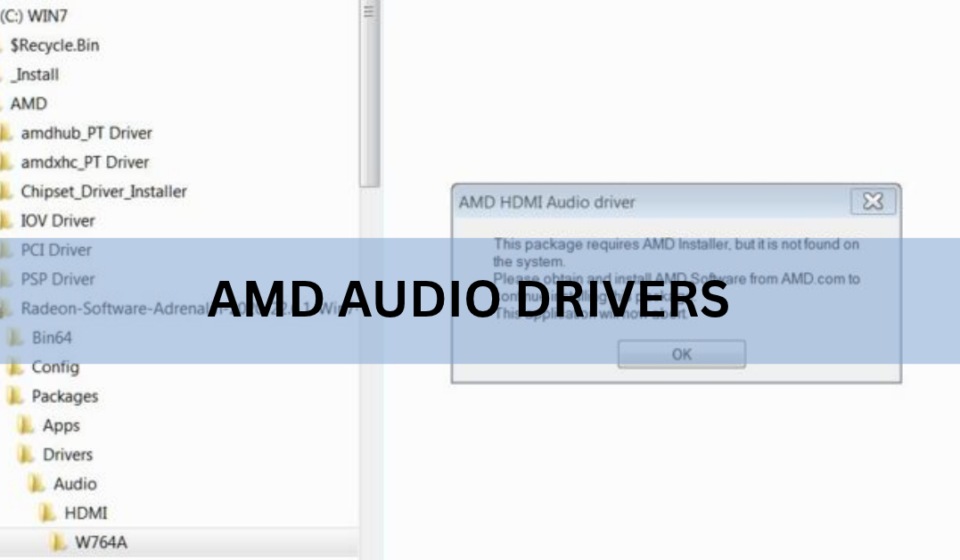

AMD audio drivers control the sound your PC sends through an HDMI or DisplayPort cable to a monitor, TV, or receiver. On Windows this shows up as the AMD High Definition Audio Device, and its driver comes bundled inside the AMD Software: Adrenalin graphics package you download from amd.com. You don’t install it on its own. Update your Radeon graphics driver and the audio driver updates with it.
That one fact clears up most of the confusion. If your headphones or desk speakers went quiet, an AMD audio driver is usually not the fix. Here’s what the driver does, how to get it safely, and how to install it in a few minutes.
What are AMD audio drivers?
An AMD audio driver is the small piece of software that lets Windows push sound out through your AMD graphics card’s video ports. When you plug an HDMI or DisplayPort cable into a screen with speakers, the picture and the sound travel down the same cable. The driver is what makes the sound half of that work.
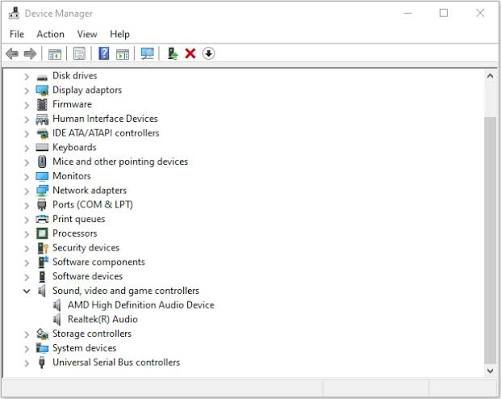
In Device Manager it appears as the AMD High Definition Audio Device, listed under “Sound, video and game controllers.” It’s built into Radeon graphics hardware, including the Radeon RX, R9, R7, and R5 families, and it only handles audio over those video ports.
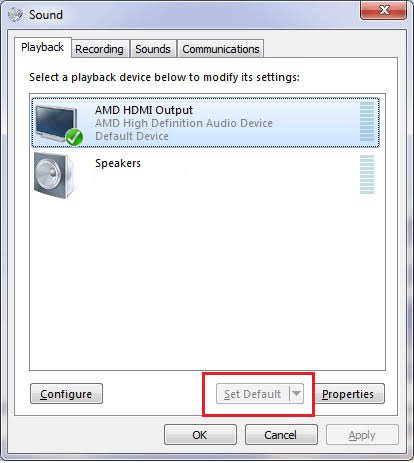
Key point: AMD audio drivers are for HDMI and DisplayPort sound only. Your PC’s headphone jack, built-in speakers, and microphone run on a separate driver, usually Realtek or one from your motherboard or laptop maker.
So if the problem is your analog speakers or a USB headset, you’re looking in the wrong place. The AMD driver won’t touch those. It matters when your sound needs to reach a TV or monitor through the graphics card.
Do you actually have an AMD audio device?
Check before you download anything. Two minutes in Device Manager tells you whether this driver is even part of your setup.
- Press Windows + X and choose Device Manager.
- Expand Sound, video and game controllers.
- Look for AMD High Definition Audio Device. If it’s there, you have it.
A yellow triangle on the entry means the driver is missing or broken. No AMD entry at all, but you’re sure you have Radeon graphics, usually means the graphics driver never fully installed, which the steps further down will fix.
If you have an AMD Ryzen processor with built-in graphics (an APU), you also have this device, because those chips output video and audio the same way a Radeon card does.
Where to get AMD audio drivers safely
Get them from one place: AMD’s official Drivers and Support page. The audio driver is packaged inside AMD Software: Adrenalin Edition, so you never download it as a standalone file. You grab the graphics package, and the HDMI/DisplayPort audio driver comes with it.
You have two ways to get the right package from that page:
- Auto-Detect and Install tool: a small utility that scans your PC, finds your exact Radeon or Ryzen hardware and Windows version, and offers the correct package. Easiest option for most people.
- Product Selector: pick your graphics model by hand from the menus, then download the matching package. Use this if you already know your card or want an older version.
The Auto-Detect tool works on Windows 11 (version 21H2 and later) and Windows 10 64-bit (version 1809 and later). As of early 2026 the current release is AMD Software: Adrenalin Edition 26.3.1. You can read AMD’s own Auto-Detect tool guide if you want the full walkthrough with screenshots.
Avoid “driver download” aggregator sites that offer a lone AMD audio file. Those files are often years out of date, can be the wrong version for your hardware, and sometimes bundle unwanted software. The official package is free and safer.
How to install AMD audio drivers (step by step)
Because the audio driver ships inside the graphics package, installing it means installing or updating AMD Software: Adrenalin. Here’s the clean way to do it.
- Go to the AMD Drivers and Support page and download the Auto-Detect and Install tool (about 46 MB).
- Double-click the downloaded .exe file and approve the Windows admin prompt.
- Click Install to unpack the setup files. Keep the default install location.
- Let the installer scan your PC. It shows the latest recommended driver for your detected graphics hardware.
- If you want a fresh start, expand the options and choose Factory Reset (also called a clean install), which removes old driver leftovers first. This clears up a lot of stubborn audio glitches.
- Click Install, wait for it to finish, then restart your PC. The restart is not optional; the audio device often won’t appear until you reboot.
After the reboot, plug in your HDMI or DisplayPort cable, right-click the speaker icon in the taskbar, open Sound settings, and pick your TV or monitor as the output device. Sound should now travel through the cable.
Laptop or all-in-one? Read this first
If you’re on a laptop or an all-in-one PC, don’t start with the AMD.com package. AMD’s own advice is to use the driver from your device maker instead.
Here’s why. Laptop and all-in-one drivers are tuned by the manufacturer, HP, Lenovo, Dell, ASUS, and so on, for that exact machine, including power settings and display features that a generic AMD package can skip. The reference driver from AMD.com can work, but it can also cause quirks on those systems.
- First choice: your laptop maker’s support page, searched by your model number.
- Backup: the AMD.com package, if the manufacturer’s driver is old or missing the fix you need.
Handheld gaming PCs are a separate case. The standard Adrenalin package doesn’t support them, so use the driver from the handheld’s maker.
Fixing common AMD audio problems
Most AMD audio trouble comes down to a few repeat offenders. Work through these in order.
No sound over HDMI or DisplayPort
Windows usually keeps your old output selected after you plug in a screen. Right-click the taskbar speaker icon, open Sound settings, and set your TV or monitor as the output. If it’s not listed, reinstall the graphics package using the clean install option above and reboot.
The AMD audio device is missing from Device Manager
This almost always means the graphics driver didn’t install fully. Run the Auto-Detect tool with a Factory Reset, restart, then check again. If it’s still gone, an old or broken driver may be blocking it, and AMD’s Cleanup Utility can strip the leftovers before you reinstall.
Sound cuts in and out during games or video
Intermittent HDMI audio dropouts are a known headache, often tied to a power-saving setting on the audio device. Updating to the newest Adrenalin package fixes it for many people. Also try a different HDMI or DisplayPort cable and a different port on your screen, since a marginal cable causes the same symptom.
The driver won’t install
If setup fails, run AMD’s Cleanup Utility to fully remove any half-installed driver, restart in the process it asks for, then install the fresh package from scratch. A clean slate solves most install errors.
Should you use a third-party driver updater?
You don’t need one. Those tools promise to find and update your AMD audio driver automatically, but the built-in Auto-Detect tool from AMD does the same job, straight from the source, for free.
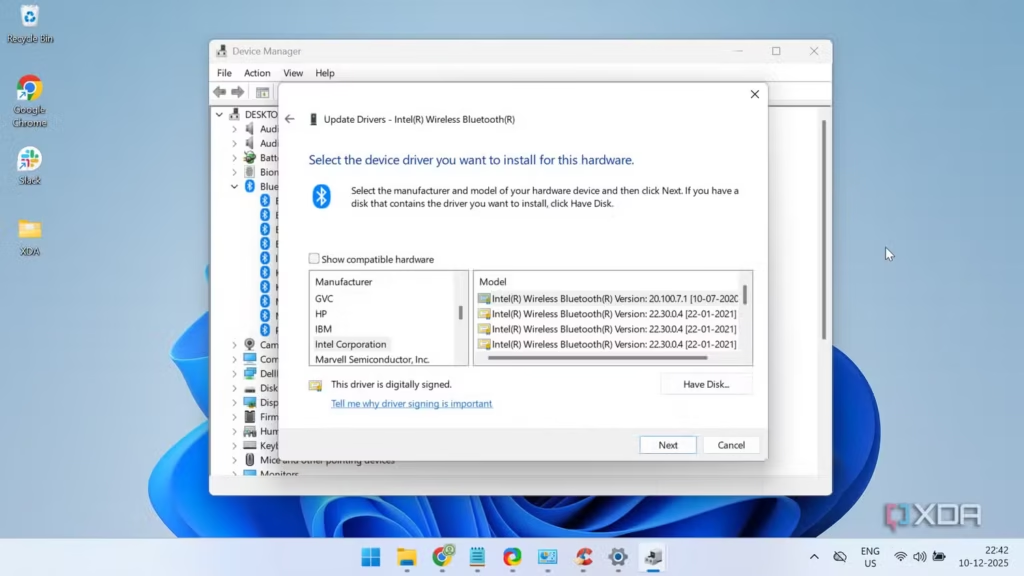
Third-party updaters carry real downsides. They can install a generic or mismatched version, they sometimes push a paid upgrade to actually download anything, and a few bundle extra software you didn’t ask for. Since AMD bakes the audio driver into the graphics package anyway, a separate updater has nothing useful to add.
Stick with AMD’s Auto-Detect tool or your device maker’s support page. Both are safer and free, and they give you the version that actually matches your hardware.
Frequently asked questions
Is the AMD audio driver the same as my speaker or headphone driver?
No. The AMD High Definition Audio Device only handles sound over HDMI and DisplayPort. Your headphone jack, built-in speakers, and mic use a separate driver, usually Realtek or one from your PC maker.
Can I download just the AMD audio driver by itself?
Not from AMD. The audio driver is bundled inside the AMD Software: Adrenalin graphics package. You download that package from amd.com, and the HDMI/DisplayPort audio driver installs along with it.
Why does my AMD High Definition Audio Device show a yellow warning?
The driver is missing or broken. Run AMD’s Auto-Detect tool, choose a clean or factory-reset install, and restart your PC. That reinstalls the audio component and usually clears the warning.
Do I need AMD audio drivers if I only use USB speakers or a headset?
No. USB audio devices bring their own drivers and don’t rely on the AMD one. You only need the AMD audio driver for sound sent through an HDMI or DisplayPort cable.
How often should I update AMD audio drivers?
Update when you hit a sound problem or when a new Adrenalin release lists an audio fix. There’s no need to chase every release. Updating the graphics package updates the audio driver at the same time.
Conclusion
AMD audio drivers handle HDMI and DisplayPort sound, shown in Windows as the AMD High Definition Audio Device, and they come inside the Adrenalin graphics package from amd.com rather than as a standalone file. Use AMD’s Auto-Detect tool (or your laptop maker’s driver), do a clean install, and restart. A good result is your TV or monitor showing up as an output device with sound flowing through the cable. Your headphone jack and speakers run on a different driver.
Why Is My CPU Clock Speed So High? What It Means and When to Worry
RPCS3 CPU Tier List: Which Processor You Need for Smooth PS3 Emulation
Is Minecraft CPU or GPU Intensive? Here’s What Actually Runs the Game
How to Lower ScummVM CPU Usage: Settings That Actually Help
cups-browsed Using High CPU on Linux? Here’s Why and How to Fix It