Skip to content
-
Subscribe to our newsletter & never miss our best posts. Subscribe Now!
  • https://www.facebook.com/
  • https://twitter.com/
  • https://t.me/
  • https://www.instagram.com/
  • https://youtube.com/
Zeslors

Powering Smarter CPU Decisions

Zeslors

Powering Smarter CPU Decisions

  • Home
  • CPU
  • Performance
  • Home
  • CPU
  • Performance
Subscribe
Close

Search

RPCS3 CPU Tier List: Which Processor You Need for Smooth PS3 Emulation
Performance

RPCS3 CPU Tier List: Which Processor You Need for Smooth PS3 Emulation

By Rehman
August 7, 2026 9 Min Read
Comments Off on RPCS3 CPU Tier List: Which Processor You Need for Smooth PS3 Emulation

The best CPUs for RPCS3 are modern chips with eight or more threads and strong single-core speed, like the Ryzen 7 9800X3D, Ryzen 9 7950X, or Core i9-14900K. These sit at the top S-tier and run almost every PS3 game at full speed. If you own a recent Ryzen 5, Core i5, or better, you are already in good shape. Older four-thread or pre-Ryzen chips are where trouble starts.

PS3 emulation is unusual. Most PC games lean on the graphics card, but RPCS3 leans hard on the processor. That single fact shapes the entire tier list, so it helps to understand why before you spend money.

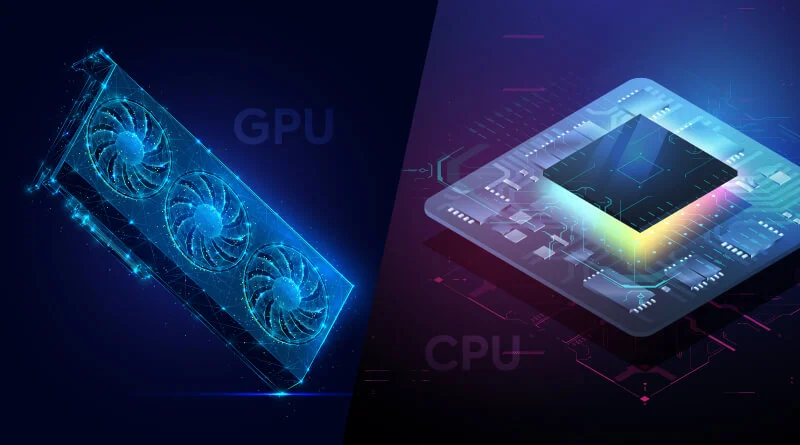
Why the CPU matters more than the GPU

Your CPU is the part that decides whether a game runs well in RPCS3. The PlayStation 3 used a chip called the Cell Broadband Engine, a strange design that paired one main PowerPC core with several small helper cores called SPUs (Synergistic Processing Units). Those SPUs handled physics, audio, animation, and other heavy work, all at once.
Why the CPU matters more than the GPU
source: milesweb

No modern PC has hardware shaped like that. So RPCS3 has to translate the PS3’s instructions into code your CPU can run, on the fly, every frame. That translation is expensive, and it falls almost entirely on the processor. A faster CPU does the translation quicker, which means smoother frame rates and fewer stutters.

A weak GPU limits how high you can push resolution. A weak CPU limits whether the game runs at full speed at all.

Your graphics card still matters, mostly for pushing games past their original resolution to 1440p or 4K. But if you have to choose where the money goes, the CPU comes first every time.

It helps to picture what the emulator is doing. RPCS3 takes the SPU code from a PS3 game and recompiles it into native PC instructions using two backends, LLVM and a lighter tool called ASMJIT. The cleaner that translated code is, the less CPU time each emulated cycle eats. For years, SPU work was the single biggest drain on the processor, which is exactly why single-core speed and the right instruction sets carry so much weight in the rankings.

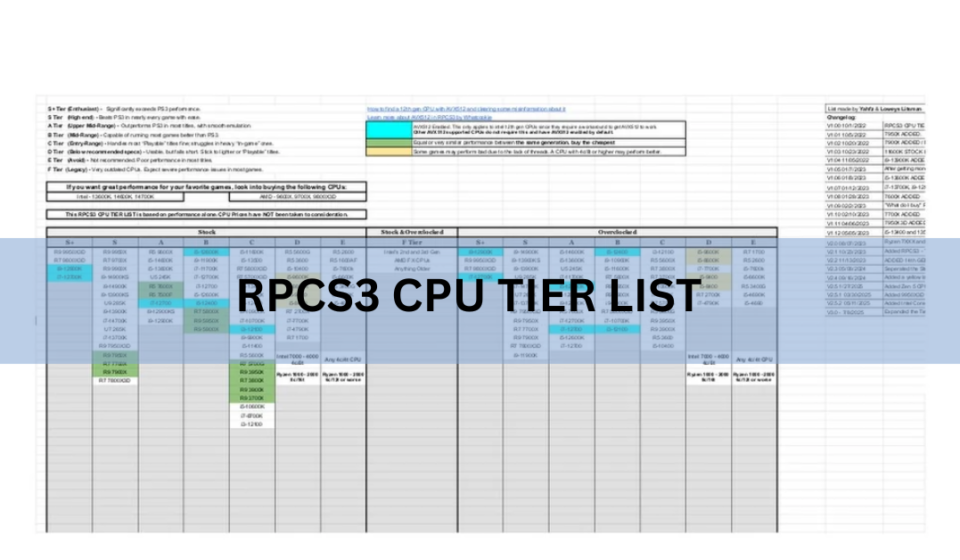
The RPCS3 CPU tier list at a glance

Here is where common processors land for PS3 emulation. The tiers reflect raw emulation performance only, not price or value. A cheaper chip can still be a smart buy; it just may not top the chart.

TierExample CPUsWhat to expect
SRyzen 7 9800X3D, Ryzen 9 7950X, Core i9-14900K, Core i5-13600KTriple-digit frame rates in most games. Handles the heaviest titles at 60 FPS or beyond.
ARyzen 5 7600, Ryzen 7 5800X3D, Core i5-12600KFull speed in nearly every game. Minor dips only in the most demanding scenes.
BRyzen 5 5600, Ryzen 5 3600, Core i5-10400A solid, enjoyable experience. Some heavy games may drop below 60 FPS in busy areas.
CRyzen 3 3100, older quad-core Intel Core i5Playable for lighter and mid-weight games. Struggles with demanding AAA titles.
D / FFX-series and older AMD, pre-Ryzen chips, dual-core IntelFrequent stutter, low frame rates, and some games that will not boot at all.

Two things stand out. First, no current AMD or Intel chip sits in the bottom tier; only pre-Ryzen AMD parts and very old dual-core Intel chips fall that far. Second, for a genuinely good experience you want B-tier or better. That bar is low enough that most builds from the last five years clear it.

What actually decides where a CPU lands

Three things push a processor up or down the list. They matter in this order.

1. Single-core speed

This is the big one. A lot of emulation work happens on threads that cannot be split up, so the raw speed of one core sets the ceiling. A CPU with fewer but faster cores often beats a chip with many slower ones. This is why gaming-focused parts with high clock speeds, and chips with large caches like AMD’s X3D range, do so well here. Sustained clock speed matters as much as peak, so a CPU that keeps its boost under load will feel better than one that throttles when it heats up. Good cooling is part of the equation.

2. AVX-512 support

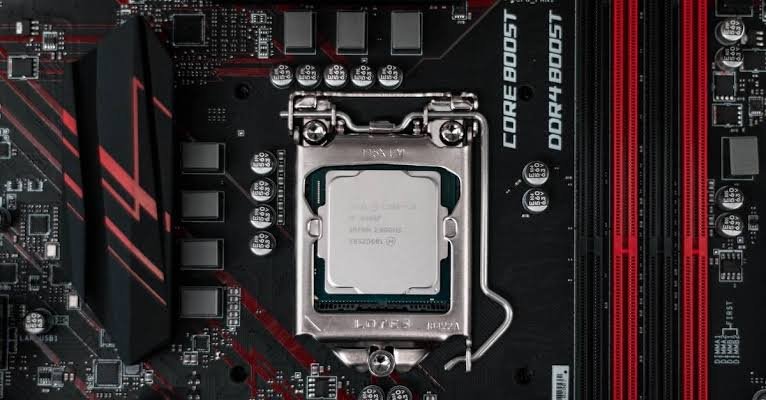
AVX-512 is a set of instructions that handle wide chunks of data in one go. It maps beautifully onto the PS3’s SPUs, which only ever worked on vector data, so RPCS3 can lean on it heavily. When AVX-512 kicks in, the emulator picks a faster code path automatically. On the right hardware the gain is real, roughly a 30 percent uplift when the feature was first added.
AVX-512 support
source: makeuseof

AMD’s Ryzen 7000 and 9000 chips support AVX-512, which is a big part of why they climbed the list. Intel’s newer consumer chips dropped it, yet the Core i9-14900K still ranks S-tier on sheer clock speed and core strength. If you want to read the technical breakdown, the developer’s write-up on why AVX-512 is useful for RPCS3 is excellent.

3. Thread count

More threads help, but with diminishing returns. Eight threads is the comfortable target. Going from four to eight makes a clear difference; going from twelve to sixteen usually does not, because the emulator cannot always keep every core busy. Six good cores beat twelve weak ones for this job.

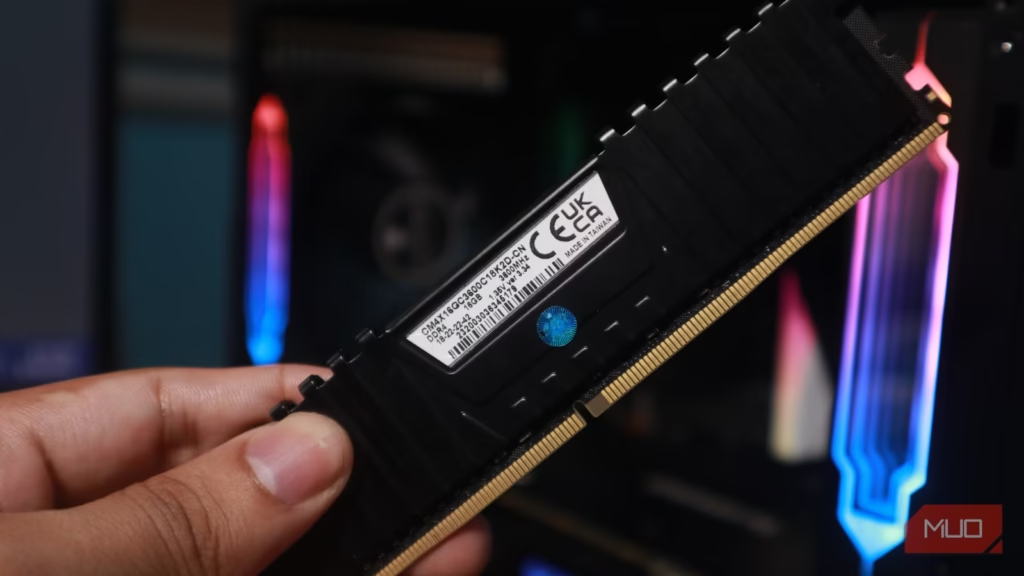
Fast RAM helps too. DDR5 with low latency smooths things out, since RPCS3 touches shared memory constantly.

Which games actually stress your CPU

Not every PS3 game is demanding. Plenty of titles run at full speed on modest hardware, which is why a B-tier chip goes a long way. The strain comes from a smaller group of games that push the SPUs hard.

Fast, physics-heavy, or graphically busy titles are the ones that separate the tiers. Games like Demon’s Souls, The Last of Us, God of War III, and the Twisted Metal reboot lean heavily on SPU work and expose a weak CPU quickly. On an S-tier chip they hold 60 FPS or more. On a B-tier chip they play well but can dip in the busiest moments. On a C-tier chip you start to feel it.

Simpler 2D games, older ports, and lighter titles are far more forgiving. If your library is mostly those, you can aim lower on the tier list and still have a great time. If you want the heavy hitters at a locked frame rate, target A-tier or S-tier.

Best CPU picks by budget

You do not need the most expensive chip to enjoy PS3 games. Here is what to aim for at each spending level.

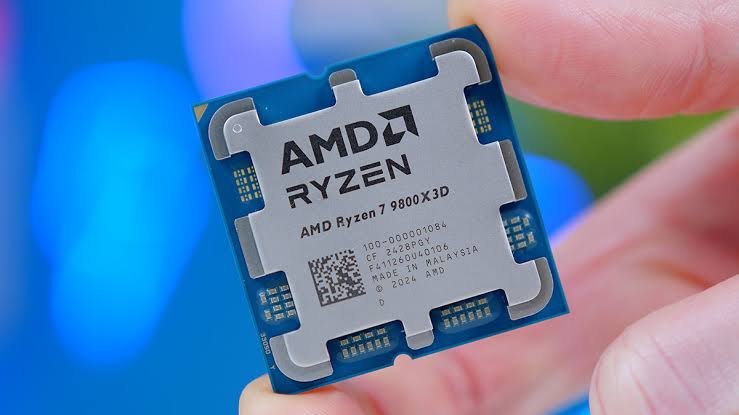
Best overall: Ryzen 7 9800X3D

This is the chip to beat. Its stacked 3D V-Cache keeps data close to the cores, which emulation loves, and it pairs that with high clocks and AVX-512. RPCS3 has shown demanding AAA games running at triple-digit frame rates on it. If budget is not the main worry, this is the pick.
Best overall: Ryzen 7 9800X3D
source: geekawhat

Best value: Ryzen 5 7600 or Core i5-13600K

These land in A-tier and cost a fraction of the flagships. The Ryzen 5 7600 brings AVX-512 and six fast cores, so it punches well above its price for emulation. The Core i5-13600K uses a hybrid design that mixes performance and efficiency cores, with strong single-core speed where it counts. Either one runs the vast majority of PS3 games at full speed, including most of the demanding ones, and both are excellent all-round gaming CPUs on top of that. For a fresh build that will handle far more than just RPCS3, this is the sweet spot.

Best budget: Ryzen 5 5600 or Core i5-10400

If money is tight, a used or discounted Ryzen 5 5600 is a great starting point. It sits comfortably in B-tier and handles most of the library well, with occasional dips in the heaviest scenes. The older Core i5-10400 is a similar story. Neither will run everything flawlessly, but both deliver a genuinely good experience for the price.

The official RPCS3 hardware tiers (2026)

Alongside the community tier list, RPCS3 publishes its own simplified requirements, updated in 2026 into four clear bands. These are a useful sanity check when you are matching parts.

  • Minimum: an old dual-core such as a Core 2 Duo, 8 GB RAM. Expect a rough time and game-by-game luck.
  • Recommended: Ryzen 5 5600 or Core i5-10400, 16 GB RAM, an SSD, and an RTX 2060 or RX 5600 XT. This is the realistic floor for a good setup.
  • Optimal: Ryzen 5 9600X or Core i5-13600K, 16 GB RAM, and an NVMe SSD. Same GPU as above, but a stronger CPU, which tells you where the real bottleneck sits.
  • Max Performance: Ryzen 7 9800X3D, 16 GB RAM, and an RTX 4070 or RX 7800 XT for 4K play.

Notice how the GPU recommendation barely changes between the middle tiers while the CPU keeps climbing. That is the whole story of RPCS3 in one table. You can see the full breakdown on the official RPCS3 requirements page.

Settings that squeeze more speed from any CPU

The right settings can lift a mid-range chip a full tier in practice. A few changes do most of the work.

  • Use the LLVM Recompiler for both PPU and SPU. It is the default and by far the fastest option.
  • Set SPU thread count to one or two fewer than your total threads, so the emulator does not fight your operating system for cores.
  • Turn on SPU Loop Detection to cut wasted work in some games.
  • Keep RPCS3 updated. Recent builds brought a Cell emulation breakthrough that improved speed across the whole library, not just single titles.
Settings that squeeze more speed from any CPU
source: makeuseof

That last point matters more than it sounds. The emulator keeps getting faster through software alone. In early 2026, developers found new patterns in how the Cell’s SPUs were used and rewrote the code paths that handle them, which lifted frame rates across the entire library rather than in one or two games. Titles that stuttered a year ago may run clean today on the exact same CPU, so it is worth revisiting games after each update.

A few other habits help. Install games and the emulator on an SSD, since slow storage causes hitching as data streams in. Close background apps that eat CPU cycles. And if a specific game misbehaves, check the community patch database, which carries per-title fixes and performance tweaks that are not baked into the emulator itself.

Frequently asked questions

Is a good CPU or GPU more important for RPCS3?

The CPU, by a wide margin. It does the heavy work of translating the PS3’s Cell processor instructions in real time. A stronger GPU only helps once you push games above their original resolution.

Do I need AVX-512 for RPCS3?

No, but it helps. AVX-512 gives a real speed boost on chips that have it, like Ryzen 7000 and 9000. Intel’s Core i9-14900K lacks it and still ranks top-tier thanks to sheer clock speed.

Can a Ryzen 5 5600 run PS3 games well?

Yes. It sits in B-tier and handles most of the library smoothly, with occasional dips in the most demanding scenes. For a budget build it is one of the best value picks available.

How many cores do I need for RPCS3?

Eight threads is the comfortable target, which usually means a modern six-core chip. More threads help a little, but fast cores matter far more than a high core count.

Will PS3 emulation ever run on weaker CPUs?

It already runs better each year. Recent RPCS3 updates improved Cell emulation across the whole library through software alone, so older CPUs keep gaining speed without any hardware change.

Conclusion

For smooth PS3 emulation, put your money into the CPU and aim for a modern eight-thread chip with strong single-core speed. A Ryzen 7 9800X3D or Core i9-14900K tops the chart, while a Ryzen 5 7600 or Ryzen 5 5600 covers most players for far less. Anything B-tier or better gives a good experience. Match that to a decent SSD and 16 GB of RAM, keep RPCS3 updated, and the vast majority of the library will run beautifully.

Recommended Article:

svchost.exe High CPU: How to Find the Real Cause and Fix It

Windows Problem Reporting High CPU: How to Fix It Fast

Intel System Usage Report High CPU: What It Is and How to Stop It

IIS Worker Process High CPU: How to Find the Cause and Fix It

Max CPU Boost Clock Override: What It Does and When It Helps


Author

Rehman

Follow Me
Other Articles
Is Minecraft CPU or GPU Intensive? Here's What Actually Runs the Game
Previous

Is Minecraft CPU or GPU Intensive? Here’s What Actually Runs the Game

Why Is My CPU Clock Speed So High? What It Means and When to Worry Your CPU clock speed is high because the processor sped itself up to get work done. That is what it is supposed to do. Modern chips raise their speed the moment you ask them to handle something, then drop back down when the job is finished. Seeing a number like 4.5 GHz or 5.0 GHz is not a warning sign on its own. Still, there are a few cases where a constantly high clock speed points to something worth fixing. This guide explains what the number means, why it jumps around, how to tell normal from not, and what to do if you want to bring it down. What clock speed and “boost” really mean Clock speed is how many cycles your processor runs per second, measured in gigahertz (GHz). One gigahertz is a billion cycles a second. A higher number means the chip is working through instructions faster. Every CPU has two speeds that matter here. The base clock is the steady speed it can hold under a heavy, long load. The boost clock is a higher speed it can reach for short bursts when there is spare power and cooling headroom. A chip listed at 3.4 GHz base and 5.0 GHz boost spends most of its time somewhere between those two, moving up and down many times a second. This automatic speed-up has a name. On Intel chips it is called Turbo Boost, and on AMD chips it is Precision Boost. Both do the same thing: push the speed above base when conditions allow, then ease off. You do not turn this on. It runs by itself, all the time, in the background. The short version: your CPU is meant to change speed constantly. A high number just means it found a reason to go fast, not that it is broken. Is a high CPU clock speed bad? In most cases, no. A high clock speed by itself is a sign your processor is doing its job, not a fault. The chip only pushes to those speeds when it has the power and thermal room to do so safely, and it pulls back the instant either runs short. What actually matters is the pair of the clock speed and the temperature, plus whether the speed comes back down when you stop working. A CPU running at 5.0 GHz with safe temperatures and smooth performance is healthy. The same speed paired with high heat, loud fans, and stutter is the version worth looking into. So the number alone tells you very little. The pattern around it tells you almost everything, and that pattern is easy to read once you know what to look for. Why is my clock speed high when I'm barely doing anything? This is the part that confuses most people. You open a monitoring app like Task Manager, HWMonitor, or CPU-Z, the PC is sitting idle, and the clock still reads 4 GHz or higher. It looks wrong, but there are a few plain reasons for it. Background work never really stops. Windows is always doing something: update checks, search indexing, antivirus scans, telemetry, driver services, and dozens of small tasks. Any one of them can wake the CPU and nudge the speed up for a moment. Your desktop looks idle; the chip is not. The monitoring app itself adds load. Opening a tool to watch your clock speed gives the CPU something to do, which raises the speed you are watching. It is a small effect, but it is real. The chip reacts faster than it used to. Newer processors ramp up very quickly at the smallest task and sit near their top speed often, dropping down only in short gaps. A single mouse move or a browser tab loading in the background can be enough to show a high number the moment you glance at it. Your power plan keeps it awake. If Windows is set to a high performance plan, or the minimum processor state is set high, the CPU is told to hold a faster speed even at rest. More on that below, since it is the one setting most worth checking. Normal vs. worth a closer look Here is the quick test. Compare what your PC is doing against the two columns below. If your situation lines up with the left side, there is nothing to fix. If it matches the right side, it is worth a few minutes of checking. Sign it is normal Sign worth a closer look Speed climbs only when you open a game, editor, or heavy app Speed sits near maximum with nothing running It drops back down within seconds after the task ends It never drops, even after minutes of idle Temperatures stay in a safe range Temperatures stay high while the PC does nothing The PC feels quiet and stable at rest Fans stay loud and the case stays warm at rest The single most useful thing to watch is the drop. Close everything, wait thirty seconds, and see whether the speed falls. A healthy CPU eases back toward its lower idle speeds, often well under 2 GHz, when there is truly nothing to do. A speed that stays pinned at maximum with an empty desktop is the one clue that points to a setting or a background program rather than normal boost. What to check first If your clock speed stays high at idle and you want to understand why, work through these in order. The first two solve the large majority of cases. Check your Windows power plan. Open the Start menu, type “choose a power plan,” and open it. If you are on High performance or Ultimate performance, that alone can hold the CPU at a high speed. Switch to Balanced and watch the idle speed again. Check the minimum processor state. In the same power settings, open Change plan settings, then Change advanced power settings, then expand Processor power management. If Minimum processor state is set to a high number like 100%, the CPU is being told never to slow down. Setting it to 5% lets it idle properly. Look at what is running. Open Task Manager, click the CPU column to sort by usage, and see what sits at the top. A stuck update, an antivirus scan, or a chatty background app can keep the chip busy. Some programs are known for this and will pin the speed until you close them. Watch your temperatures. Use a free tool like HWMonitor or Core Temp to see the CPU temperature next to the speed. This tells you whether the high speed is coming with a heat problem or is perfectly fine. Do these in order and stop as soon as the idle speed drops. Most people find it was the power plan or the minimum processor state, and they never need to touch anything deeper. How to lower your CPU clock speed (if you want to) First, a fair question: should you? For most people the answer is no. The boost behavior is designed to be safe, and letting the chip run fast when it wants costs you nothing but a little power. If your temperatures are fine, leaving it alone is the right call. You might still want it lower for real reasons: a laptop that runs hot, a small case with weak airflow, a noisy machine you keep on your desk, or a PC where you value quiet and cool over the last few percent of speed. If that is you, here is how to bring it down, from gentlest to most direct. Set a Balanced power plan and a low minimum processor state. This is the safe, reversible fix, and for many people it is the only one needed. It lets the CPU idle low without touching how fast it can go when you do need speed. Cap the maximum processor state. In the same advanced power settings, lower Maximum processor state from 100% to something like 90% or 95%. This shaves the top speed and can noticeably cut heat and noise, with only a small hit to peak performance. It is easy to undo if you do not like it. Undervolt instead of underclocking. Undervolting keeps the speed but feeds the chip a little less voltage, which lowers heat and noise while keeping most performance. On AMD you can use the Ryzen Master utility to tune this. It takes more care than the power plan tweaks, so read up on your specific chip before you start. Turn off boost in the BIOS. As a last resort you can disable Turbo Boost or Precision Boost in your motherboard's BIOS. This forces the CPU to hold its base clock and never boost. It gives the coolest, quietest result, but you also give up real performance, so most people should skip it unless heat is a serious problem. Rule of thumb: try the power plan and minimum state first. Only reach for BIOS or undervolting if a clear heat or noise problem is still there afterward. When a high clock speed is a real problem A few situations do point to something that needs attention. None of them are about the speed number by itself; they are about the speed plus another symptom. The speed stays maxed at idle and never drops, even with nothing running and a Balanced power plan. Something is keeping the CPU awake, usually a background program or a power setting. Temperatures stay high at idle. If your CPU sits in the 70s or 80s Celsius while the desktop is empty, the heat is the issue, not the speed. Common causes are old, dried thermal paste, a loose or failing cooler, or dust choking the airflow. The PC stutters, freezes, or shuts down. High speed with instability can mean an aggressive overclock, a power delivery problem, or overheating that forces the chip to protect itself. Fans run loud and constant. If the machine never quiets down, the CPU is likely being held at a high state, and fixing the setting or the cooling brings the noise down with it. If you hit any of these, the fix is usually cooling or a setting, not the boost feature itself. Clean out dust, make sure the cooler is seated properly, consider fresh thermal paste on an older machine, and confirm your power plan is not holding the chip at full tilt. Frequently asked questions Is 100% CPU clock speed dangerous? No. Running near maximum speed is safe as long as temperatures stay in range and the chip drops back down when idle. Boost is built to run at the top safely. Watch heat, not the GHz number, to judge whether anything is wrong. Why does my CPU speed keep jumping up and down? That is normal and healthy. Your CPU changes speed many times a second based on what you are doing. It climbs for tasks and falls in the gaps between them. Constant jumping means the power-saving and boost features are working as intended. Should I disable Turbo Boost or Precision Boost? For most people, no. It gives you free performance and is safe. Only consider turning it off if you have a real heat or noise problem in a hot laptop or a cramped case, and only after trying power plan tweaks first. Why is my clock speed high but CPU usage is low? Because speed and usage measure different things. Even light background tasks can make the CPU boost briefly. The monitoring app itself adds a little load too. If the number drops when you truly leave the PC alone, nothing is wrong. Does a high clock speed damage my CPU over time? Not on its own. Chips are built to run at boost speeds for years. What wears a CPU is sustained high heat, not high speed. Keep it cool with clean airflow and good thermal contact, and normal boosting will not shorten its life. Conclusion A high CPU clock speed is almost always your processor doing exactly what it should: speeding up to handle work, then easing back down. Watch the pattern, not just the number. If the speed drops when you stop working and temperatures stay safe, leave it alone. If it stays pinned at idle with heat or noise, check your power plan and minimum processor state first, then look at cooling. That order fixes nearly every case worth fixing.
Next

Why Is My CPU Clock Speed So High? What It Means and When to Worry

Recent Posts

  • Is CPU the Same as Processor? A Simple Guide to Understanding the Difference
  • How to Lower CPU Usage in ScummVM
  • How to See If XMP Is Enabled in CPU-Z (Step-by-Step)
  • How to Test the Thermal Lottery on a CPU
  • Is CS2 CPU or GPU Intensive? What Really Limits Your FPS

Recent Comments

No comments to show.

Archives

  • October 2026
  • September 2026
  • August 2026
  • July 2026
  • June 2026

Categories

  • CPU
  • Performance

Footer Menu

  • About Us
  • Contact Us
  • Privacy Policy

Categories

  • Home
  • CPU
  • Performance
  • Is CPU the Same as Processor? A Simple Guide to Understanding the Difference
  • How to Lower CPU Usage in ScummVM
  • How to See If XMP Is Enabled in CPU-Z (Step-by-Step)
  • How to Test the Thermal Lottery on a CPU
  • Is CS2 CPU or GPU Intensive? What Really Limits Your FPS

About US

Zeslors is your simple and friendly home for everything about CPUs. We believe that understanding your computer’s processor should not feel hard or scary. That is why we explain things in plain, easy words that anyone can follow, whether you are just starting out or you already love tweaking your hardware.

Copyright 2026 — Zeslors. All rights reserved. Blogsy WordPress Theme