
Max CPU Boost Clock Override raises the highest frequency your Ryzen processor is allowed to reach. You set it in 25 MHz steps, up to +200 MHz above the rated boost clock. The important part is what it does not do: it lifts a ceiling, it does not add speed. Your CPU still decides moment to moment how fast to run, and it will only use the extra room if temperature, power, and voltage all allow it.
That distinction explains why so many people set +200 MHz, run a benchmark, and see nothing change. The setting worked. The CPU just never had a reason to go there. Here is how the feature works, what to set it to, and what to fix when the clock refuses to climb.
What is Max CPU Boost Clock Override?
It is a setting inside Precision Boost Overdrive (PBO) that moves the frequency limit on your Ryzen CPU. You can raise it by up to 200 MHz or lower it by as much as 1,000 MHz, always in 25 MHz steps. Motherboard makers label it differently. You may see Max CPU Boost Clock Override, CPU Boost Clock Override, Boost Override CPU, Fmax Override, or Auto OC, depending on whether you are on Asus, MSI, Gigabyte, ASRock, or in AMD’s own software.
AMD introduced the feature with Zen 2 as a replacement for XFR2, the older system that let a chip run past its rated boost when it was running cool. XFR2 decided for you. This setting hands you the dial.
One naming trap is worth clearing up. “Max boost” on an AMD spec sheet means the top speed a single core can hit during a short, bursty single-threaded task. It is not an all-core figure. So when you add 200 MHz to it, you are raising a single-core peak, not lifting every core by 200 MHz.
Think of it as a speed limit sign, not an accelerator pedal. Raising the sign from 5.4 to 5.6 GHz does not make the car go faster. It only removes one reason it could not.
How does the boost ceiling actually work?
Your CPU picks its own clock speed several times per second, and it checks a stack of conditions before settling on a number. The Precision Boost algorithm looks at core temperature, total package power, current draw through the motherboard, how many cores are busy, and the voltage that particular core needs to stay stable at a given speed. It takes the lowest of those allowances and runs there.
The boost ceiling is one entry on that list. If any other item on the list runs out first, raising the ceiling changes nothing at all, because the ceiling was never the thing holding you back.
This is also why the setting behaves so differently across chips. A cool-running six-core with plenty of power headroom often has real room above its rated boost. A 16-core part running at 95C in a heavy render is nowhere near its frequency limit, so the ceiling is irrelevant to it. Same setting, same number, completely different outcome.
It helps to know what the CPU is doing while you watch a clock readout jump around. Every core has a voltage and frequency curve set at the factory, which maps each speed to the voltage that core needs to be stable there. To run 100 MHz faster, the core asks for more voltage. More voltage means more heat and more current. The algorithm grants the request only if all three still fit inside the allowances it is working with, and it rechecks constantly, which is why a single core can sit at 5.5 GHz for a few seconds and drop to 5.1 GHz the moment a second thread arrives.
The number of active cores matters more than most people expect. Boost behaviour is built around the idea that one or two lightly loaded cores can be pushed hard while the rest idle, because the heat is concentrated in a small area and the package has spare power. Load every core and that arrangement disappears. This is the single biggest reason a raised ceiling shows up in a game or a browser benchmark but never in a render.
How much extra speed will you really get?
Usually between 0 and 50 MHz on a single core, which works out to roughly a 1% gain in single-threaded scores. On a Ryzen 5 7600X tested at +200 MHz, measured single-core clock rose from 5.45 GHz to 5.50 GHz, which is 50 MHz of the 200 MHz requested. Cinebench R23 single-core moved from 1,949 to 1,969 points. All-core clock did not move at all, and the multi-core score actually dipped slightly.
That is the honest picture: a small single-thread gain, nothing multi-thread, and a real chance of zero movement on a chip that is already near its limits. Chips with high rated boost clocks, like the 9800X3D at 5.2 GHz or the 7800X3D, tend to give the least back, because AMD has already binned them close to what the silicon can do.
The number gets more interesting when it is not on its own. On the same 7600X, pairing +200 MHz override with a negative Curve Optimizer setting produced 1,990 single-core points and 15,555 multi-core, while pulling power from 138W down to 112W and temperature from 95C to 80C. The override contributed the single-core edge; the undervolt did the heavy lifting everywhere else.
How to set Max CPU Boost Clock Override
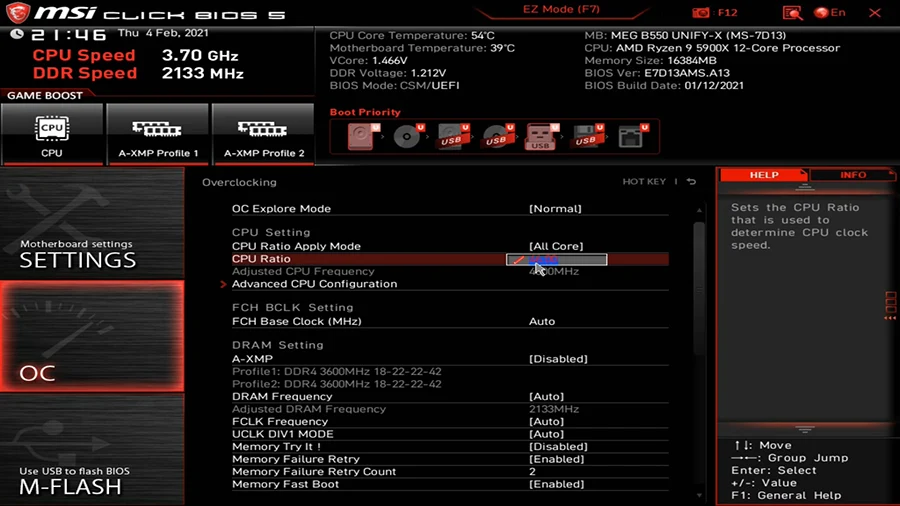
The setting lives in the BIOS under AMD’s overclocking menu. Menu names vary by brand, but the path is close to the same everywhere.
- Restart and press Delete or F2 to enter the BIOS. On Asus boards, press F7 for Advanced Mode.
- Find the overclocking section. It is called Ai Tweaker on Asus, OC on MSI, Tweaker on Gigabyte, and OC Tweaker on ASRock. On some boards it sits under Advanced, then AMD Overclocking.
- Open Precision Boost Overdrive and set it to Advanced or Manual so the sub-options appear.
- Find CPU Boost Clock Override and choose Enabled (Positive).
- Enter your value in MHz in the Max CPU Boost Clock Override field. Start at 100, not 200.
- Press F10 to save and reboot.
- Check your result with a monitoring tool during a light single-threaded task, not a full stress test. All-core loads will never show the peak clock.
If you would rather stay in Windows, AMD’s free tuning software does the same job. Set Control Mode to Auto Overclocking, then type your value into the Boost Override CPU field. Software settings are easy to undo, which makes them a good place to experiment before committing anything to the BIOS. Grab it from the official AMD Ryzen Master utility page.
If the system will not boot after a change, clear CMOS. Most boards have a button on the rear panel or a jumper on the board itself. Pulling the battery for a minute with the power cord unplugged does the same thing.
What should you set it to on your CPU?
Start at +100 MHz and only go to +200 MHz once you have confirmed stability. The step size is 25 MHz, so you have plenty of room to creep up rather than jump.

Beyond that, the right number depends on what kind of chip you have. Six- and eight-core parts without 3D V-Cache, such as the 7600X and 9600X, have the most headroom and respond best. X3D chips have stacked cache sitting on top of the cores, which limits both heat transfer and voltage, so they tend to give very little back from a raised ceiling. On X3D parts, your time is better spent on Curve Optimizer and memory tuning.
Higher-core-count chips like the 9950X are a different case again. They spend most of a heavy workload limited by power and heat, not by frequency, so the ceiling almost never binds during multi-threaded work. It can still help the one or two cores that spike during a game.
One counterintuitive point deserves attention. A very high ceiling can make the boost algorithm chase peak speed on a small number of cores instead of holding a good clock across all of them. If your priority is sustained all-core performance in rendering or compiling, leaving the override alone often gives a better result than maxing it.
The override also has a negative side, and it is more useful than it first appears. You can lower the ceiling by up to 1,000 MHz. Dropping it by 100 or 200 MHz trims the very top of the frequency range, which is the least efficient part of the curve, and can noticeably cut heat and fan noise for a small performance cost. It is a blunt tool compared to a proper power limit, but it is quick and it is easy to undo.
Two habits will save you time. Change one thing at a time, and write down what you changed. A tune that mixes a new ceiling, a new curve value, and new power limits is impossible to unpick when something crashes three days later. Save a working BIOS profile before each change so you always have a known-good state to return to.
Why is your CPU not hitting the higher clock?
Because something else ran out first. These are the five limiters, roughly in the order they bite on a typical desktop.
- Temperature. Ryzen chips throttle their boost as they warm, well before they reach the 95C limit. A better cooler, fresh paste, or improved case airflow moves this the most.
- Voltage stability. The core needs a certain voltage to run at a given speed. If the factory curve does not supply enough for the higher frequency, the algorithm refuses to go there. Curve Optimizer addresses this directly.
- Power and current limits. PPT, TDC, and EDC cap total watts and amps. These matter most in all-core loads and rarely limit a single-core peak.
- Workload type. Peak boost only appears during short, light, single-threaded work. Running Cinebench multi-core and watching for peak clock will always disappoint you.
- Silicon quality. Some chips simply cannot go higher at any sane voltage. This one you cannot fix.
There is also a measurement problem worth ruling out before you change anything. Peak boost is brief, and Windows power plans can park cores or hold clocks down. Set the power plan to Balanced or Performance, close background software, and watch per-core clocks rather than an averaged figure. Plenty of people are already hitting their target and cannot see it.
Work through the list in order rather than changing three things at once. Check your temperatures under a light load first. If a single core is already sitting in the mid-eighties while doing very little, no frequency setting will help you and the fix is physical: reseat the cooler, replace old paste, or add case airflow. Only once temperatures look sensible does it make sense to look at voltage.
Two BIOS options are worth enabling while you are in there, because both let idle cores actually go to sleep. Global C-State Control and PSS Support allow unused cores to drop into low-power states, which lowers package temperature and frees headroom for the cores that are working. Some performance-oriented BIOS profiles disable them, which quietly costs you peak boost in exactly the light workloads where the ceiling matters.
Is Max CPU Boost Clock Override worth using?
It is worth setting, but it should not be the setting you spend your evening on. Turning it up costs nothing, carries little risk at +100 to +200 MHz, and occasionally gives you a genuine 50 MHz. Just calibrate your expectations before you start.
Here is how it compares to the other tools in the same menu.
| Setting | What it changes | Typical gain | Best for |
| Boost Clock Override | Raises the top frequency limit | 0 to 50 MHz | Single-thread bursts, once cooling and voltage are already sorted |
| Curve Optimizer | Lowers voltage at each frequency step | 150 to 250 MHz all-core | Almost everyone. Cooler, quieter, and faster at the same time |
| Power limits (PPT/TDC/EDC) | Allows more watts and current | 0 MHz if already unlimited | Chips that hit a power wall before a heat wall |
| Scalar | Relaxes the built-in voltage stress limit | Usually none | Rarely worth it. Trades chip lifespan for very little |
If you only have time for one adjustment, make it Curve Optimizer. Lowering voltage at each frequency point creates the thermal and electrical headroom that everything else depends on, including the boost ceiling you just raised. The two work well together for exactly that reason.
One practical note before you begin. AMD treats PBO and every setting inside it as overclocking, and its product warranty does not cover damage caused by overclocking, even when AMD’s own software enables it. The terms are spelled out on the Ryzen Master product page under GD-26 and GD-135. Raising a frequency ceiling by 100 MHz is a mild change and very unlikely to hurt anything, but the policy is the policy.
Test properly once you are set. Run a mix of loads: a light single-threaded task to confirm your peak clock, a long all-core stress run, a couple of games, and normal idle-to-load transitions. Instability from a raised ceiling often shows up in light workloads rather than heavy ones, which catches people out. Give it a week of ordinary use before you call it stable.
Frequently asked questions
Does +200 MHz boost override actually add 200 MHz?
No. It raises the maximum frequency your CPU is allowed to use, not the frequency it will use. Real gains are typically 0 to 50 MHz on a single core, and depend on your cooling, power headroom, and silicon quality.
Is boost clock override safe for my CPU?
At +100 to +200 MHz it is one of the milder adjustments available, because the CPU keeps its own voltage and temperature protections active. AMD classes it as overclocking, so warranty coverage does not apply to any resulting damage.
Should I use boost override on a 9800X3D or 7800X3D?
You can, but expect very little. X3D chips are already binned close to their limits and their stacked cache restricts voltage and heat transfer. Curve Optimizer and memory tuning give far better returns on these parts.
Why is my clock not increasing after enabling it?
Something else is limiting you first, most often temperature or voltage. Also check that you are watching a single-threaded load, since peak boost never appears during all-core stress tests, and set your Windows power plan to Balanced or Performance.
Boost override or Curve Optimizer, which should I do first?
Curve Optimizer, every time. It lowers voltage at each frequency step, which creates the thermal headroom the boost ceiling needs. Set your curve first, confirm stability, then add the override on top.
Conclusion
Max CPU Boost Clock Override raises the frequency limit on your Ryzen CPU by up to 200 MHz in 25 MHz steps. It grants permission rather than performance, so the real gain is usually 0 to 50 MHz on a single core and nothing on all-core work. Set it to +100 MHz, verify stability, then try +200 MHz. Pair it with a negative Curve Optimizer offset and you will get a cooler, quieter chip that also holds higher clocks. A good result looks like a small single-core bump and no crashes.
Recommended Articles:
Windows Driver Foundation High CPU: How to Find the Faulty Driver and Fix It
How to Set CPU Affinity in Process Lasso (Complete Guide)
Why Is BIAS FX 2 Using So Much CPU? (And How to Fix It)
Plex “Not Enough CPU for Conversion of This Item”: Causes and Fixes
100% CPU Usage While Gaming: What It Means and How to Fix It