
100% CPU usage while gaming means the game, plus everything else running on your PC, is asking for more processing power than your chip can supply at that moment. The number itself won’t hurt anything. Processors are built to run flat out, and they slow themselves down long before any damage can happen. The real question is what comes with that 100%. Smooth frames and safe temperatures? You’re fine. Stutter, frame drops, or input lag? That’s a CPU bottleneck, and you can usually fix it without buying new hardware.
This guide covers what the number actually tells you, how to find the real cause on your system in a few minutes, and the fixes that lower CPU usage in games, in the order you should try them.
Is 100% CPU usage bad while gaming?
No, 100% CPU usage isn’t dangerous, but it can be a performance problem. A processor at full load is doing exactly what it was designed to do. Modern CPUs have built-in protections that cut clock speeds if they get too hot, so you can’t damage one by gaming on it, even for hours at a time.
What matters is how the game feels and how hot the chip gets. Sustained temperatures of 80°C or lower under load are fine for almost any desktop processor. Once you get near 95°C, the CPU starts thermal throttling, which means it lowers its own speed to protect itself. At that point it can show 100% usage while doing noticeably less work.
Quick rule: 100% CPU usage with smooth frames and temperatures under 80°C is nothing to worry about. 100% usage with stutter, uneven frame times, or lag means the CPU is the bottleneck and needs attention.
There’s one more wrinkle. If the CPU has no headroom left, the system has nothing spare for background tasks. A Windows update check or a Discord notification can then steal cycles from the game and cause a visible hitch. That’s why a pinned CPU often feels worse than the average frame rate suggests.
The reverse is also true, and it trips a lot of people up. Task Manager shows an average across every core, but most games lean heavily on one or two main threads. A processor can read 60% overall while its busiest core is completely maxed, so a game can be CPU-limited without the total ever touching 100. If you want the honest picture, switch Task Manager’s CPU graph to show logical processors, or watch per-core usage in a monitoring overlay.
Why does your CPU hit 100% in games?
Games are one of the heaviest workloads a home PC ever runs. The CPU handles physics, AI, draw calls (the instructions that tell the graphics card what to render), audio, and every background process on the machine, all at once. Several things push it to the limit:
- CPU-heavy games. Open worlds with dense cities, big NPC crowds, and lots of simulation work the processor hard. Cyberpunk 2077, Hogwarts Legacy, and large multiplayer matches are classic examples.
- An uncapped frame rate. With no FPS limit, the CPU prepares frames as fast as it possibly can, all the time. Easy frames, like menus or empty corridors, can push usage to the ceiling for no visual benefit.
- Background software. Browser tabs, game launchers, Discord, OBS, RGB utilities, and antivirus scans all take slices of the same CPU the game needs.
- Too few cores. A 4-core processor can still run esports titles well on its own, but add a modern AAA game plus the usual background apps and it runs out of threads fast. Most current big releases are built with 6 cores and 12 threads in mind.
- Integrated graphics doing the rendering. If the game runs on the CPU’s built-in graphics instead of your dedicated card, the processor carries both jobs.
- Malware. Cryptojacking programs mine cryptocurrency with your hardware and often hide under familiar process names. High CPU usage while the PC sits idle is the giveaway.
Find the real cause in five minutes
Before changing any settings, look at what is actually eating the CPU. Press Ctrl + Shift + Esc to open Task Manager, click the Processes tab, then click the CPU column to sort by usage. Do this with the game running, then again after closing it.
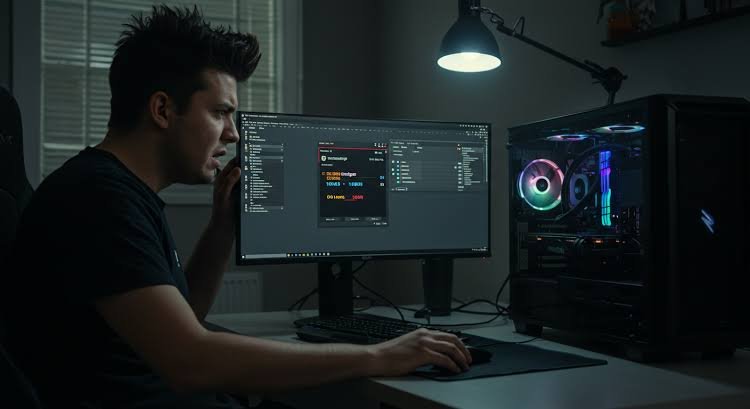
Read the results like this. If the game itself sits at 80 to 95% and everything else is small, the game’s demand is the cause, and the fixes below that reduce its workload will help most. If another program sits high on the list, that program is your problem. And if some process you don’t recognize keeps the CPU busy even when the game is closed, treat it as a malware suspect and scan the system.
For a clearer picture while you play, install MSI Afterburner with its RivaTuner overlay. It’s free, works with any graphics card, and shows CPU usage, GPU usage, temperatures, and frame times on screen during the game. The single most useful reading is GPU usage next to CPU usage, because that pair tells you which part is holding the other back.
The pattern across games matters too. If only one title pins the CPU, that game is either unusually demanding or badly optimized, and the fix lives inside its settings. Verifying the game files through Steam or your launcher is worth a minute here as well, since corrupted files sometimes cause runaway usage. If every game pins the CPU, including light ones, the cause is system-wide: background load, throttling, the wrong GPU doing the rendering, or malware.
How to fix 100% CPU usage while gaming
Work through these in order. The first three solve the problem for most people, and none of them cost anything.

- Close background apps and clean up startup. Shut your browser, launchers you aren’t using, and any recording or RGB software before you play. Then open Task Manager, go to Startup apps, and disable anything you don’t need at boot. This alone can free 10 to 20% of the CPU on a cluttered system.
- Cap your frame rate. Set an FPS limit in the game’s settings, or in your GPU driver, at or slightly above your monitor’s refresh rate. A 144 Hz monitor gains nothing from 300 FPS, but your CPU pays the full price for those frames. Capping is the fastest single fix for a pinned processor, and it smooths frame pacing too.
- Lower the settings that load the CPU. Draw distance, view distance, crowd or NPC density, and simulation detail are the sliders that matter. Dropping resolution or texture quality won’t help, because those load the graphics card. It can even make things worse, since a less busy GPU asks the CPU for frames even faster.
- Make sure the game uses your dedicated GPU. On Windows 11, go to Settings, then System, Display, Graphics, add the game’s .exe file, and set it to High performance. If the game was quietly running on integrated graphics, this change is night and day.
- Update your GPU driver and Windows. Driver bugs sometimes shift work onto the CPU, and game-ready driver releases regularly fix high usage in specific new titles. Install pending Windows updates at the same time, then restart.
- Scan for malware. Run a quick scan from the built-in Windows Security app, and if anything feels off, follow it with the offline scan, which checks the system before Windows fully loads. Cryptojacking malware is one of the few causes that keeps the CPU busy around the clock, not just in games.
- Check your cooling. Dust out the case and CPU cooler, make sure case fans actually move air front to back, and replace thermal paste if the machine is more than three or four years old. A throttling CPU shows 100% usage while delivering a fraction of its performance, so better cooling directly buys back speed.
- Check the power plan. On desktops, set Windows to the Balanced or High performance plan. On laptops, plug in before gaming, since most machines cut CPU clocks hard on battery, which pushes usage percentages up while performance drops.
For step 6, Microsoft’s guide to the Windows Security app walks through every scan type, including the offline scan that catches threats a normal scan can miss.
One option to skip in most cases: Windows 11’s Efficiency mode in Task Manager. It forces the game to run at low priority, which does cut CPU usage, but it usually trades that for lag and crashes. It’s a last resort for machines that also need to do other work while a game runs, not a performance fix.
CPU bottleneck or GPU bottleneck? How to tell
A bottleneck just means one component finishes its work faster than the other and has to wait. Every PC has one somewhere. A GPU bottleneck is the good kind: frames come out slower but evenly, so the game still feels smooth. A CPU bottleneck produces uneven frame times, which read as stutter and feel worse than a plainly lower frame rate. Here’s how the two look side by side while you watch the overlay:
| What to watch | CPU bottleneck | GPU bottleneck |
| GPU usage in the overlay | Well below 90% while the CPU is pinned | Sitting at 95 to 100% |
| Lowering graphics settings | FPS barely changes | FPS clearly improves |
| How the game feels | Stutter and uneven frame times | Lower FPS, but steady and smooth |
| Where it hits hardest | Crowded cities, big fights, busy multiplayer | High resolutions and maxed visual settings |
The settings test is the most reliable check. Drop everything to low for a minute. If your frame rate barely moves, the graphics card was never the problem, and the processor simply can’t prepare frames any faster.
When an upgrade is the honest answer
If the CPU still sits at 100% with stutter after all the fixes above, the chip is genuinely out of headroom for the games you play. A pinned quad-core in a 2026 AAA title isn’t broken, it’s just outmatched. For current big releases, 6 cores and 12 threads is a sensible floor, and 8 cores buys comfortable room for Discord, a browser, and streaming on top of the game.
Two things to keep in mind before you buy. First, memory matters: fast RAM in dual channel noticeably lifts minimum frame rates in CPU-limited games, so check your current sticks before blaming the processor alone. Second, balance the build. Pairing a top-end graphics card with a budget CPU just moves the bottleneck, and a well-matched mid-range system usually feels smoother than a lopsided expensive one.
Laptop owners have less room to work with, since the CPU can’t be swapped. Focus on what you can control: game on mains power, use the performance mode in your maker’s control software, keep the vents clear, and consider a cooling pad. Laptop chips throttle on heat far sooner than desktop ones, so cooling improvements often return more real performance than any settings change.
Frequently asked questions
Can 100% CPU usage damage my processor?
No. CPUs are built to run at full load and will lower their own clock speed before heat can cause damage. The chip will be obsolete long before running it at 100% wears it out. Just keep temperatures in check, ideally at 80°C or lower under load.
Why is my CPU at 100% but the game runs fine?
The processor is simply being used to its full potential, which is what you paid for. As long as frames arrive smoothly and temperatures stay safe, there’s nothing to fix. Some games also read higher than expected because of how Windows reports usage on boosting CPUs.
Why is my CPU at 100% while my GPU sits low?
That’s the signature of a CPU bottleneck. The processor can’t prepare frames fast enough, so the graphics card sits waiting. Cap your frame rate, close background apps, and lower CPU-side settings like draw distance and crowd density. If usage stays pinned with stutter, the CPU needs upgrading.
Will more RAM lower my CPU usage in games?
More capacity helps only if you’re currently running out, but faster RAM in dual channel genuinely helps a CPU-limited system. It lets the processor fetch data quicker, which lifts minimum frame rates and reduces stutter even though the usage percentage may not change much.
Should I turn on Efficiency mode for my game?
Only as a last resort. Efficiency mode in Windows 11’s Task Manager runs the game at low priority, which does reduce CPU usage but often causes lag, slowdowns, and crashes. It suits a PC that must handle other work during play, not one you’re trying to make faster.
Conclusion
100% CPU usage while gaming is safe for your hardware and only a problem when it comes with stutter or lag. Check Task Manager to see what’s eating the processor, then close background apps, cap your frame rate, and trim CPU-heavy settings like draw distance and crowd density. A good result looks like this: GPU usage high, CPU usage with some headroom, temperatures under 80°C, and frames that arrive smoothly. If nothing gets you there, the CPU has simply reached its limit.
Recommended Articles:
Why Is BIAS FX 2 Using So Much CPU? (And How to Fix It)
How to Set CPU Affinity in Process Lasso (Complete Guide)
Windows Driver Foundation High CPU: How to Find the Faulty Driver and Fix It