

When Endpoint Protection Service starts eating your CPU, the cause is almost always a scan that is running or stuck, real-time scanning chewing through busy folders, or two security tools fighting each other. You fix it by finding the real product hiding behind that generic name, then updating it, moving scans to off-hours, and adding a few narrow exclusions. You can do all of this without turning off your protection.
Here is how to work out what is going on and get your machine quiet again.
What does “Endpoint Protection Service” high CPU mean?
“Endpoint Protection Service” is not one program. It is a generic name that several antivirus and security makers give to their scanning engine. So when you see it burning 40, 60, or 100 percent of your CPU in Task Manager, the first job is not to fix it. It is to find out which product it actually belongs to.
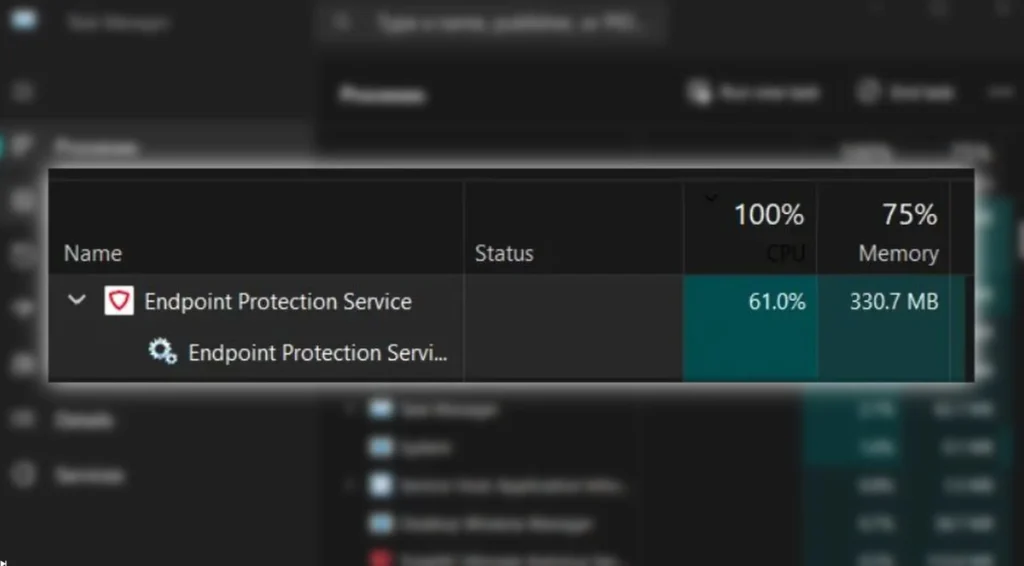
The service does the heavy lifting of security software: it scans files as you open them, checks them against known threats, watches how programs behave, and runs full-system sweeps. All of that costs CPU. Most of the time it sips a few percent in the background. When it spikes and stays high, one of those jobs has gone wrong or is simply running at a bad moment.
First, find out which product is behind the name
Before you change any setting, confirm what you are dealing with. This takes about a minute.
- Press Ctrl + Shift + Esc to open Task Manager.
- On the Processes tab, find Endpoint Protection Service (or Antimalware Service Executable).
- Right-click it and choose Open file location.
- Look at the folder path. That path tells you the real vendor.
The folder name is the giveaway. A path under Windows Defender means it is built into Windows. A path inside an F-Secure, Avira, Symantec, or Sophos folder points straight at that product. This table maps the common processes to their owners and what usually sets them off.
| Process name in Task Manager | The product behind it | What usually drives the CPU |
|---|---|---|
| Antimalware Service Executable (MsMpEng.exe) | Microsoft Defender Antivirus | A stuck scan, real-time scanning of heavy folders, or a buggy platform update |
| Endpoint Protection SDK / Endpoint Security Service | Avira engine, used by F-Secure and some other suites | Heavy activity at startup, expired certificate checks, or extra DNS calls |
| ccSvcHst.exe / IDSVia64.sys | Symantec (Broadcom) Endpoint Protection | The intrusion prevention (IPS) module inspecting network traffic |
| EFRService | Check Point Endpoint Security (Forensic Recorder) | Blocked traffic to Check Point servers, common on busy servers |
| PSANHOST.exe | WatchGuard / Panda Endpoint Security | A program that reads or writes many files being scanned repeatedly |
Quick check: if the process runs from any folder other than the one it claims, treat it as suspicious and scan with a second tool. Malware sometimes borrows a trusted name to hide.
Once you know the product, the fixes below make a lot more sense, because you are aiming at the right target instead of guessing.
Is it normal, or a real problem?
Not every spike needs fixing. Security software is meant to work hard at certain moments, and a short burst is healthy behavior, not a fault.

Spikes that are usually fine include the minute or two after you boot, right after a big software install, while a large download finishes, or when you open an email with heavy attachments. On a machine that also runs full endpoint detection (the kind businesses use), a steady 5 to 12 percent overhead is normal, because it is doing more than plain antivirus.
What needs fixing is different: CPU that stays high for hours, climbs back within minutes of a reboot, or makes games stutter and calls drop. For Microsoft Defender, sustained high usage for longer than about ten minutes points to a scan that is stuck, damaged threat definitions, a software conflict, or the same files being scanned over and over.
How to fix Endpoint Protection Service high CPU
Work through these in order. Each step is safe and reversible, and the early ones fix most cases on their own. The commands shown are for Microsoft Defender, since it is the engine most people land here about, but the ideas apply to any suite.
1. Update the engine and restart
This sounds too simple, but it clears more problems than anything else on the list. Security vendors push out fixes for performance bugs quietly and often. An out-of-date engine, or a scan that got stuck partway, is a very common cause. Update your security product to the latest version, then reboot. Give it a few minutes to settle before you judge whether it worked.
2. Let a stuck scan finish
A full scan can stall on one awkward file and sit there pinning the CPU. Instead of killing the process (which just makes it start over later), run a full scan manually and let it complete. In Windows Security, go to Virus & threat protection, choose Scan options, pick Full scan, and start it. Depending on your drive it can take from around 45 minutes to a couple of hours. Once it finishes properly, usage usually drops back to near zero.
3. Make sure only one antivirus is active
Two real-time protection tools running at once is a classic cause of runaway CPU. They scan the same files, and sometimes they scan each other. You should have exactly one active. If you installed a third-party antivirus, Windows Defender is supposed to step aside on its own, but on Windows Server it does not always do this automatically. Remove any security product you are not actually using.
4. Reschedule scans to off-hours
If the spike lands at the same time every day, a scheduled scan is the likely reason. Move it to a time you are away from the machine. You can also tell Defender to only scan when the computer is idle. In PowerShell run as administrator:
Set-MpPreference -ScanOnlyIfIdleEnabled $true
You can also change the scheduled scan day and time from the same place, so full scans happen overnight rather than in the middle of your work.
5. Cap how much CPU a scan can use
Defender has a setting that limits the average CPU a scan may use. The default is 50 percent. You can lower it so scans stay lighter, at the cost of taking longer to finish. Details of this and every related setting live on Microsoft’s Set-MpPreference reference page. To set the cap, run:
Set-MpPreference -ScanAvgCPULoadFactor 30
One catch worth knowing: this cap is guidance, not a hard ceiling, and it only applies to scheduled scans. Manual full scans can still push CPU to 100 percent unless you also change the throttling flags. For most people, rescheduling scans matters more than capping them.
6. Add narrow, targeted exclusions
If real-time scanning keeps hammering a specific folder, telling Defender to skip that folder can end the spike. This is powerful and a little risky, so keep it narrow. Good candidates are large development folders, virtual machine files, or a game library that generates thousands of temporary files. Add a folder exclusion in Windows Security under Virus & threat protection settings, or in PowerShell:
Set-MpPreference -ExclusionPath “C:\Path\To\HeavyFolder”
Do not exclude your whole drive, your Downloads folder, or anything you are unsure about. Every exclusion is a small hole in your defenses, so only add ones you genuinely need. One known quirk: Defender will scan files inside its own program folder, which can cause a loop. Excluding that folder is a recognized fix for stubborn cases.
7. Find the exact culprit with the performance analyzer
If you have tried the above and the spike will not go, stop guessing and measure. Microsoft ships a built-in tool that records exactly which files, extensions, and processes are costing the most scan time. It needs no install and runs from PowerShell. The full walkthrough is on Microsoft’s performance analyzer guide. Start a recording, reproduce the slowdown, then read the report:

New-MpPerformanceRecording -RecordTo .\trace.etl
Get-MpPerformanceReport -Path .\trace.etl -TopFiles 10 -TopProcesses 10
The report hands you the real offenders by name, so any exclusion you add afterwards is precise instead of a shot in the dark.
Fixes for specific security products
If the file location showed a product other than Windows Defender, these targeted notes will save you time.
- F-Secure (Avira engine): The Endpoint Protection SDK often runs heavy for the first stretch after startup while it loads and updates. Let it settle and make sure it is fully updated. Some versions also make extra DNS calls that add load, so watch for that.
- Symantec / Broadcom Endpoint Protection: High CPU here often traces to the intrusion prevention (IPS) module inspecting network traffic. Turning off IPS submissions and, where relevant, Netstat events in the management console usually settles it.
- Check Point Endpoint Security: The Forensic Recorder service can spike on busy machines when it cannot reach Check Point’s servers. Whitelisting the required domains so its data uploads properly is the common fix.
- General approach for any suite: Most products bundle several modules (real-time scan, intrusion prevention, behavior monitoring, cloud checks). Turn one off, wait a few minutes, watch the CPU, then turn it back on. This isolates the module causing the load without leaving you exposed for long.
When high CPU means something is actually wrong
Occasionally the problem is not the security software behaving badly. It is the thing the security software is fighting, or damage underneath it.
Malware sometimes disguises itself with a trusted process name, which is exactly why the file-location check earlier matters. If the process runs from an odd folder, scan with a second, independent tool. On Windows, damaged system files can also make Defender loop endlessly. Two built-in commands, run as administrator in order, repair that:
DISM /Online /Cleanup-Image /RestoreHealth
sfc /scannow
Run DISM first, let it finish, then run the SFC scan. Together they check and restore Windows system files, which can clear a scan that keeps getting stuck on corruption.
Should you ever turn it off?
Disabling your security service is a last resort, not a fix, and for most people the answer is no. It stops the CPU use instantly because it stops the protection entirely, which leaves the machine open to exactly the threats it was guarding against.
There is one reasonable exception. If you have a second, trusted security product properly installed and running, then the first one is redundant, and removing it is fine. In that case Defender bows out on its own and its service should already be idle. Outside that, keep protection on and work through the fixes above instead. On newer Windows builds, Tamper Protection also blocks the old registry tricks for switching Defender off, so those no longer work on a standard setup anyway
Frequently asked questions
Why is Endpoint Protection Service using so much CPU all of a sudden?
Usually a scan is running or stuck, real-time scanning is churning through a busy folder, or a recent update introduced a bug. A sudden change often follows a definition update. Updating the product and restarting clears most cases.
Is it safe to disable Endpoint Protection Service?
Only if you have another trusted antivirus installed and running. Turning it off with no replacement leaves your device open to malware. For a slowdown, reschedule scans and add narrow exclusions instead of disabling protection.
Is Antimalware Service Executable the same thing?
Yes, in most cases. Antimalware Service Executable (MsMpEng.exe) is the process name for Microsoft Defender’s engine. “Endpoint Protection Service” is a generic label, so check the file location to confirm which product you have.
How much CPU should endpoint protection normally use?
At rest, a few percent. Short spikes during scans, boot, or big downloads are normal. On business machines with full endpoint detection, a steady 5 to 12 percent overhead is expected. Hours of high usage is what needs fixing.
Will adding exclusions leave my computer unprotected?
A few narrow exclusions are low-risk, but each one is a small gap in your defenses. Exclude specific heavy folders you trust, never whole drives or your Downloads folder, and only add exclusions you genuinely need.
Conclusion
High CPU from an Endpoint Protection Service is almost always fixable and rarely means disaster. Start by opening the file location to learn which product you actually have, then decide whether the spike is normal behavior or a real fault. From there, update and restart, let stuck scans finish, keep only one antivirus active, and move scans off-hours. A good result is a service that idles near zero between scans and stops interrupting your work, with your protection still fully switched on.
Recommended Articles:
100% CPU Usage While Gaming: What It Means and How to Fix It
Plex “Not Enough CPU for Conversion of This Item”: Causes and Fixes
Why Is BIAS FX 2 Using So Much CPU? (And How to Fix It)
How to Set CPU Affinity in Process Lasso (Complete Guide)
Windows Driver Foundation High CPU: How to Find the Faulty Driver and Fix It