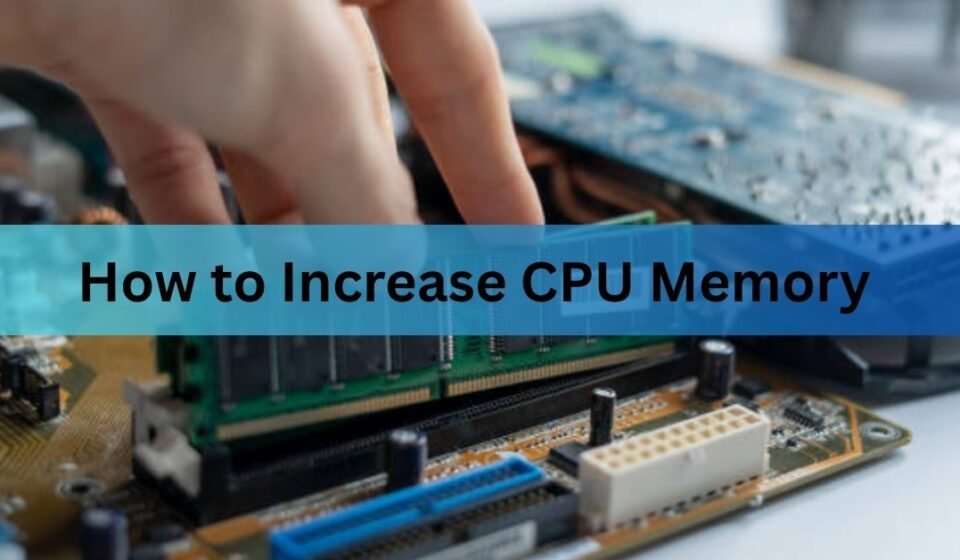

Here’s the honest answer up front: you can’t increase the memory that’s built into a CPU. That memory, called cache, is baked into the chip and can’t be changed. But that’s almost never what people are really asking. Most of the time “increase CPU memory” means “my computer feels slow and I want it to have more memory to work with.” That you can do, by adding RAM, changing your virtual memory setting, and clearing out what’s already being used.
The word “memory” gets stuck to three different parts of a computer, and they don’t all work the same way. Once you can tell them apart, the fix for a slow machine becomes obvious. Let’s sort out what you actually have and what you can actually change.
What people mean by “CPU memory”
When someone types “how to increase CPU memory,” they usually mean one of three things without knowing there’s a difference. Getting these straight saves you from chasing a fix that was never possible.
| Type | What it is | Can you increase it? |
|---|---|---|
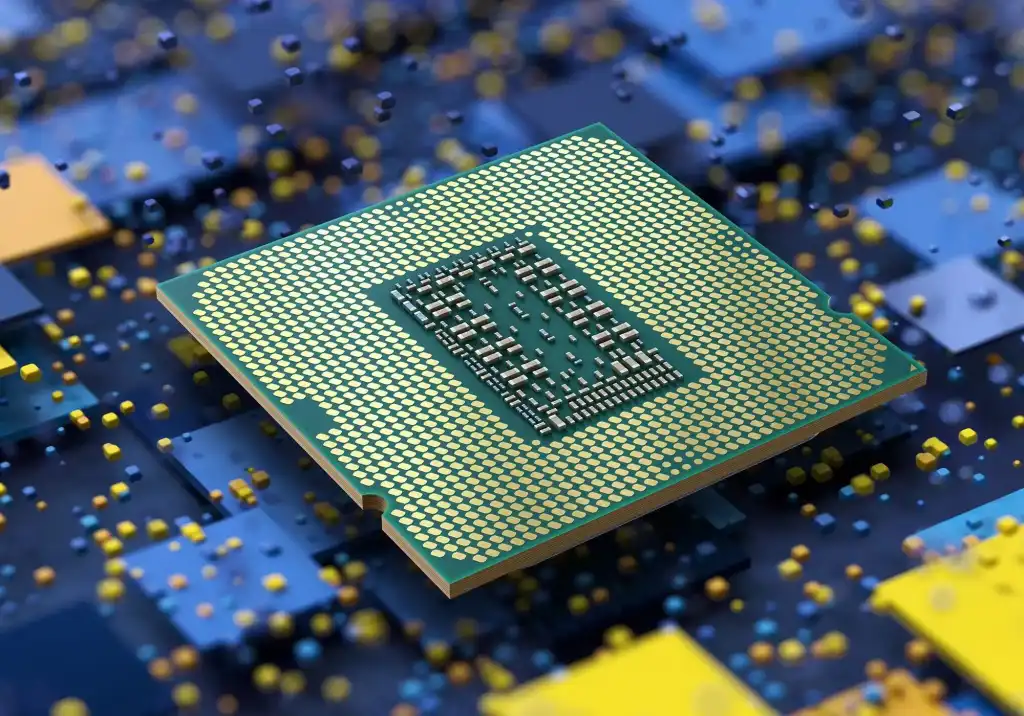
| Cache | Tiny, ultra-fast memory built into the CPU chip | No. It’s fixed when the chip is made. |
| RAM | Your computer’s main working memory, in slots on the board | Usually yes on desktops and many laptops. This is the real upgrade. |
| Virtual memory | Space on your drive that stands in for RAM when RAM is full | Yes, through a setting. It’s a cushion, not a true replacement. |
So the short version is this: the memory inside the CPU can’t grow, but the memory the CPU uses can. RAM is the piece you’ll spend most of your effort on, because it does the most for everyday speed.
Can you increase the memory inside a CPU?
No. The memory built into a processor is called cache, and it’s set for good when the chip is manufactured. You can’t add to it, swap it, or turn a setting to make it bigger.
Cache is a small pool of extremely fast memory that sits right on the CPU, holding the data the processor reaches for most often. It comes in levels, usually labelled L1, L2, and L3, from smallest and fastest to largest and slightly slower. Even the biggest is tiny: cache is measured in megabytes, while your RAM is measured in gigabytes, which is thousands of times more room. Its whole job is speed, not space, and its size is part of the chip’s design.
The only way to get more cache is to buy a processor that ships with more of it. On a desktop that means a new CPU, and on most laptops the processor is soldered down, so it means a new machine. For nearly everyone, cache is simply not the lever to pull. The good news is that it’s rarely the thing holding your computer back.
Rule of thumb: if your computer is slow, cache is almost never the cause. Look at RAM and how much of it is free first.
The memory you can actually increase: RAM
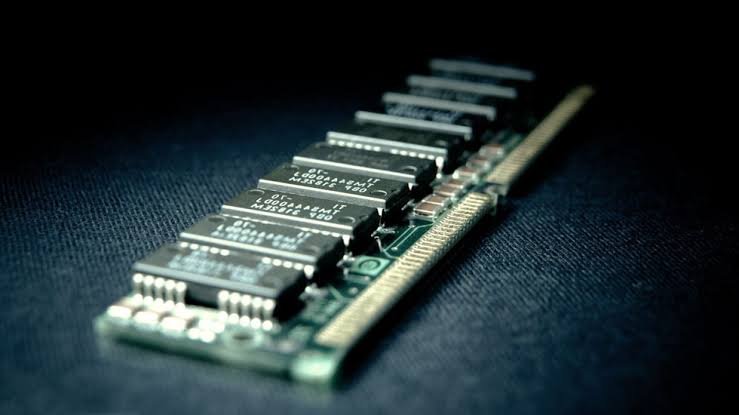
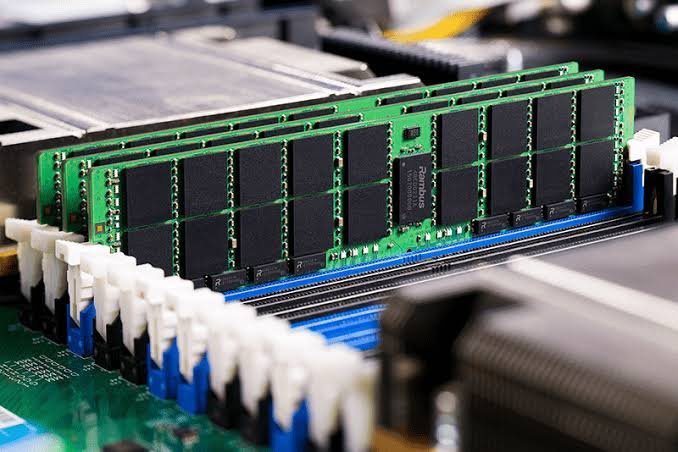
RAM, short for random access memory, is your computer’s main working space. It holds whatever you’re actively doing right now: open browser tabs, the document you’re typing, the game you’re playing, the apps running in the background. The CPU pulls from RAM constantly, so when RAM runs short, everything slows down while the system shuffles data around to cope.
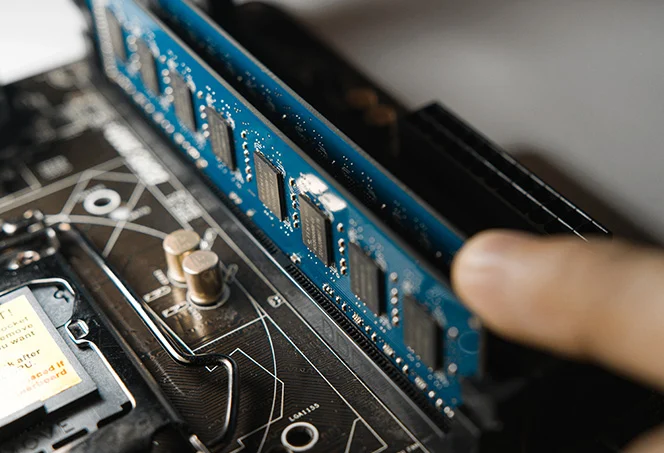
This is why adding RAM is the upgrade that people feel the most. If your machine crawls when you have a dozen tabs open, or stutters when you switch between heavy apps, you’re likely running low on RAM. More of it gives the CPU more room to keep things ready, so there’s less waiting.
A quick way to check on Windows: open Task Manager (press Ctrl, Shift, and Escape together), click the Performance tab, and look at Memory. If it sits near the top while you work normally, more RAM will help. On a Mac, open Activity Monitor, click the Memory tab, and watch the Memory Pressure graph. Lots of green is fine; a lot of red means your memory is under real strain.
How much RAM do you need?
For light use like web browsing, email, and word processing, 8 GB is the floor and can feel tight. 16 GB is the comfortable spot for most people in 2026 and handles everyday multitasking with room to spare. If you edit video, run virtual machines, work with large files, or play demanding games, 32 GB or more starts to make sense. Beyond a point, extra RAM sits unused, so there’s no reason to overbuy far past what your work actually needs.
How to add more RAM
Adding RAM is one of the cheapest and most effective upgrades you can make, and on a desktop it’s genuinely beginner-friendly. Here’s the process from start to finish.
- Check whether your machine can be upgraded. Most desktops can. Many Windows laptops can too, but a growing number have RAM soldered to the board, which means it’s fixed. Apple Silicon Macs (the M1, M2, M3, and M4 models) all have their memory built into the chip and can’t be upgraded at all, so the amount you bought is the amount you keep for the life of the machine.
- Find out what type your system takes. RAM comes in generations like DDR4 and DDR5, and they aren’t interchangeable. You also need to know how many slots you have and how much each can hold. A memory maker’s compatibility checker, such as the ones on the Crucial or Kingston websites, will tell you the exact type and maximum for your specific model.
- Buy matching modules. Where you can, add RAM in matched pairs of the same size and speed. This lets the system run in dual channel mode, which is a bit faster than a single stick of the same total size.
- Install it (desktop). Power the machine fully off and unplug it. Open the case, touch a metal part to discharge static, then press the module into an empty slot until the clips snap shut. It only fits one way, so don’t force it.
- Install it (upgradeable laptop). Remove the back panel, find the memory slots, release the clips on the old stick if you’re replacing it, and seat the new one at an angle before pressing it flat until it locks.
- Boot up and confirm. Turn the computer on. It should detect the new memory on its own. Check Task Manager on Windows or About This Mac on a Mac to confirm the new total shows up.
If your laptop or Mac can’t take more RAM, don’t worry, the next two sections still apply and cost nothing.
How to increase virtual memory
Virtual memory is space on your hard drive or SSD that Windows uses as a backup when your RAM fills up. On Windows this file is called the paging file, or page file. It’s slower than real RAM because drives can’t keep pace with memory chips, but it stops your system from freezing when memory runs out, and you can make it bigger through a setting.
Windows manages this automatically, and for most people that’s fine. It’s worth adjusting by hand if you see a “low on memory” warning, if a specific program asks for a set amount, or if your machine can’t take more physical RAM and you want a little extra cushion. Here’s how to change it on Windows 11.
- Open the Start menu, type “advanced system settings,” and open “View advanced system settings.”
- On the Advanced tab, click Settings under the Performance section.
- Click the Advanced tab again, then Change under Virtual memory.
- Uncheck “Automatically manage paging file size for all drives.”
- Select your main drive, choose Custom size, and enter an initial and maximum size in megabytes.
- Click Set, then OK, and restart your computer.
For sizing, a common starting point is an initial size of about 1.5 times your installed RAM and a maximum of up to 3 times, as long as your drive has the free space to hold it. On a machine with 8 GB of RAM, that’s roughly 12,000 MB to start and up to about 24,000 MB at most. Microsoft’s own page file guidance goes deeper if you want the full detail.
Virtual memory is a safety net, not a substitute for RAM. It keeps things running, but it won’t make a memory-starved machine feel fast. Real RAM is always the better fix when you can add it.
Free up the memory you already have
Before you buy anything, you can often reclaim a real chunk of memory that’s being wasted right now. These steps cost nothing and take a few minutes.
- Close what you’re not using. Open browser tabs and background apps each hold onto memory. Shutting the ones you don’t need frees it instantly.
- Trim your startup programs. In Task Manager’s Startup tab, disable apps you don’t need running the moment you log in. Fewer of them means more free memory from the start.
- Restart regularly. A reboot clears out memory that programs failed to release. If you leave your computer on for days, a restart alone can make it feel noticeably quicker.
- Scan for malware. Some malware quietly eats memory and processing power. A scan with trusted antivirus software rules this out.
- Watch the heavy hitters. In Task Manager, sort by the Memory column to see which programs use the most. Sometimes one runaway app is the whole problem.
None of this changes your hardware, but together it can hand back enough memory to make a slow machine usable again, especially on a computer that can’t be upgraded.
When more memory won’t fix the problem
Adding memory helps when memory is the bottleneck. It won’t help if something else is the real cause. If your computer feels slow but your RAM isn’t close to full when you check it, the culprit is probably elsewhere.
A slow, old hard drive is a common one. Swapping a spinning hard disk for an SSD often does more for everyday speed than any memory change, because so much waiting comes from the drive. An aging or underpowered processor can also cap performance no matter how much RAM you feed it. And overheating can quietly throttle a CPU, which cooling and cleaning out dust will fix. The point is to match the fix to the actual limit. Check what’s full or slow before you spend, and put your money where the real bottleneck is.
Frequently asked questions
Is CPU memory the same as RAM?
Not exactly. “CPU memory” usually means the cache built into the processor, which is tiny and fixed. RAM is your computer’s separate main memory, and it’s the part you can add to. Most people asking about CPU memory really want more RAM.
Can I increase cache memory on my CPU?
No. Cache is manufactured into the chip and can’t be expanded, swapped, or unlocked with a setting. The only way to get more is to buy a processor that comes with more cache, which on most laptops means a new computer.
Does adding more RAM make my CPU faster?
It doesn’t raise the CPU’s speed, but it lets the CPU work without waiting on a full memory. If low RAM was slowing you down, adding more removes that bottleneck, so the whole system feels faster in practice.
How much RAM do I actually need?
For browsing and office work, 16 GB is the comfortable target in 2026, with 8 GB as a tight minimum. For video editing, virtual machines, or demanding games, 32 GB or more is worth it. Past what your work needs, extra RAM just sits idle.
Can I upgrade the RAM in a laptop or a Mac?
Sometimes on Windows laptops, but many now have RAM soldered in place. All Apple Silicon Macs have memory built into the chip and can’t be upgraded, so choose the amount carefully at purchase. When you can’t add RAM, virtual memory and freeing up memory are your options.
Conclusion
You can’t grow the cache inside a CPU, but you can give the CPU far more memory to work with. Adding RAM is the upgrade you’ll feel most, resizing virtual memory adds a cushion when RAM runs out, and closing apps, trimming startup programs, and restarting free up memory you already own. Check what’s actually full first with Task Manager or Activity Monitor, then fix that. A good result is a machine that stops stalling and keeps up with everything you have open.
Recommended Articles:
100% CPU Usage While Gaming: What It Means and How to Fix It
Plex “Not Enough CPU for Conversion of This Item”: Causes and Fixes
Why Is BIAS FX 2 Using So Much CPU? (And How to Fix It)
How to Set CPU Affinity in Process Lasso (Complete Guide)
100% CPU Usage While Gaming: What It Means and How to Fix It