

CPU affinity in Process Lasso is a saved rule that locks a program to specific processor cores every time it runs, instead of letting Windows pick cores fresh each session. Windows lets you set CPU affinity through Task Manager too, but that setting disappears the moment you close the program. Process Lasso remembers it, reapplies it automatically, and adds tools like automated rules and a responsiveness feature called ProBalance on top. People reach for it when a background app hogs too many cores, when an older game only threads well across two or three cores, or when they want to keep one heavy task off the cores Windows itself leans on. Here is what affinity actually does, how to set it in Process Lasso, and when it is worth the trouble.
What is CPU affinity, and why would you change it?
A processor core is one of the independent units inside your CPU that can run instructions on its own. Most modern chips pack several cores onto one die, and Windows spreads your open programs across all of them by default, shifting threads between cores as it sees fit. CPU affinity overrides that behavior. It tells Windows that a specific program may only use a chosen set of cores, full stop.

Changing affinity helps in a few real situations. A program that only scales well across two or three threads gets no benefit from ten free cores, and letting it roam across all of them can add scheduling overhead and cache misses that actually slow it down. A backup job or antivirus scan that is allowed to touch every core can steal cycles from whatever you are actively doing at the same time. On a system with mixed core types, like Intel’s Performance and Efficiency cores, some older or poorly threaded software runs smoother when it is kept off the slower Efficiency cores entirely.
Affinity is a hard limit, not a suggestion. Assign a process to cores 0 through 3, and its threads cannot run on core 4 or higher, no matter how idle those other cores sit.
A concrete example makes this easier to picture. On an 8-core, 16-thread CPU, cores are usually numbered 0 through 15 in Windows once simultaneous multithreading is counted in. Locking a single-purpose background tool to cores 12 through 15 keeps it confined to a small corner of the chip, leaving the other twelve threads free for whatever runs in the foreground. The tool still works exactly the same; it just cannot spread out and compete for cycles everywhere else.
What is Process Lasso, and how is it different from Task Manager?
Process Lasso is a free background utility from Bitsum that manages Windows process behavior, including CPU affinity, priority class, and power settings. Task Manager can set an affinity for a running process too, but only for that single session. Close the program, or restart the PC, and the setting is gone.
Process Lasso saves the rule and reapplies it automatically every time that program opens, including after a reboot, because it runs as a small standalone background service rather than depending on its own window being open. That persistence is really the whole point of the tool.
Beyond permanent affinities, Process Lasso adds a rules engine that can throttle CPU-hungry background processes once they cross a threshold you set, plus ProBalance, a feature that temporarily lowers the priority of a runaway process so your mouse and keyboard stop stuttering while it settles down. It can also lock in priority classes, disable Efficiency Mode for specific apps, and switch power plans automatically when certain programs launch, none of which Task Manager retains once you close it.
Process Lasso runs on Windows 7 through 11, plus the corresponding Windows Server releases, and the whole install is small enough that it barely registers on disk space. Its enforcement happens through a background service called the Process Governor, so the rules you set keep working even if you never open the main window again.
How do you set CPU affinity in Process Lasso?
Setting a permanent affinity rule takes a few clicks once the program is running.
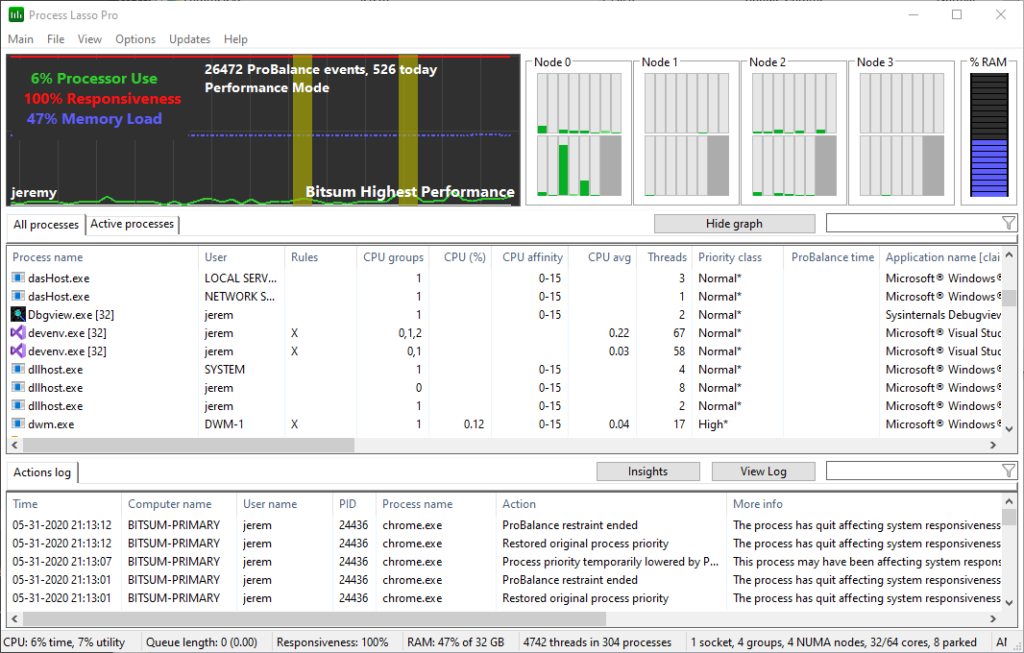
- Open Process Lasso. The main window lists every active process along with its current priority and resource use.
- Find the target process. Sort the list by name or CPU usage to spot it quickly, especially if several instances of the same app are running.
- Right-click the process. This opens a context menu with every available option for that program.
- Go to CPU Affinity, then Always, then Select CPU(s). “Always” is what makes the rule persistent across restarts, rather than a one-time change for the current session.
- Pick the cores you want the process locked to. On a four-core system these show up as CPU 0 through CPU 3; on higher core-count systems, you will see a longer list, and Process Lasso’s named affinities let you save a combination like “P-cores only” so you do not have to reselect it by hand next time.
- Confirm the change. The new affinity applies immediately, and you can watch the process’s per-core activity in Process Lasso’s graph to confirm it is behaving as expected.
Test any new affinity rule under real use before leaving it in place. A poor choice, like squeezing a heavily multithreaded game engine onto two cores, can hurt performance instead of helping it.
Should you use CPU affinity or CPU Sets?
Process Lasso also supports CPU Sets, a Windows feature that behaves like a softer version of affinity. The difference matters more than it sounds like it should.
| CPU Affinity | CPU Sets | |
| Enforcement | Hard limit; threads cannot leave the assigned cores | Soft preference; Windows can schedule outside it if needed |
| Best for | Capping total CPU use, or isolating a process completely | Steering a process toward preferred cores without risking a stall |
| Systems with 60+ logical cores | Has restrictions across processor groups | Not affected by those group restrictions |
| Typical use case | Limiting a runaway background task | Keeping a game off Efficiency cores on a hybrid Intel chip |
A hard affinity guarantees a process never touches the excluded cores, which is exactly what you want when the goal is capping CPU use for good. A CPU Set is more forgiving. If the process suddenly needs more threads than its preferred cores can supply, Windows can still schedule the overflow elsewhere instead of choking the program. Microsoft’s CPU Sets documentation describes this as a way to declare affinity in a manner that stays compatible with the operating system’s own power management, which is why it tends to cause fewer stability quirks in sensitive apps and games.
If a game or app is known to behave oddly when its affinity is changed, try a CPU Set first. Reach for a true affinity rule only when you need a firm ceiling on how much of the CPU a process is allowed to touch.
Should you keep an app off Core 0?
Core 0 typically handles a disproportionate share of interrupt handling and system-level work on Windows, since it is usually the first core the OS reaches for. Reserving it for the operating system and background services, and pointing your heaviest applications at the remaining cores, is a common way to reduce the small freezes and input lag that show up when a demanding app and the OS compete for the same core at the same time.
This is not a universal rule. On a modern CPU with eight or more cores, the effect is usually small, and some workloads see no change at all. It is worth testing on machines with fewer cores, or on older systems where a single background process regularly causes stutter, rather than applying it everywhere by default.

If you decide to try it, apply the exclusion to the heavy foreground application rather than to Windows itself. There is no need to touch system processes directly. Set an affinity rule that starts at core 1 instead of core 0 for the demanding app, watch how the system behaves for a day or two under normal use, and revert it if you notice no real difference or, worse, new stutter that was not there before.
Does CPU affinity work with anti-cheat protected games?
Some anti-cheat systems, including Easy Anti-Cheat, block direct access to a running game process, which normally means you cannot set its affinity or priority once it has launched. Process Lasso works around this through setting inheritance: instead of targeting the game itself, you create the affinity rule on its launcher, such as Steam.exe, and every game process it spawns inherits that setting automatically.
For priority specifically, Process Lasso also offers a registry-based enforcement option that applies the setting at the moment the process is created, before anti-cheat has a chance to block the change. Games that are not protected by anti-cheat can still have their own individual rules, so you are not stuck applying the same settings to everything you launch through Steam.
Is Process Lasso free, or do you need Pro?
Process Lasso is genuinely usable for free, indefinitely, for personal use. The free tier covers the core process management tools, though some persistent “Always” rules and the full rules engine are reserved for Process Lasso Pro, as laid out on Bitsum’s CPU affinity documentation. A short reminder to upgrade appears in the free version, but it does not stop the software from working.
Pro adds full persistent affinity and priority rules, the complete automation and rules engine, and ongoing updates. Bitsum sells it as either a subscription or a one-time lifetime license that covers all future versions, and commercial use requires a paid license within 30 days of deployment. For most home users tweaking affinity on a game or two, the free version alone is often enough to get the job done; Pro mainly pays off once you start relying on multiple automated rules across several applications.
Frequently asked questions
Does changing CPU affinity actually improve FPS in games?
Sometimes, but not reliably. Most modern games use many cores well already, so affinity changes tend to help older or poorly threaded titles more than current releases, and results vary by system.
Does Process Lasso slow down my PC?
No. It runs as a lightweight background service with minimal resource use, and its main job, ProBalance, is specifically designed to keep your system more responsive, not less.
Do I need to reapply CPU affinity after every restart?
No, that is the entire point of using Process Lasso instead of Task Manager. An “Always” rule is saved and reapplied automatically every time the target process starts, including after a reboot.
Can I set CPU affinity for a game protected by anti-cheat software?
Direct rules on the protected game process may be blocked, but setting the rule on the game’s launcher, such as Steam.exe, lets the setting pass down to the game process automatically.
Is Process Lasso safe to use on Windows 11?
Yes. It is built to work with Windows 11 features like Efficiency Mode and hybrid P-core and E-core scheduling, and it does not modify system files or require disabling built-in security features.
Conclusion
CPU affinity in Process Lasso locks a program to chosen CPU cores and keeps that rule active every time the program runs, which is the main thing Windows’ own built-in affinity setting cannot do on its own. Set it through the process’s right-click menu, choose “Always,” pick your cores, and test the result under real use. For most people, a CPU Set or a targeted affinity rule on one or two problem processes is all it takes to get a noticeably steadier system.
Recommended Articles:
Windows Driver Foundation High CPU: How to Find the Faulty Driver and Fix It
Why Is My Mouse Stuttering When CPU Usage Increases?
CPU Schematic Explained: How to Read the Diagram Inside a Processor
Why WindowServer Is Using So Much CPU on Your Mac (and How to Fix It)