
If your mouse begins to stutter whenever CPU usage climbs, the processor is struggling to keep up with everything running at the same time. Windows relies on the CPU to process mouse input, update the screen, and run your applications. When the CPU is close to 100% usage, those tasks compete for processing time, which can make the cursor feel slow or jerky.
The good news is that this problem is usually fixable. In many cases, you don’t need new hardware. A few software changes, updated drivers, or better system settings can restore smooth mouse movement.
How CPU usage affects mouse movement
Every movement of your mouse is translated into data that Windows processes before displaying the cursor on your screen. Under normal conditions this happens almost instantly.

When the processor is overloaded, Windows must prioritize thousands of tasks every second. Heavy programs such as games, video editors, software compilers, virtual machines, and rendering applications can consume most of the available CPU resources. As a result, mouse input may be delayed by a fraction of a second, which feels like stuttering or lag.
This issue often appears only while:
- Launching demanding software
- Rendering videos
- Compiling code
- Playing CPU-heavy games
- Running antivirus scans
- Extracting large archives
- Streaming while gaming
If the mouse becomes smooth again after CPU usage drops, you’ve already identified an important clue.
Signs that the CPU is causing the problem
Before changing settings, make sure the processor really is the cause.
Look for these symptoms:
| Symptom | What it usually means |
| Mouse lags only when CPU reaches 90–100% | CPU bottleneck |
| Cursor freezes during game loading | Heavy CPU workload |
| Keyboard also becomes slow | System-wide resource shortage |
| Audio crackles with mouse lag | CPU scheduling delays |
| Mouse works normally while idle | Hardware is probably fine |
Open Task Manager by pressing Ctrl + Shift + Esc and sort processes by CPU usage. If one program is using most of the processor while the mouse begins stuttering, you’ve likely found the source.
Quick Tip: Don’t just look at total CPU usage. Watch which application suddenly jumps to the top when the cursor begins to lag.
Common reasons your mouse stutters during high CPU usage
1. Background applications
Many PCs run dozens of background programs that most users never notice.
Examples include:
- Cloud synchronization
- RGB software
- Browser tabs
- Game launchers
- Antivirus scans
- Windows indexing
Each one uses a small amount of CPU. Together, they can overload slower processors.
2. Outdated mouse or chipset drivers
Drivers allow Windows to communicate with your hardware. Corrupted or outdated drivers can increase CPU usage and reduce input responsiveness.
Update drivers through Device Manager or download the newest versions directly from your motherboard or laptop manufacturer’s support page. Microsoft’s official Windows support also explains how to update device drivers:
https://support.microsoft.com/windows/update-drivers-through-device-manager
3. USB power management
Windows sometimes turns off USB devices to save energy.
When the mouse reconnects, you may notice small freezes or delayed movement.
Disable Allow the computer to turn off this device to save power for your USB Root Hubs inside Device Manager if this issue appears regularly.
4. CPU overheating
Modern processors automatically reduce their speed when temperatures become too high.
This is called thermal throttling.
A processor running hundreds of megahertz below its normal speed may struggle to keep mouse input smooth while handling demanding workloads.
Intel explains processor temperatures and thermal behavior on its official support pages:
https://www.intel.com/content/www/us/en/support.html
Check whether one application is causing the issue
Not every case of mouse stuttering means your entire computer is too slow.
Sometimes a single application consumes almost all available CPU time.
Here are common examples:
- Web browsers with dozens of tabs
- Video rendering software
- Malware
- Broken Windows services
- Faulty drivers
- Infinite software loops
- Poorly optimized games
If one process constantly sits above 70–80% CPU usage, investigate that application before replacing hardware.
Test your mouse on another USB port
This sounds simple, but it solves many cases.
Plug the mouse directly into a motherboard USB port instead of:
- USB hubs
- Monitor USB ports
- Front case ports
- Docking stations
Wireless mice should also have their USB receiver connected directly to the PC whenever possible.
A weak USB connection combined with high processor load can make stuttering appear worse than it really is.
How to fix mouse stuttering when CPU usage increases
If you’ve confirmed that high CPU usage is causing the problem, work through these fixes one at a time. Start with the simplest solutions before considering hardware upgrades.
1. Close unnecessary background programs
Many applications continue running after startup, even when you’re not using them. These programs compete for CPU time.
Check Task Manager and look for apps using an unusually high percentage of the processor. Close software you don’t currently need, especially:
- Multiple web browsers with many tabs
- Game launchers
- Screen recording software
- RGB lighting utilities
- Cloud storage applications
- Large file synchronization tools
After closing them, test whether the mouse becomes smooth again during heavy workloads.
2. Update Windows
Windows updates often include performance improvements, bug fixes, and hardware compatibility updates.
Go to Settings > Windows Update and install any available updates. Restart your computer after installation.
3. Install the latest chipset drivers
Many people update graphics drivers but forget chipset drivers. These control communication between the processor, motherboard, and USB devices.
Visit your motherboard or laptop manufacturer’s official support page and install the newest chipset drivers available for your model.
4. Update your graphics driver
Although this problem appears CPU-related, graphics driver issues can also cause cursor stuttering.
Download the newest driver directly from:
- NVIDIA
- AMD
- Intel
Choose the correct driver for your graphics card instead of relying only on Windows Update.
5. Change your Windows power plan
Power-saving modes reduce processor speed to conserve energy.
For desktop computers and performance laptops:
- Open Control Panel.
- Select Power Options.
- Choose High Performance or Balanced, depending on your system.
- Restart the computer.
This allows the processor to increase clock speed more quickly under heavy loads.
6. Reduce startup programs
Some computers load dozens of applications every time Windows starts.
To reduce startup apps:
- Open Task Manager.
- Click Startup Apps.
- Disable software you don’t need immediately after boot.
This frees CPU resources before you even begin working or gaming.
Check your CPU temperatures
A processor running too hot automatically slows itself down to prevent damage.
You can monitor CPU temperature using trusted hardware monitoring software. Under sustained heavy loads, temperatures that remain extremely high may indicate:
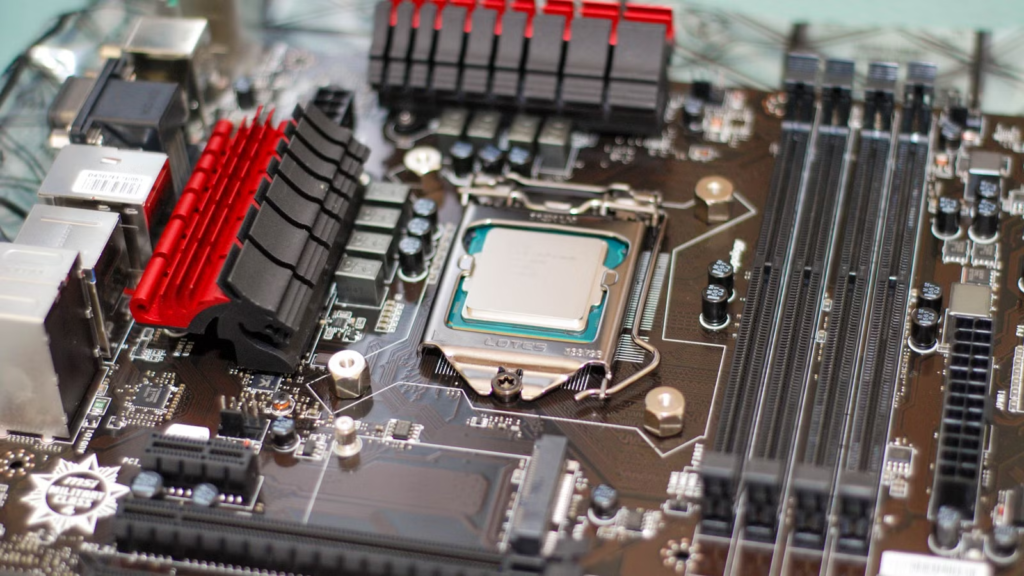
- Dust blocking airflow
- A failing CPU cooler
- Old thermal paste
- Poor case ventilation
Cleaning your PC and improving airflow can noticeably improve performance.
Is your mouse polling rate too high?
Gaming mice often allow polling rates of 1000 Hz, 2000 Hz, 4000 Hz, or even 8000 Hz.
A higher polling rate means the mouse reports its position more frequently. While modern processors usually handle this without difficulty, older or lower-end CPUs may experience extra load during demanding tasks.
If you own a gaming mouse, try reducing the polling rate to 1000 Hz or 500 Hz using the manufacturer’s software. Most users won’t notice a difference in everyday use, but some systems become more responsive.
Check your RAM usage
High CPU usage is sometimes only part of the problem.
If your RAM is nearly full, Windows begins using the page file on your storage drive. Accessing storage is much slower than accessing memory, which can make the entire system feel sluggish.
Open Task Manager and monitor Memory while reproducing the problem.
If RAM usage stays above 90% during normal work, upgrading memory may provide a noticeable improvement.
Don’t ignore storage performance
A slow or failing storage drive can also contribute to stuttering.
Mechanical hard drives struggle with modern multitasking, especially while Windows is updating, indexing files, or loading large programs.
If Windows is installed on an older HDD, moving to an SSD can significantly improve overall responsiveness, even if CPU usage occasionally spikes.
Scan for malware
Malware often runs silently in the background while consuming processor resources.
Run a complete scan using Windows Security or another trusted antivirus solution.
Unexpected CPU spikes caused by malicious software frequently disappear once the infection is removed.
When should you upgrade your CPU?
Software fixes won’t solve every case.
If your processor regularly reaches 100% usage during your normal workload, the hardware may simply be at its limit.
Consider a CPU upgrade if:
- Heavy applications always max out the processor.
- Mouse lag occurs every day during normal tasks.
- Video rendering takes much longer than expected.
- Modern games constantly push CPU usage above 95%.
- Your processor is several generations old.
Before upgrading, confirm that your motherboard supports a newer processor or determine whether a complete platform upgrade is the better choice.
Quick troubleshooting checklist
Use this checklist to narrow down the cause quickly:
| Check | Result |
| CPU reaches 90–100% during lag | ✓ Investigate CPU load |
| One application uses most CPU | ✓ Close or update it |
| Drivers are outdated | ✓ Install latest versions |
| CPU temperatures are high | ✓ Improve cooling |
| RAM usage exceeds 90% | ✓ Consider adding memory |
| HDD constantly at 100% usage | ✓ Upgrade to an SSD |
| Mouse only lags on one USB port | ✓ Try another port |
| Wireless mouse battery is low | ✓ Replace or recharge it |
Working through these steps in order saves time and avoids replacing hardware that isn’t actually causing the issue.
Frequently asked questions
Why does my mouse only lag when I’m playing games?
Games place a heavy load on the CPU and GPU. If the processor becomes fully utilized, Windows may delay mouse input, making movement feel slow or inconsistent.
Can high CPU usage damage my mouse?
No. High CPU usage doesn’t damage the mouse itself. It only delays how quickly Windows processes the mouse’s input, creating the appearance of lag.
Does more RAM reduce mouse stuttering?
Yes, if your system is running out of memory. Extra RAM reduces paging to disk, which can improve overall responsiveness during demanding workloads.
Can an SSD fix mouse lag?
An SSD won’t directly reduce CPU usage, but it speeds up Windows, application loading, and virtual memory access. If disk activity is contributing to system slowdowns, an SSD can make mouse movement feel much smoother.
Should I replace my mouse if it stutters?
Only after ruling out software and system performance issues. Test the mouse on another computer or try a different mouse on your PC. If the problem only occurs during high CPU usage, the processor or system configuration is the more likely cause.
Conclusion
If your mouse stutters when CPU usage increases, the processor is usually overloaded or another system component is slowing Windows down. Start by identifying which program is using the CPU, then update drivers, reduce unnecessary background tasks, check temperatures, and review your power settings. If your system regularly runs at full CPU usage despite these fixes, upgrading the processor or adding more RAM may be the best long-term solution. In most cases, a systematic approach restores smooth and responsive mouse movement without replacing every component.
Recommended Articles: