
A motherboard’s BIOS can absolutely cap CPU performance well below what the chip is built to deliver, and it happens more often than most builders realize. The usual causes are conservative power limits, RAM running at its slow default speed instead of the speed it was bought for, and boost settings left on cautious auto values. None of this means the CPU is faulty or the board is bad. It means the firmware picked safe, one-size-fits-all defaults instead of the settings that let your specific chip stretch its legs. Most of this lost performance takes only a few minutes to recover once you know where to look.
Can a motherboard’s BIOS really hold back a CPU?
Yes. The BIOS (or UEFI firmware, its modern version) controls every path power takes on its way to the processor: how many watts it’s allowed to draw, how much current the voltage regulators will push, how the memory controller talks to your RAM, and how aggressively the chip is allowed to boost. A CPU never runs at pure factory settings by itself.
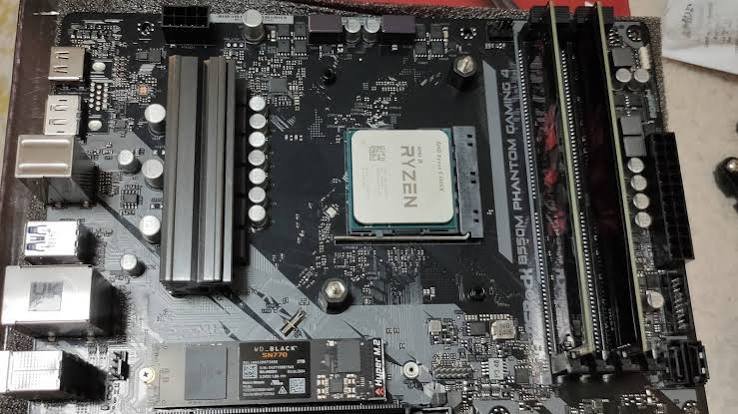
This shows up as a strange pattern: a CPU that runs noticeably cool under load, yet scores lower than expected on benchmarks or in games compared to the same chip on someone else’s system. Cool temperatures usually get read as “everything is fine.” In this case, they’re a clue that the chip has plenty of thermal headroom that isn’t being used.
Which BIOS settings limit CPU performance the most?
Five settings account for almost every case of a CPU underperforming for BIOS reasons:
- Power limits: PL1/PL2 on Intel, PPT/TDC/EDC on AMD, capping how much power the chip can draw and for how long
- Memory speed: RAM running at slow JEDEC defaults instead of its rated XMP or EXPO profile
- Load-line calibration (LLC): how tightly the board holds voltage steady as the CPU’s load changes
- C-states: idle power states that can add latency when the CPU wakes up to do work
- Firmware version: A BIOS update can quietly change power limits or microcode behavior
The first two cause the largest, most consistent performance gaps. The rest matter more at the margins, but they add up, especially in workloads that are sensitive to timing rather than raw throughput.
How do power limits cap boost clocks?
Power limits set a ceiling on how many watts the CPU can pull, and once it hits that ceiling, it drops frequency to stay under it, even if the cooler could easily handle more heat. On Intel chips, this works through two numbers: PL1, the sustained power limit the CPU settles into for long workloads, and PL2, a higher short-term limit it can hit for bursts. A budget board set to “Intel defaults” on auto may apply a lower PL2 than the chip is actually rated for.
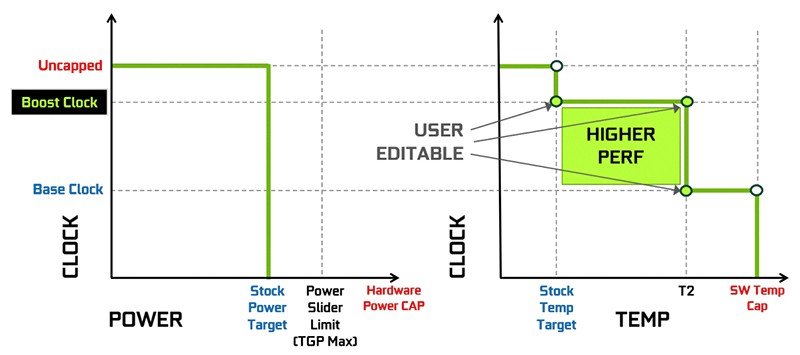
A Core i7-14700K, for example, has a specified PL2 of 253 watts. If a board’s auto setting quietly enforces a lower limit, the chip throttles back to base clocks sooner than it needs to, well before thermal issues become a problem.
AMD uses a different set of three numbers: PPT (package power tracking, the total socket power ceiling), TDC (thermal design current, the sustained current the VRM can supply), and EDC (electrical design current, the peak current allowed in short bursts). A Ryzen 9 7950X, rated at 170 watts TDP, defaults to a 230-watt PPT ceiling out of the box, and Precision Boost Overdrive can raise that further if the board’s power delivery has room for it.
| Limit | Intel | AMD |
| Sustained power | PL1 | PPT (package power tracking) |
| Short burst power | PL2 | EDC (electrical design current) |
| Sustained current | Icc Max (current limit) | TDC (thermal design current) |
| Time at burst limit | Tau (seconds) | Governed by the PBO scalar |
| Manual boost feature | Turbo Boost / Turbo Boost Max 3.0 | Precision Boost Overdrive (PBO) |
How does RAM speed affect CPU performance?
RAM that isn’t running at its rated speed feeds the CPU more slowly and with higher latency, which shows up directly in CPU-bound tasks like gaming, compression, and code compilation. Without a memory profile enabled, most systems run RAM at its safe JEDEC baseline, often around 2133 or 2666 MT/s, regardless of what the sticks are actually rated for. A DDR5 kit bought to run at 6000 MT/s will quietly run far below that until you turn its profile on.
The fix is XMP (Extreme Memory Profile) on Intel systems or EXPO on AMD systems, both found in the BIOS memory settings, sometimes tucked inside the overclocking menu instead. Enabling the first available profile brings the RAM up to its rated speed and timings in one step. Because the CPU’s memory controller and cache work constantly with RAM, this single change often moves gaming frame rates and multi-core benchmark scores more than any single power-limit adjustment.
How do load-line calibration and C-states affect performance?
Load-line calibration controls how much the CPU’s voltage is allowed to sag as its load jumps around. Set it too low, and the voltage can dip enough under sudden load to cause a brief drop in boost clock, or even instability. Set it too aggressively, and the board overcorrects, pushing voltage higher than needed and adding heat for no real gain.
A moderate, board-specific LLC level (usually one or two steps below the most aggressive option) tends to give the steadiest clocks without extra heat, and it’s worth checking manually rather than leaving on auto, since auto behavior varies a lot between motherboard brands.
C-states let the CPU drop into low-power sleep states between bursts of work, and waking back up from a deep C-state takes a small amount of time. On most systems, that latency is invisible. In latency-sensitive workloads such as competitive gaming or real-time audio, it can occasionally show up as a stutter. Disabling deep C-states can smooth that out, at the cost of slightly higher idle power draw, but for the average user, it’s not worth changing unless a specific stutter has already been noticed.
Can a BIOS update change your CPU’s performance?
Yes, and this catches a lot of people off guard right after they update. BIOS updates often bundle a new CPU microcode version, and microcode updates sometimes tighten power limits or voltage behavior on purpose, usually for stability or longevity rather than to hurt performance. Intel’s 13th and 14th generation Core desktop chips are a clear example: firmware and microcode updates released to address instability and long-term degradation on those chips included revised power delivery behavior, and some users saw slightly lower sustained clocks afterward as a direct result, even though nothing else about their hardware had changed.
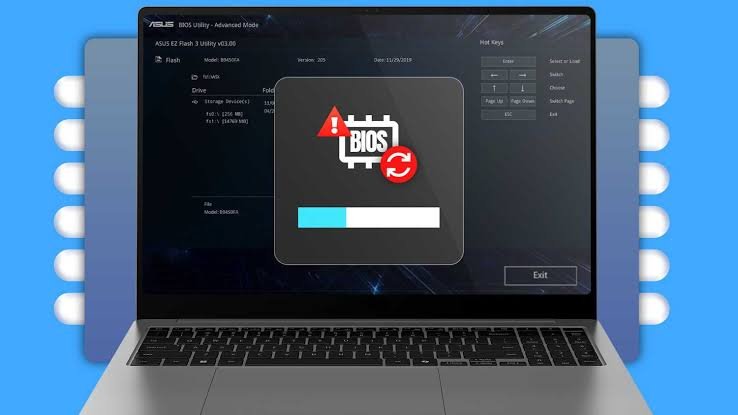
This is normal and usually the right trade to make, since the alternative is instability or shortened chip life. If a benchmark score drops noticeably right after a BIOS update, checking the update’s changelog for power limit or microcode changes will usually explain it, and reapplying your own power limit and memory profile settings (which a BIOS update can reset to default) often recovers most of the difference.
How to tell if your BIOS is limiting your CPU
Run a short monitoring session with a tool like HWiNFO64, Intel XTU, or AMD’s Ryzen Master while doing a demanding, sustained task such as a Cinebench multi-core run or a few minutes of a CPU-heavy game. Watch three numbers at once: the boost clock, the power draw, and the temperature.
- Clocks drop noticeably while power draw is pinned near a round number (like exactly 65W or 88W) and temperatures stay well under 80°C: a power limit is capping you, not heat
- Multi-core benchmark scores sit meaningfully below typical published results for the same chip: check whether XMP or EXPO is actually enabled first
- Voltage readings jump around erratically under load instead of moving smoothly: load-line calibration is likely set too aggressively or too conservatively
A processor sitting well under its thermal limit while still missing its advertised boost clock is close to a guaranteed sign that a BIOS setting, not the cooling, is the bottleneck.
How to fix BIOS settings that limit CPU performance
Work through these in order, restarting into Windows and running a quick stress test after each change before moving to the next one.
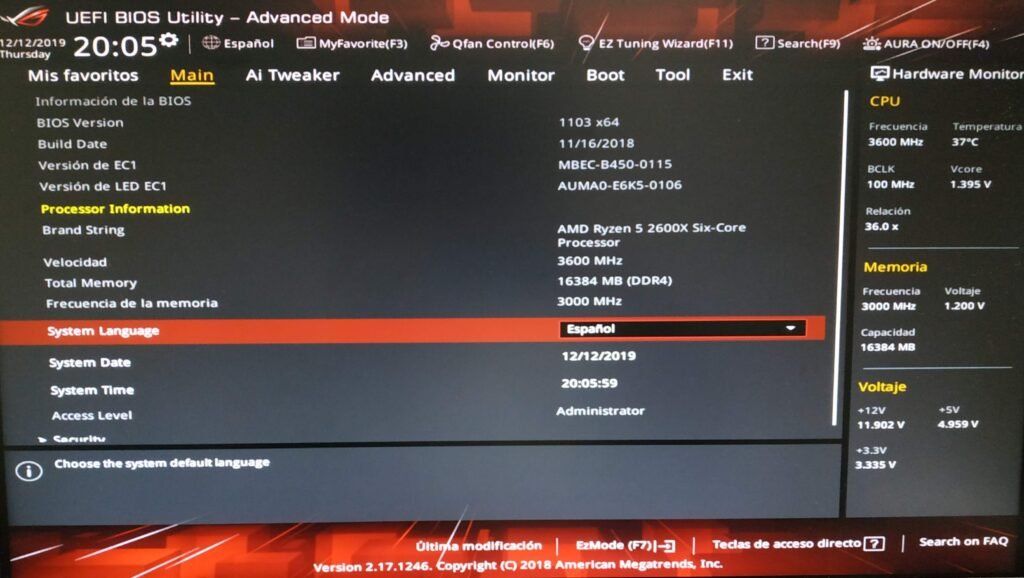
- Enable XMP (Intel systems) or EXPO (AMD systems) under the memory settings, usually one click to set the first available profile
- Set power limits to your CPU’s actual rated spec rather than a board’s conservative auto value. On Intel boards, set PL1 and PL2 to the numbers on Intel’s own ARK spec page for your exact model. On AMD boards, enable Precision Boost Overdrive and set PPT, TDC, and EDC to the defaults for your chip’s TDP class, found in AMD’s own documentation
- Set load-line calibration to a moderate, medium level rather than the most aggressive preset, and confirm voltage stays smooth under a stress test
- Enable Above 4G Decoding and Resizable BAR (sometimes labeled Smart Access Memory on AMD boards), usually under the Advanced or PCI settings menu, which can lift gaming frame rates in supported titles
- Leave C-states enabled unless you’ve already noticed stutter in a latency-sensitive workload, in which case try disabling the deepest states only
- Update to the latest stable BIOS version if you haven’t in a while, since AGESA and microcode updates fix real power-management bugs, not just add new ones
For step-by-step menu navigation on where each setting lives across board vendors, Intel’s BIOS overclocking guide covers the Intel side, and the AMD Ryzen Master reference guide documents the PBO, PPT, TDC, and EDC controls on the AMD side.
Is it safe to raise these limits?
Raising power limits up to your CPU’s own rated specification is safe and is not really overclocking, since you’re restoring the chip to the ceiling it was designed and validated for, not pushing past it. Going further than the factory spec (which Precision Boost Overdrive and manual PL2 increases both allow) is a mild form of overclocking. It’s low risk on modern CPUs, which have built-in protections that shut down or throttle before real damage occurs, but it does raise heat and power draw, so cooling matters more as you push higher.
Raise power limits in small steps of 5 to 10 watts (or the AMD current equivalent), retest stability each time, and stop increasing once temperatures climb past the high 80s Celsius under sustained load, even if the chip’s absolute limit is technically higher.
A weak stock cooler is the real ceiling in most of these cases. If temperatures climb past the mid-80s Celsius under sustained load after you raise limits, that’s the point to back off the power limit rather than push cooling harder.
Frequently asked questions
Why does my CPU run cool but still score low in benchmarks?
A conservative power limit caps the chip’s boost duration or ceiling before heat becomes a factor. Check PL1/PL2 or PPT/TDC/EDC against your CPU’s rated spec and adjust them to match.
Does updating the BIOS fix low CPU performance?
Sometimes, but it can also lower performance slightly if the update tightens power limits for stability, as happened with some Intel 13th and 14th-generation firmware updates. Check the changelog and reapply your own settings afterward.
Is it safe to raise power limits in the BIOS?
Raising limits to your CPU’s official rated spec is safe. Going beyond that is mild overclocking, low risk on modern chips, but it needs good cooling and small, tested increases rather than one large jump.
Does RAM speed really affect CPU performance?
Yes. Without XMP or EXPO enabled, RAM runs at a slow default speed, which can noticeably reduce gaming frame rates and multi-core benchmark scores compared to running at its rated speed.
Should I enable XMP, EXPO, and Resizable BAR by default?
For almost every modern build, yes. Both are stable on current motherboards and CPUs, and skipping them leaves real, easy performance on the table for no real benefit.
Conclusion
A CPU that runs cool but underperforms is almost always being held back by its BIOS, not by broken hardware. Enable XMP or EXPO, set power limits to the chip’s real spec, moderate the load-line calibration, and turn on Resizable BAR. Retest with a benchmark after each change. A good result looks like clocks and scores that match published numbers for your exact chip, with temperatures still comfortably under control.
Recommended Articles:
Plex Says “Not Enough CPU for Conversion of This Item”: How to Fix It
Intel CPU Roadmap Leak: Everything We Know About Nova Lake, Panther Lake, and Beyond
AMD Zen 6 CPU Leak Details: Everything We Know So Far About AMD’s Next-Generation Ryzen Processors
8 Core CPU vs 10 Core CPU – Which One Should You Buy in 2026?
Endpoint Protection Service High CPU: Causes, Fixes, and Ways to Reduce Resource Usage