
BIAS FX 2 usually overloads your CPU for one of a handful of fixable reasons: a buffer size or sample rate set too low, a cabinet simulation or impulse response (IR) stage working harder than it needs to, running the plugin version inside a DAW with several instances stacked on top of each other, or a computer that sits right at the software’s minimum spec. Work through these in order and the meter usually drops without you touching your tone at all.
What actually causes BIAS FX 2 to spike your CPU?
The amp modeling engine in BIAS FX 2 is not, on its own, unusually heavy. The load that pushes your CPU meter into the red almost always comes from three places: the cabinet or IR stage, how the plugin handles multiple processor cores, and how many instances you have open at once.
The cabinet simulator and IR loader are the most commonly reported source of spikes. Some users have traced sudden jumps in real-time CPU use directly to the cab stage, and switching to a lighter third-party IR loader for that one job brought the load back down. The IR length control is worth testing too, since a shorter impulse asks less of the processor, although this is not guaranteed to help on every system and every preset.
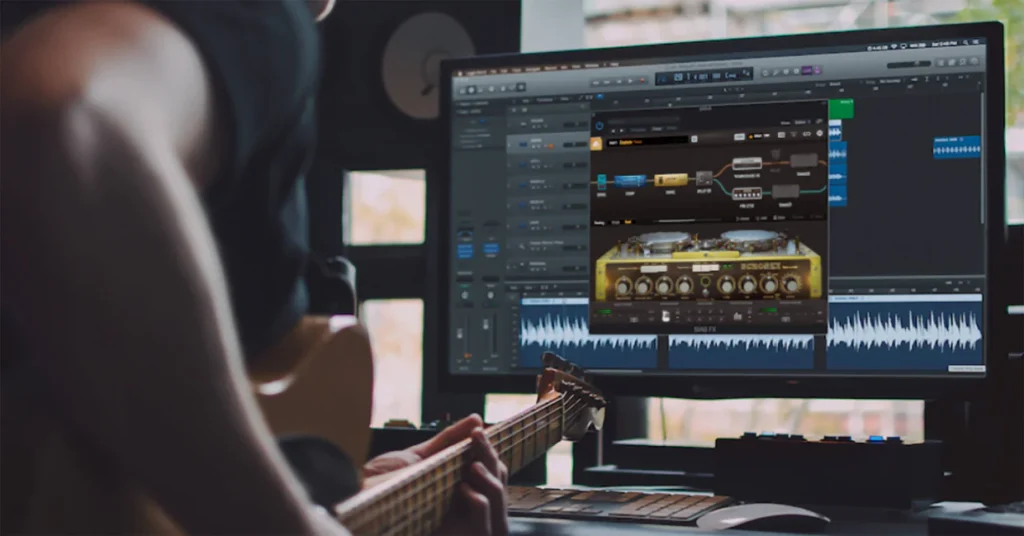
Thread handling is the second pattern. Several long-running reports describe BIAS FX 2 behaving better on machines with fewer active cores or with hyperthreading turned off, even though the CPU has plenty of headroom on paper. That points to how the software schedules work across cores rather than to raw processing power being the bottleneck.
The third pattern is simple math: every open instance adds its own load. One instance on a clean tone might barely register, but four instances across four guitar and bass tracks, each running its own amp and cab chain, add up fast, especially inside a DAW that is also running other plugins.
Is your buffer size or sample rate too low?
For most people, yes, this is the first thing to check. A lower buffer size cuts latency but forces your CPU to process smaller chunks of audio more often, which raises the load. A lower sample rate does the opposite trade in miniature, but pushing it too high adds strain of its own.
Positive Grid’s own setup guidance recommends starting at a 44.1 kHz sample rate with a 512-sample buffer, and staying within a 256 to 512 sample range for the best balance of latency and stability. If you are hearing crackling or popping, that combination is the first thing to try before changing anything else.
You can adjust this in the standalone app under Settings, then Audio Setting, using the steps in Positive Grid’s own audio troubleshooting guide; the plugin version has no Audio Setting tab of its own and instead follows whatever buffer and sample rate your DAW is set to.
A practical routine: keep the buffer low (128 to 256 samples) only while you are actively tracking guitar, so your playing feels responsive. Once the take is recorded and you move into mixing, raise the buffer to 1024 samples or higher. You are only monitoring playback at that point, so the extra latency costs you nothing and the CPU load drops noticeably.
Does running BIAS FX 2 as a plugin use more CPU than standalone?
It can, mainly because of how many instances end up open, not because the plugin format itself is heavier. The standalone app is a single instance handling one signal path, so it is naturally lighter. Inside a DAW, it is common to load a separate instance of BIAS FX 2 on every guitar and bass track, and those instances add up on top of whatever else is already running in the session.
If you are recording several parts at once, the plugin can look like it is using far more CPU than the same tone did in standalone mode, when the real difference is that you now have three or four instances open instead of one. Reports from users running six tracks at the same time have shown average CPU use climbing past 45 percent on setups that ran comfortably in other amp sims.
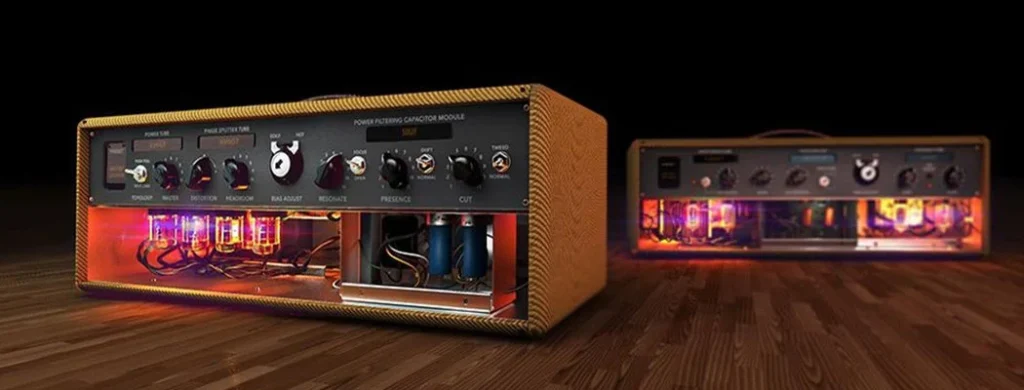
Once you’ve committed to a guitar tone, freeze or bounce that track to audio and disable the live BIAS FX 2 instance on it. This is the single biggest CPU saver in a multi-track session, since a rendered audio track costs the CPU nothing.
It is also worth checking your plugin wrapper settings if your DAW exposes them. Some hosts let you toggle how a plugin handles buffer sizing internally, and a small number of users have found that adjusting these settings changes how BIAS FX 2 behaves under load, though results vary enough by DAW that it is worth testing rather than assuming.
Is your audio driver set up correctly?
On Windows, yes, and it is an easy thing to overlook. BIAS FX 2 should be set to use ASIO as its audio driver type. DirectSound or the generic Windows Audio driver both add latency and can make ordinary CPU load look far worse than it is, producing crackling that has nothing to do with how demanding your tone actually is.
If your audio interface does not ship its own ASIO driver, install the free ASIO4ALL driver, then select it in BIAS FX 2’s Audio Setting menu. Make sure your interface’s own driver is also up to date, since an outdated one is a common hidden cause of dropouts that get blamed on the plugin.
After installing or changing any driver, restart your computer before testing again. Driver changes that do not take effect until reboot are a frequent source of confusing, inconsistent CPU behavior.
Does your computer meet BIAS FX 2’s minimum requirements?
Positive Grid lists an Intel Core i5 or better (with native support for Apple Silicon Macs) and 4GB of RAM as the floor, with 8GB or more recommended. Supported operating systems run from macOS 10.14 through the current release, and Windows 8 through Windows 11 on the PC side.
Meeting the minimum is not the same as having comfortable headroom. A machine that just clears the bar will run a single instance fine but has very little margin left for three or four simultaneous tracks, background apps, and a DAW’s own processing overhead. If your system is at or near these numbers, treat one or two instances as your practical ceiling rather than a limitation of the software.
Positive Grid’s help center keeps a current breakdown of specs and license tiers on its system requirements page, which is worth checking against your own hardware before assuming a setting is to blame.
What else lowers BIAS FX 2’s CPU load?
Once buffer size, driver, and instance count are sorted, a few smaller changes usually finish the job.
- Close background apps and browser tabs. A browser alone can be enough to cause crackling on a borderline system, since it competes for the same CPU cycles as real-time audio.
- Turn off exclusive mode for your output device in Windows sound settings, since some interfaces fight with BIAS FX 2 over control of the device when exclusive mode is on.
- Avoid stacking a separate IR loader on top of BIAS FX 2’s own cabinet simulation on the same signal. Running both does twice the cabinet processing for no audible benefit.
- Keep BIAS FX 2 updated. Positive Grid has shipped efficiency-focused updates in past releases, and an older build can carry bugs that a current one has already fixed.
- On high core count machines, test limiting your DAW’s audio engine to fewer active cores. Because of how BIAS FX 2 schedules its own processing, this sometimes helps more than adding cores does.
When is it a bug rather than a setting?
If your system clears the recommended specs, you are on ASIO, your buffer sits at 512 samples or higher, and a single instance still spikes well past what a comparable amp sim needs for a similar tone, that points to a coding or threading issue in that particular build rather than anything on your end.
The first move at that point is updating to the newest release, since several of these patterns have improved across versions. If the problem persists on the latest build, running a free tool such as LatencyMon can show whether a specific driver or process is stealing real-time priority from your audio thread, which gives Positive Grid’s support team something concrete to work from if you open a ticket.
Frequently asked questions
What buffer size should I use to stop BIAS FX 2 from lagging?
Start at a 44.1 kHz sample rate with a 512-sample buffer, which is Positive Grid’s own recommended starting point. Lower it only while actively tracking, and raise it during mixing since latency no longer matters then.
Why does BIAS FX 2 crackle even on a fast computer?
Crackling on capable hardware is usually a driver problem, not a power problem. Check that BIAS FX 2 is set to ASIO rather than DirectSound or Windows Audio, and make sure your interface driver is current.
Is BIAS FX 2 more CPU-hungry than other amp sims?
Individual reports suggest its cabinet and IR stage can use more CPU than comparable stages in some other amp sims at similar settings, particularly across several stacked instances. A single instance on sensible settings is usually manageable.
Should I use BIAS FX 2 standalone or as a plugin to save CPU?
Standalone runs a single signal path and is naturally lighter. As a plugin, CPU use climbs mainly because it is easy to open one instance per track, so watch instance count rather than the plugin format itself.
Does disabling the cab simulation help CPU usage?
For some users, yes. Swapping BIAS FX 2’s built-in cab stage for a lighter third-party IR loader has reduced spikes in several documented cases, though the improvement depends on your specific preset and system.
Conclusion
Most BIAS FX 2 CPU problems trace back to a buffer size that is too low, a non-ASIO driver, too many live instances stacked in a DAW, or a computer running right at the minimum spec. Set your buffer to 512 samples on ASIO, freeze tracks once a tone is locked in, and keep instance count sensible for your hardware. A well-tuned system should run BIAS FX 2 smoothly with no audible crackling, and if it still spikes after all that, you are likely looking at a version-specific bug worth reporting rather than a setup mistake.
Recommended Articles:
Windows Driver Foundation High CPU: How to Find the Faulty Driver and Fix It
Why Is My Mouse Stuttering When CPU Usage Increases?
CPU Schematic Explained: How to Read the Diagram Inside a Processor
Why WindowServer Is Using So Much CPU on Your Mac (and How to Fix It)