
Intel System Usage Report is a telemetry process that sends performance data about your PC to Intel. It is not part of Windows and it is not part of your CPU drivers, so if it is eating your CPU, you can remove it and nothing on your computer will break.
The process shows in Task Manager as Intel(R) System Usage Report, and the files behind it are SurSvc.exe, esrv.exe, or esrv_svc.exe. On a healthy system it sits near zero percent. When it misbehaves it can hold a full CPU core for minutes at a time, which is enough to spin up your fans and make a laptop feel slow.
Here is what the process actually does, why it spikes, and the exact steps to stop it for good.
What is Intel System Usage Report?
It is the data collection service for the Intel Computing Improvement Program. The program gathers information about how your hardware performs and uploads it to Intel, where the data is used to spot driver problems and shape future products.
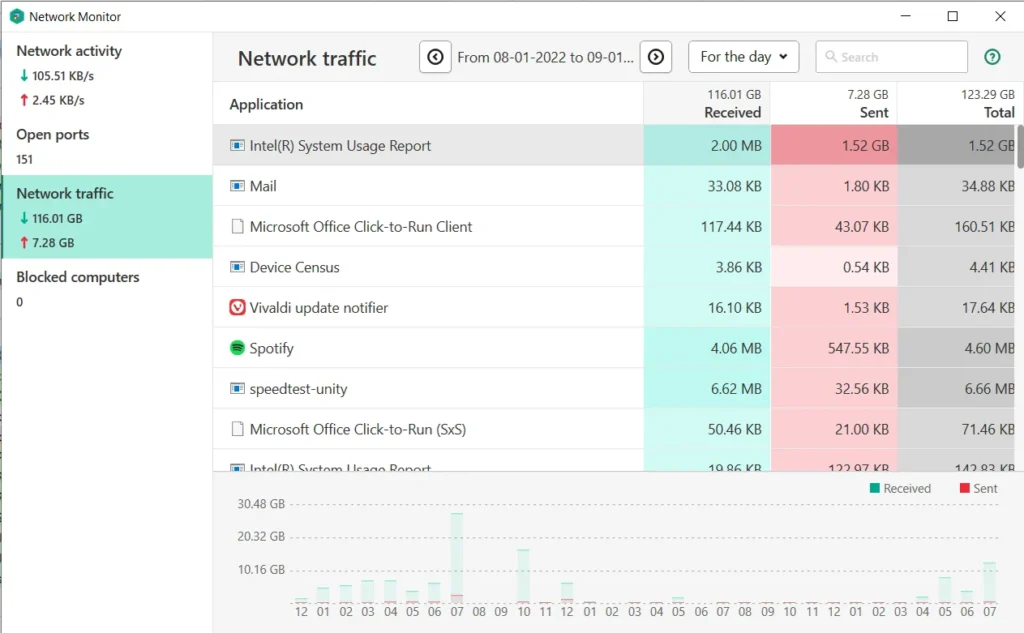
Intel is clear about the limits of what it takes. The program does not collect your name, email address, phone number, or physical location beyond your country. Data sits on your PC for a short time first, then goes to Intel’s servers.
You almost certainly did not go looking for this. It arrives bundled with the Intel Driver and Support Assistant, the browser-based tool that checks your Intel drivers. Some PC makers also ship it preinstalled, so it can be sitting on a laptop you just took out of the box.
The program is optional. Intel describes it as opt-in, and you can pause it, opt out, or uninstall it whenever you want.
Where it lives on your drive
The files sit in C:\Program Files\Intel\SUR, usually inside a subfolder named QUEENCREEK or WILLAMETTE. SUR stands for System Usage Report. The Windows service is named something like SystemUsageReportSvc_QUEENCREEK.
Those code names are just Intel’s internal build names, so do not read anything into them. What matters is the folder path. If you find one of these files somewhere other than Program Files, especially in C:\Windows or C:\Windows\System32, treat it as suspicious and scan it. Malware has been known to borrow these file names.
Is Intel System Usage Report a virus?
No, as long as it is in the right folder. The real file is digitally signed by Intel and installs through a normal Windows installer.
You can check it yourself in about ten seconds. Open Task Manager, right-click the process, and choose Open file location. If it opens inside C:\Program Files\Intel\SUR, it is the real thing. Then right-click the file, choose Properties, and look for a Digital Signatures tab showing Intel Corporation.
If the path points anywhere else, run a full scan with Microsoft Defender or your antivirus before you do anything else.
Why does it use so much CPU?
The service is meant to sample data in short bursts and then go quiet. High CPU usage means it got stuck in one of those bursts instead of finishing it.
A few patterns come up again and again:
- It starts a scheduled collection, hits an error, and retries in a loop instead of stopping.
- More than one copy of the process launches at once, and they compete for the same work.
- It cannot reach Intel’s servers to upload, so it keeps retrying the connection.
- It writes error logs endlessly. Some systems end up with hundreds of thousands of tiny error files in the Windows System32 folder.
- A partial or interrupted install of the Driver and Support Assistant leaves the service in a broken state.
Two clues help you tell normal from broken. Normal behavior is a short spike, maybe fifteen to twenty seconds, once every day or two. Broken behavior is a steady load that does not stop until you restart or kill the process. And if you see three copies of Intel(R) System Usage Report in the list at the same time, that is broken.
How to stop Intel System Usage Report using high CPU
Work down this list. The first two are quick tests. Step three is the permanent fix.
Step 1: Kill the process and restart
Open Task Manager with Ctrl + Shift + Esc. Click the Details tab, find SurSvc.exe or esrv_svc.exe, right-click, and choose End task. Then restart your PC.
This buys you quiet time and confirms the process was the cause. It does not last, because the service starts again with Windows.
Step 2: Stop the service
Press Windows + R, type services.msc, and press Enter. Scroll to Intel(R) System Usage Report Service. Right-click it, choose Properties, set Startup type to Disabled, then click Stop.
This holds on some machines. On others the service quietly comes back, because the Computing Improvement Program can restart it. If it reappears in Task Manager after a reboot, go to step three.
Step 3: Uninstall the Computing Improvement Program
This is the fix that sticks.
- Press Windows + I to open Settings.
- Go to Apps, then Installed apps. On Windows 10 it is Apps and features.
- Search for Intel Computing Improvement Program.
- Click the three dots next to it and choose Uninstall.
- Restart your PC.
- Open File Explorer and check that C:\Program Files\Intel\SUR is gone.
That last check matters. If the SUR folder is still sitting there with files inside, the uninstall did not finish, and the process can come back.
Cannot find it in the list? Look for Intel Driver and Support Assistant or Intel Driver Update Utility instead. On some systems the telemetry has no separate entry, and removing the parent tool is what clears it.
Step 4: Opt out instead, if you want to keep the driver tool
You do not have to choose between clean CPU usage and easy driver updates. If the Driver and Support Assistant is useful to you, keep it and drop only the data program.
Open Control Panel, switch View by to Large icons, and click Intel Computing Improvement Program. The window that opens holds the consent controls, where you can pause collection or opt out completely. You can reach the same window from the Driver and Support Assistant icon in your system tray.
Step 5: Reinstall cleanly if you still want the driver tool
If the process misbehaved because of a broken install, a fresh one usually settles it. Uninstall Intel Driver and Support Assistant, restart, then download it again from Intel’s Driver & Support Assistant page. During setup, decline the invitation to join the Computing Improvement Program.
Will removing it break anything?
No. Your drivers keep working, your CPU runs exactly as it did before, and Windows Update still delivers driver updates.
The only thing you lose is convenience. Without the Driver and Support Assistant you check for Intel driver updates yourself, through Windows Update, your PC maker’s support page, or Intel’s Download Center. For most people that is a few minutes a year.
| What you remove | What still works | What you give up |
|---|---|---|
| Computing Improvement Program only | Driver scans, every driver, every Intel feature | Nothing you actually use |
| Driver and Support Assistant as well | Every driver and Intel feature on the PC | Automatic Intel driver scans |
What if the process is gone but CPU is still high?
Then the telemetry was not the real cause, and you need to find what is.
Open Task Manager and click the CPU column to sort by usage. Watch it for two or three minutes with nothing else running. The process at the top is your target. Common culprits are Windows Search indexing after a big update, Microsoft Defender running a scheduled scan, a browser holding too many tabs, and Windows Update downloading in the background.
Check your temperatures too. A CPU that runs too hot will throttle itself and make everything feel slow even when usage looks fine. If a laptop is hot and loud and more than a couple of years old, dust in the fan is a likely cause.
Frequently asked questions
Is it safe to disable Intel System Usage Report?
Yes. It only collects and uploads performance data to Intel. Disabling or removing it does not affect your CPU, your drivers, or any Windows feature. Nothing on your PC depends on it.
Why did Intel System Usage Report appear without me installing it?
It comes bundled with the Intel Driver and Support Assistant, and some PC makers preinstall it at the factory. That is why it can turn up on a brand new laptop you never configured.
What is SurSvc.exe?
It is the Windows service file behind Intel System Usage Report, normally found in C:\Program Files\Intel\SUR. If you find it anywhere else, particularly in a Windows system folder, scan your PC for malware.
How much CPU should it normally use?
Close to zero most of the time, with a short spike lasting seconds while it collects data. Sustained load on a full core, or several copies running at once, means something has gone wrong.
Will I stop getting driver updates if I remove it?
No. Windows Update still supplies drivers, and you can download them from your PC maker or from Intel directly. You only lose the automatic scan if you also remove the Driver and Support Assistant.
Conclusion
Intel System Usage Report is optional telemetry, not a system component, so a stuck one is safe to remove. Kill the process to confirm it is the cause, then uninstall Intel Computing Improvement Program from Settings and check that the C:\Program Files\Intel\SUR folder is gone after a reboot. A good result looks like this: the process no longer appears in Task Manager, your fans settle down, and every driver on your PC keeps working normally.
Recommended Articles:
Identityservicesd High CPU on Mac: Why It Happens and How to Fix It
Windows Problem Reporting High CPU: How to Fix It Fast
svchost.exe High CPU: How to Find the Real Cause and Fix It
How to Increase CPU Memory (What It Really Means and What Actually Works)
Endpoint Protection Service Using High CPU? Here’s How to Find the Cause and Fix It