

This error means your Plex server has decided it can’t send the file to your device as-is, and it also can’t convert it in real time. One of those two judgments is usually wrong, or at least fixable. In most cases the cure is one of three things: raise the playback quality in your Plex app to Original, turn on hardware acceleration on the server, or store the file in a format every device plays natively, which is H.264 video with AAC audio in an MP4 container.
Below is what the message really means, the six triggers that cause it, and a fix for each one, starting with the fixes that take under a minute and cost nothing.
What the error actually means
Every time you press play, Plex Media Server runs a quick decision process. First it checks whether your device can play the file exactly as it is, a mode called Direct Play. If not, it checks whether it can repackage the file without touching the video, called Direct Stream. Only if both fail does it consider a full conversion, a transcode, where the server decodes the video and re-encodes it on the fly.

The “Not enough CPU for conversion of this item” message appears when that third step is also ruled out. The server has concluded it either isn’t allowed to transcode or isn’t able to. That’s why the error shows up instantly, before playback even starts: nothing has actually been attempted yet. In the server logs, the moment looks like this: “Reached Decision… Neither direct play nor conversion is available.”
Plex documents the broad strokes in its support page for this error family, which confirms the three situations behind it: an incompatible file, a server that can’t transcode, and a server that isn’t allowed to.
Here’s the important part: the message doesn’t always mean your processor is weak. It also fires when transcoding has been disabled in the server settings, when a quality cap forces a conversion the server won’t attempt, when a single audio track is the real problem, and sometimes as a plain bug after an update. So treat it as a symptom with several possible causes, not a verdict on your hardware.
Direct Play, Direct Stream, and transcoding in plain words
The three playback modes matter because they cost wildly different amounts of processing power.
- Direct Play sends the file untouched. The server does almost no work; it’s essentially a file copy over your network. Any CPU from the last twenty years can do it.
- Direct Stream keeps the video exactly as it is but changes the wrapper around it, or converts just the audio track. This is light work that even a modest NAS processor handles easily.
- Transcoding re-encodes the video itself, frame by frame, in real time, fast enough to stay ahead of playback. This is heavy work, and it’s the only mode this error is about.
A 4K HEVC file with HDR is the heaviest job a home server can be asked to do. The server has to decode high-bitrate 10-bit video, tone-map the HDR colors down to a normal color range, and encode the result, all at full speed. Many machines that transcode 1080p without breaking a sweat simply cannot do this.
Your goal, whenever possible, is to make playback land on Direct Play. Every fix in this guide either removes the reason Plex wants to transcode in the first place, or gives the server a way to convert that doesn’t lean on the CPU.
The six triggers, at a glance
Work through these in order. The first two account for most cases and take about a minute each.
| What triggers it | How to spot it | The fix |
| Playback quality set below the file’s quality | Error appears on remote streams, or after changing app settings | Set quality to Original or Maximum in the app |
| Video transcoding disabled on the server | Every file that can’t Direct Play fails, on every device | Turn off “Disable video stream transcoding” on the server |
| An audio codec the device rejects (DTS, TrueHD) | The video format is fine, but certain MKVs still fail | Add an AAC audio track to the file, or let audio transcode |
| 4K HEVC or HDR file on a modest CPU | Only 4K content triggers the error | Enable hardware acceleration, or keep a 1080p copy |
| ARM-based NAS that can’t transcode at all | Every transcode fails, and always has | Direct Play everything, or move Plex to stronger hardware |
| A bug, or a stale client app | One device fails while others play the same file fine | Update Plex, reinstall the client app, restart the server |
Fix 1: Set playback quality to Original
Start in the Plex app on the device showing the error, not on the server. Open the app’s settings and find Video Quality; on many clients it’s split into two entries, one for home streaming and one for remote streaming. If either is set below the file’s actual quality, say 2 Mbps 720p while the file is a 20 Mbps 1080p rip, Plex is forced to transcode just to honor that cap. Set both to Maximum or Original, then try the file again.
This single setting explains a huge share of these errors, because several Plex clients ship with a conservative default like “convert automatically” or a low remote bitrate. The file was always playable; the app was quietly asking the server to shrink it first, and the server refused.
One nuance for remote viewing: raising the remote quality to Original only works if your home connection’s upload speed can carry the file’s full bitrate. If the error only appears away from home and your upload is slow, the honest fix is one of the transcoding options below, or lighter files.
The setting lives in slightly different places per client. On TV apps it’s usually under Settings, then Video, as separate home and remote quality entries. On phones it sits under Settings, then Video Quality, often with a separate toggle for cellular data. In Plex Web, click the quality badge on the player itself. Check every device you use, because each one keeps its own setting.
Fix 2: Check the server’s Transcoder settings
Open Plex Web in a browser, go to Settings, pick your server, and open the Transcoder section. Click Show Advanced in the upper corner, because everything that matters here is hidden by default. Then check three things:
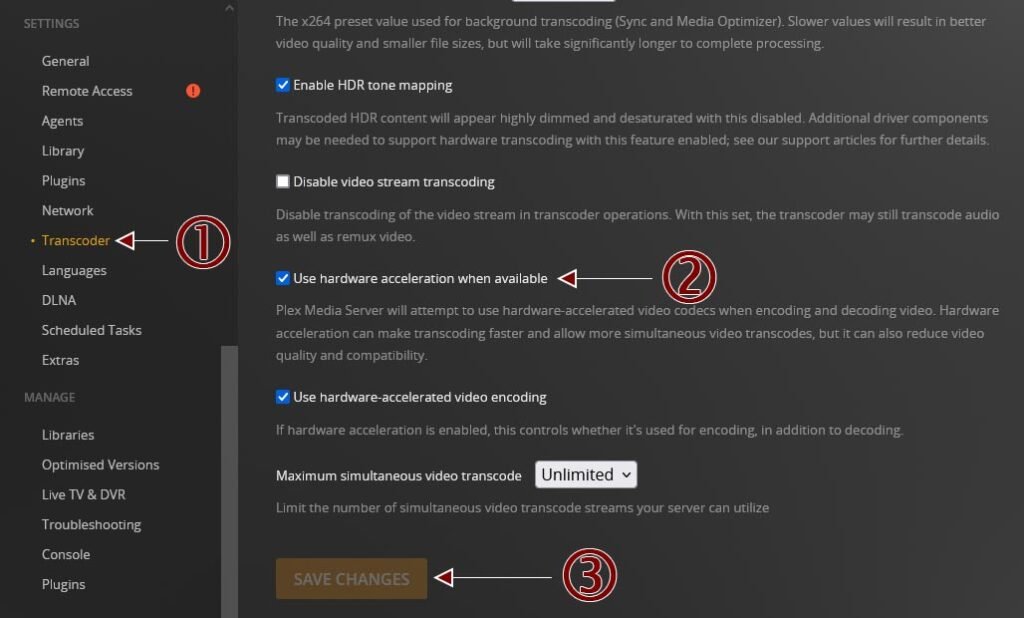
- “Disable video stream transcoding” must be off. Server owners sometimes enable it to stop Plex from hogging a shared machine, and once it’s on, every playback that needs conversion dies with exactly this error.
- “Maximum simultaneous video transcodes” shouldn’t be a number you’re already hitting. If it’s set to 1 and someone else in the house is streaming, your request gets refused.
- The transcoder temp directory needs free disk space and write access. A full or misconfigured temp location fails conversions in ways that look like hardware problems.
- The “Transcoder quality” setting trades picture quality for speed. On a machine that’s right at its limit, dropping it from a higher-quality option to “Prefer higher speed encoding” can be the difference between a refused stream and a working one.
If you’re not the server owner, this section is for whoever is. Only the admin account can change these settings, so send them this list rather than fighting the client app.
Fix 3: Turn on hardware acceleration
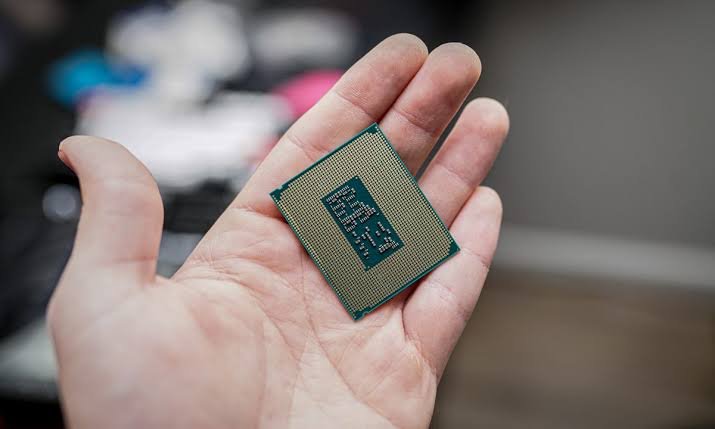
Software transcoding uses raw CPU muscle. Hardware acceleration hands the job to a dedicated video engine built into the processor or graphics card; Intel calls its version Quick Sync, and NVIDIA’s is NVENC. The difference is dramatic. A small Intel chip that chokes on a single software transcode can push several 1080p conversions at once through Quick Sync while the CPU barely wakes up.
The catch: hardware-accelerated transcoding in Plex requires an active Plex Pass subscription on the server owner’s account. If you have one, enabling it takes a minute:
- Update Plex Media Server to the latest version.
- Open Plex Web and go to Settings, then your server, then Transcoder.
- Turn on Show Advanced.
- Enable “Use hardware acceleration when available” and save.
Supported hardware, operating systems, and setup details are in Plex’s hardware-accelerated streaming guide.
Expect a small quality trade. Hardware encoders are faster than software but their output can look slightly softer, especially at low bitrates, and HDR content transcoded without tone mapping enabled comes out dim and washed out. On Linux servers, tone mapping may also need extra driver components installed before it works.
Two caveats. Hardware acceleration doesn’t work inside ordinary virtual machines, because a VM doesn’t expose the video hardware to the guest system. And in Docker, the container must be given access to the GPU device (on Linux that means passing through /dev/dri); without that, the setting is switched on but does nothing.
Is your server genuinely too weak?
Sometimes the message is telling the truth. Plex’s working guideline for software transcoding is a PassMark CPU score of roughly 2,000 for each simultaneous 1080p transcode. A 4K HDR file is a different animal: converting one in software calls for a score around 17,000, which is serious desktop territory. You can look up your exact processor’s score at cpubenchmark.net in seconds and compare.
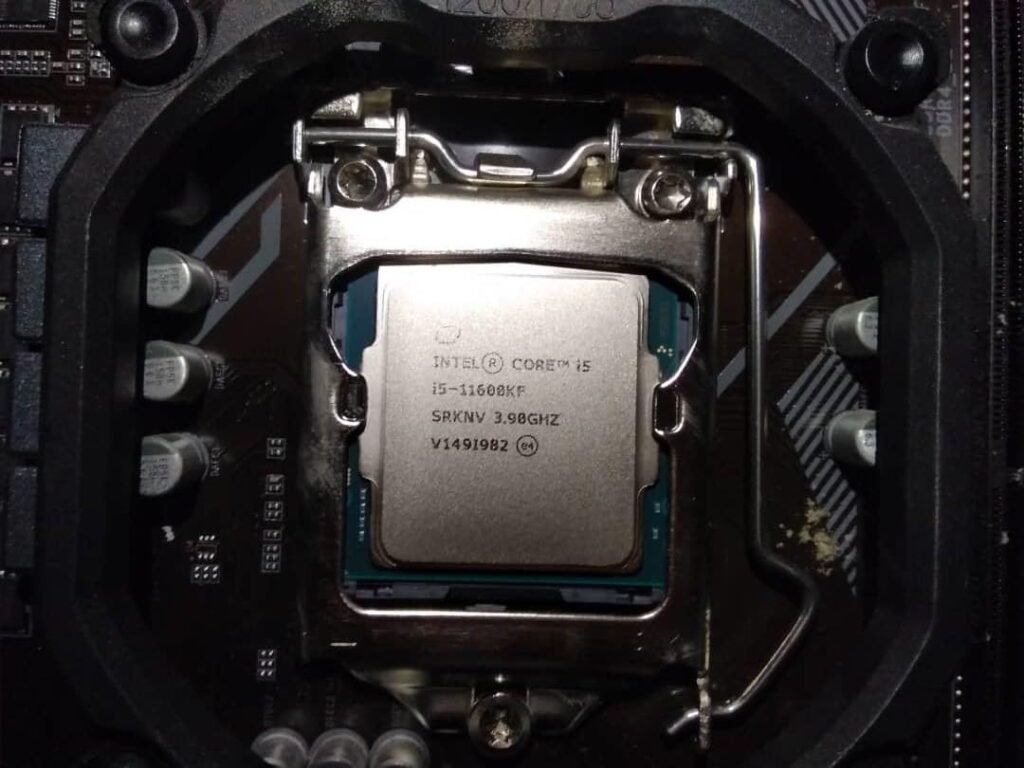
NAS boxes deserve special mention. Models built on ARM processors can’t transcode video at all, so on those devices this error is expected behavior, not a fault. An x86 NAS isn’t automatically safe either: some models use CPUs with no integrated graphics (Synology’s DS923+, for example, runs an AMD chip with no Quick Sync engine), so there’s nothing for hardware acceleration to use even with a Plex Pass.
Before buying anything, confirm what the server is actually doing. Open the Plex dashboard while a file plays on another device: each stream is labeled Direct Play, Direct Stream, or Transcode, along with which part is being converted. If streams you assumed were Direct Play show up as transcodes, the problem is a settings or format mismatch, not missing horsepower.
If your hardware truly sits below the line, you have three realistic paths. Keep every stream on Direct Play, which the next fix makes permanent. Add hardware that can accelerate; a cheap used mini PC with a recent Intel chip makes an excellent Plex server precisely because of Quick Sync. Or accept the limit and store lighter files.
Fix 4: Make the file Direct Play everywhere
The most reliable fix sidesteps the server entirely: store your media in a format every client plays natively, so nothing ever needs converting. The recipe is H.264 (also called AVC) video, AAC audio, in an MP4 container, at 1080p or below. Practically every phone, TV, streaming stick, console, and browser made in the last decade plays that combination directly.
HandBrake, a free converter, gets you there in a few clicks: open the file, choose the “Fast 1080p30” preset, confirm the audio is AAC, and encode. You pay the conversion cost once, on your own schedule, instead of asking the server to do it live at every play.
Audio deserves its own paragraph, because it’s a sneaky trigger. A file can carry video your TV plays happily alongside a DTS or TrueHD audio track it flatly refuses, and that mismatch alone can end in the CPU error. Keeping the surround track and adding a second stereo AAC track gives every device something it can use, without sacrificing quality on your good equipment.
Subtitles are one more quiet trigger worth knowing here. Image-based subtitle formats, such as the PGS tracks common in Blu-ray rips, often have to be burned into the picture, which forces a full video transcode even when the file itself could Direct Play. Switching to text-based SRT subtitles, or turning subtitles off, can flip a stream straight back to Direct Play.
For 4K libraries, a two-copy strategy works best: keep the 4K HDR file for devices that Direct Play it, such as an Nvidia Shield or Apple TV 4K, and keep a separate 1080p copy for everything else. Plex can store both versions under one movie entry and pick the right one for each device automatically.
One-device oddities, Docker limits, and plain bugs
If the same file plays on your phone and laptop but fails on one TV, stop blaming the server. The client is the problem. Update the TV’s firmware, then delete and reinstall the Plex app on it and sign back in; that clears the stored playback profile that was making impossible demands of the server.
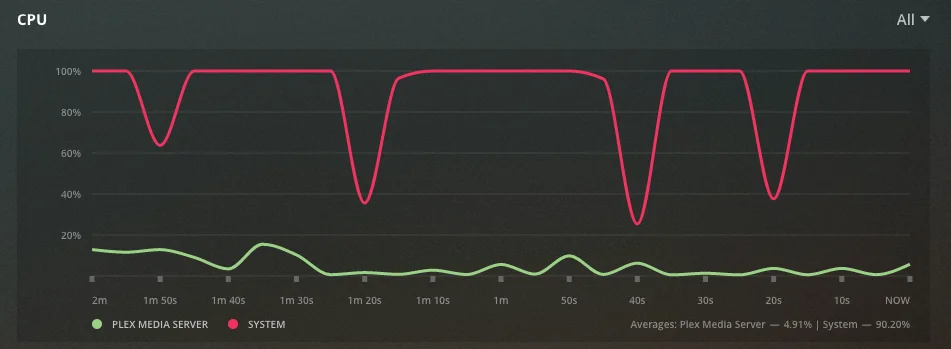
Docker and Home Assistant installs add one more suspect: container resource limits. A Plex container capped at a fraction of the host’s CPU will honestly report itself as too weak, even on strong hardware. Check the container’s CPU allocation before judging the machine.
Finally, this error has surfaced as a straightforward bug after certain Plex Media Server updates, hitting files and devices that worked the day before. If the timing lines up with an update, restart the server first, then check for a newer server version, since fixes for regressions like this tend to ship quickly.
Quick test: play the same file in Plex Web on a computer. If it works there but fails on one device, the fix lives on that device, not on the server.
Frequently asked questions
Why does Plex say there’s not enough CPU when my server is powerful?
Because the message covers more than CPU power. It also fires when video transcoding is disabled in the server’s Transcoder settings, when a low quality setting forces a conversion, when a Docker container is resource-capped, or after a buggy update. Check settings before blaming hardware.
Do I need a Plex Pass to fix this error?
Not always. Setting playback quality to Original, enabling transcoding on the server, and converting files to H.264/AAC are all free fixes. A Plex Pass is only needed for hardware-accelerated transcoding, which matters most for 4K files and low-power servers.
What video format plays on Plex without any conversion?
H.264 video with AAC audio in an MP4 container, at 1080p or lower, Direct Plays on nearly every modern device. Files stored that way never trigger this error, because the server sends them untouched and does no conversion work at all.
Can an ARM-based NAS or a Raspberry Pi transcode video in Plex?
Generally no. ARM-based NAS boxes can’t transcode video, so they only work well when every file Direct Plays. If you need real transcoding on a budget, a small Intel machine with Quick Sync is the standard answer.
Why does the error only appear with 4K movies?
Converting 4K HEVC HDR video in real time is the heaviest job in home streaming, needing a PassMark score around 17,000 in software. Play 4K files only on devices that support them natively, or keep a 1080p copy of each title for everything else.
Conclusion
This message means Plex ruled out both direct playback and real-time conversion, and one of those calls is usually fixable. Set playback quality to Original first, then confirm video transcoding is enabled on the server, then turn on hardware acceleration if you have a Plex Pass. For a permanent fix, store media as H.264/AAC MP4 files that every device plays directly. A good result looks like playback that starts instantly while the server sits nearly idle.
Recommended Articles:
Why Is BIAS FX 2 Using So Much CPU? (And How to Fix It)
How to Set CPU Affinity in Process Lasso (Complete Guide)
Windows Driver Foundation High CPU: How to Find the Faulty Driver and Fix It