When identityservicesd shows high CPU in Activity Monitor, your Mac’s Apple Account service is stuck in a loop, usually retrying a sign-in or a sync job for iMessage, FaceTime, or Contacts that keeps failing. The fix, in most cases: force quit the process, restart your Mac, and if the spike returns, sign out and back in to iMessage or reset the IdentityServices folder in your user Library.
That is the short version. The rest of this guide explains what the process actually does, how to read the clues in Activity Monitor so you fix the right cause, and the exact steps for each fix, from a 30-second force quit to a full account reset. None of it needs extra software, and nothing here will hurt your Mac.
What is identityservicesd?
Identityservicesd is short for Identity Services daemon. It is a built-in macOS background process, made by Apple, that manages everything tied to your Apple Account identity. It lives inside the protected system folder at /System/Library/PrivateFrameworks/IDS.framework, which is one easy way to confirm it is genuine.

Its job list is bigger than the name suggests. It keeps your sign-in tokens fresh, registers your Mac as a trusted device, and manages the encryption keys that let iMessage and FaceTime run end-to-end encrypted. When you type a name in Messages and it turns blue, identityservicesd did the lookup that confirmed the person can receive iMessages.
It also works as a team with other background processes: apsd handles Apple’s push notifications, accountsd manages account records, and imagent runs the iMessage engine itself. When one of them gets stuck, the others often show raised CPU too, which is a useful clue later.
On a healthy Mac, identityservicesd sits at or near 0 percent CPU and wakes briefly when something needs checking. Sustained readings of 50, 90, or 100 percent are not normal after the first day of use, and they mean a task cannot finish.
CPU is not the only number that creeps. A stuck loop often drags memory up with it, since the process keeps loading the same data on every retry, and on a MacBook the battery pays the price too. If the fans are loud while the machine sits idle, this daemon is a prime suspect.
Why is identityservicesd using so much CPU?
One word: retries. The process is built to keep trying when a job fails, because a dropped connection or a busy server is usually temporary. When the failure is not temporary, the retries never stop. Each attempt burns a little CPU, and the loop can run for hours.

The trigger behind the loop varies, and matching your symptoms to the cause saves a lot of guesswork.
| What you notice | Most likely cause |
| It started right after a macOS update | Normal re-registration and re-indexing, plus occasional update bugs |
| Messages stops syncing, then works briefly after a force quit | An oversized ids.db database in the IdentityServices folder |
| CPU spikes when Contacts or Messages is open | A contacts or conversation sync loop with iCloud |
| It only happens on one Wi-Fi network, or with a VPN on | The network is blocking or breaking Apple’s push connections |
| You keep getting sign-in or keychain prompts | A failed Apple Account token refresh |
Failed sign-in loops. When your Mac cannot refresh the token that proves who you are, it asks Apple’s servers again, and again. Each request takes a little CPU and a little network. Stack up several requests a minute for hours, and the process climbs to the top of Activity Monitor.
Stuck syncs. iMessage conversations, large attachments, and iCloud contacts all sync through this identity layer. If one item cannot finish, perhaps a corrupted attachment or a conflicting contact record, the sync restarts from the same point and hits the same wall every time.
A bloated database. Identityservicesd keeps its working data in a file called ids.db inside ~/Library/IdentityServices. On some Macs this file grows steadily, and once it reaches several hundred megabytes the process slows down, Messages starts freezing, and CPU stays pinned. Clearing the folder resets the file to a few megabytes, and the problem disappears, at least until it grows again.
Network problems. The daemon needs a steady line to Apple’s servers. VPNs, strict firewalls, hotel and office captive portals, and flaky DNS can all cut a registration attempt off mid-flight. The process reads that as a failure and retries, so CPU and network activity spike together.
Big changes. After a macOS update, a migration to a new Mac, or a fresh Apple Account sign-in, there is real work to do: re-registering the device, rebuilding trust with your other devices, and re-indexing message history. Elevated CPU for a few hours here is legitimate. The problem is when it never settles.
Full iCloud storage. When your iCloud plan is out of space, syncing stops half-finished, and the identity layer keeps circling back to a job it can never complete. Check System Settings > your name > iCloud. If the storage bar is full, freeing space or upgrading the plan removes the blockage.
Account clutter. Signing in with more than one Apple Account, or having settings that disagree across your devices (say, an iMessage address turned on for your iPhone but not your Mac), gives the process extra reconciling to do on every check.
First, confirm what is actually happening
Two minutes in Activity Monitor tells you which fix to start with.
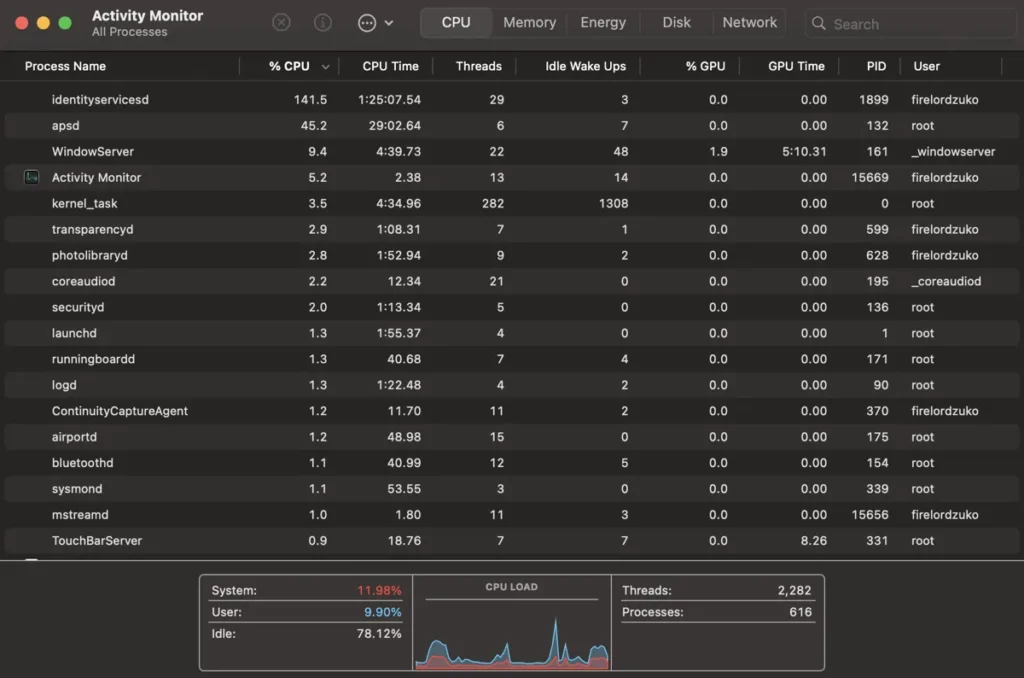
- Open Activity Monitor from Applications > Utilities, or find it with Spotlight.
- Click the CPU tab, then click the % CPU column header so the heaviest processes sort to the top.
- Find identityservicesd and watch it for a minute. A brief spike that fades is fine. A number stuck above 20 to 30 percent is your problem.
- Double-click the process and open the Open Files and Ports tab. File paths mentioning Contacts point to a contacts sync loop; paths under ~/Library/Messages or IdentityServices point to iMessage.
- Scan for its teammates. If apsd, imagent, or accountsd are also working hard, the whole messaging stack is caught in the same loop, which points to a sync or network cause rather than a one-off glitch.
- Glance at the Network tab. Steady outgoing traffic that rises and falls in step with the CPU spikes means the process is hammering Apple’s servers with retries, which points at a sign-in or network cause rather than a local database problem.
If any part of this window is unfamiliar, Apple’s Activity Monitor User Guide explains every column and view in plain terms.
Quick fixes that solve most cases
Work through these in order. Each one is safe, takes a few minutes at most, and clears the majority of cases.
- Force quit the process. Select identityservicesd in Activity Monitor, click the X (stop) button in the toolbar, and choose Force Quit. macOS relaunches it automatically within seconds with a clean slate. If CPU stays low afterward, the loop was a one-off and you are done.
- Restart your Mac. A restart clears every background process at once, flushes temporary state, and re-establishes the connection to Apple’s servers. It is boring advice because it works.
- Rule out a problem on Apple’s end. If iMessage or FaceTime also refuses to sign in, follow Apple’s steps for when you can’t sign in to iMessage or FaceTime, which begin with checking the live System Status page. When Apple’s identity servers have a bad day, your Mac retries constantly and there is nothing to fix locally. Wait it out.
- Update macOS. Open System Settings > General > Software Update. Point releases regularly patch background process bugs, and CPU problems that appear right after one update often disappear with the next.
- Check your date and time. Open System Settings > General > Date & Time and make sure it is set automatically. A clock that drifts even a few minutes makes secure connections to Apple fail their certificate checks, and every failure feeds the retry loop. It is a strange cause with a ten-second fix.
- Change the network variable. Turn off your VPN, or switch from the problem Wi-Fi to a phone hotspot for ten minutes. If CPU drops on the new connection, the daemon was fighting your network, not your Mac. Firewalls and VPN setups that interfere with Apple’s push connections are the usual suspects.
Deeper fixes when it keeps coming back
If the spike returns within hours or days, something in your account state or local data is feeding the loop. These steps reset that state. They are still safe, but they take a little longer, and you will need to sign back in to a few things.

Sign out of iMessage and FaceTime, then back in
Open Messages, choose Settings from the Messages menu, click iMessage, and sign out. Do the same in FaceTime’s settings. Restart your Mac, then sign back in to both. This forces a fresh device registration, which replaces whatever broken token or key the process was choking on.
Reset the IdentityServices folder
This is the cure for the growing ids.db problem, and it clears many stubborn cases
Tip: keep an eye on ids.db afterward. If it swells again over the following weeks, repeat the reset and trim your Messages history, because a huge backlog of messages and attachments is usually what feeds the growth.
Thin out what Messages has to sync
A Messages library with years of attachment-heavy conversations gives the sync engine more to chew on. Turn off Messages in iCloud (Messages > Settings > iMessage), wait a minute, and turn it back on to force a clean re-sync. Deleting a few enormous conversations, especially group chats full of videos, shrinks the workload for good.
Untangle your contact accounts
Contacts deserve the same treatment when Activity Monitor pointed there. Open Contacts > Settings > Accounts and look at every account syncing into the app: iCloud, Google, Exchange, and anything else. Two services syncing the same address book can push the same change back and forth forever. Turn off contact syncing for the accounts you do not need, or disable them all, restart, and re-enable one at a time while watching the CPU.
Test with login items disabled
Identityservicesd also handles sign-ins for some third-party apps, so an app that launches at login and authenticates on a loop can drive the CPU up. At the login screen, type your password, hold the Shift key, and then click the log-in button. This starts your session with login items disabled. If the process now idles near zero, re-enable your login items a few at a time until you find the one that triggers it.
Sign out of your Apple Account entirely
This is the last resort before contacting Apple Support. Open System Settings, click your name at the top, scroll down, and sign out; macOS will walk you through keeping local copies of your data. Restart, sign back in, and give the Mac an hour to re-sync. This rebuilds your whole identity state from the server and resolves the cases where a single service reset was not enough.
Is identityservicesd safe? Can you remove it?
It is a core macOS component, signed by Apple and protected by System Integrity Protection, so it cannot be uninstalled and should not be. Force quitting it is completely safe; macOS treats that as routine and relaunches it. Deleting the IdentityServices folder in your user Library is safe for the same reason: the system rebuilds it.

It is not malware. The genuine process always runs from the protected /System path, which no other software can modify. If something with a similar name ever runs from your Downloads or Applications folder, that would be worth investigating, but the process you see in Activity Monitor is the real daemon.
One thing not to do: do not leave it permanently blocked with a firewall rule out of frustration. iMessage, FaceTime, Handoff, and parts of iCloud depend on it, and blocking it just creates a bigger retry loop.
When high usage is actually normal
Expect elevated CPU from identityservicesd, sometimes for a few hours, right after installing a macOS update, setting up a new Mac, migrating from an old one, or signing in to your Apple Account for the first time. The process is doing real work: registering the device, exchanging encryption keys, and indexing your message history. Plug the Mac in, leave it awake, and let it finish.
How long is reasonable? A large Messages history syncing to a new Mac over slow Wi-Fi can genuinely take an evening. A routine point update should settle within an hour or two. The red flag is heat and fan noise that persists for days, or a process that pegs the CPU while nothing is actually syncing. That is when the loop has stalled, and the fixes above apply.
Frequently asked questions
Can I force quit identityservicesd?
Yes. Select it in Activity Monitor, click the stop button, and choose Force Quit. macOS relaunches it automatically within seconds, so nothing breaks. If the CPU spike returns quickly, move on to the deeper fixes, starting with an iMessage sign-out and the IdentityServices folder reset.
Is identityservicesd a virus or malware?
No. It is an Apple system process that runs from the protected /System/Library/PrivateFrameworks/IDS.framework path, which other software cannot modify. High CPU means it is stuck retrying a sign-in or sync task, not that it has been hijacked.
Is it safe to delete the IdentityServices folder?
Yes. The folder at ~/Library/IdentityServices holds rebuildable working data, including the ids.db database. Quit Messages, delete the folder, and restart; macOS recreates it and re-registers your device. You may need to sign in to iMessage again afterward.
Why is identityservicesd using high CPU after a macOS update?
Updates force the process to re-register your Mac, refresh encryption keys, and re-index synced data, so a few hours of activity is normal. If it is still pinned after a day or two, restart, install any newer point update, and sign out and back in to iMessage.
Does identityservicesd drain the battery?
When it is stuck in a loop, yes, noticeably. Sustained CPU keeps the Mac from idling and usually adds constant network traffic, so a MacBook runs warm and loses charge faster than usual. Fixing the loop restores normal battery life.
Conclusion
Identityservicesd high CPU means your Mac’s Apple Account service is looping on a failed sign-in or sync, not that anything is broken beyond repair. Force quit the process and restart first. If it comes back, sign out and in to iMessage, reset the ~/Library/IdentityServices folder, and check whether one network or login item is the trigger. A healthy result looks like the process sitting near 0 percent, fans quiet, and Messages syncing normally.
Recommended Articles:
100% CPU Usage While Gaming: What It Means and How to Fix It
Why Is BIAS FX 2 Using So Much CPU? (And How to Fix It)
How to Set CPU Affinity in Process Lasso (Complete Guide)
Windows Driver Foundation High CPU: How to Find the Faulty Driver and Fix It