

If your fan is roaring and Task Manager blames svchost.exe, here is the short version: svchost.exe is not the problem itself. It is a container that runs Windows services in the background, and one of those services is doing the heavy work. Fix the busy service and the CPU use drops. End the process blindly and you can break networking, updates, or sign-in.
This guide shows you how to spot which service is eating your CPU, then how to fix that exact service. No guessing, no disabling things at random.
What is svchost.exe, and why is it using so much CPU?
svchost.exe (short for Service Host) is a normal Windows process that hosts services. Many Windows features do not run as their own program. Instead, Windows groups them and runs them inside svchost.exe to save memory and keep the system stable.
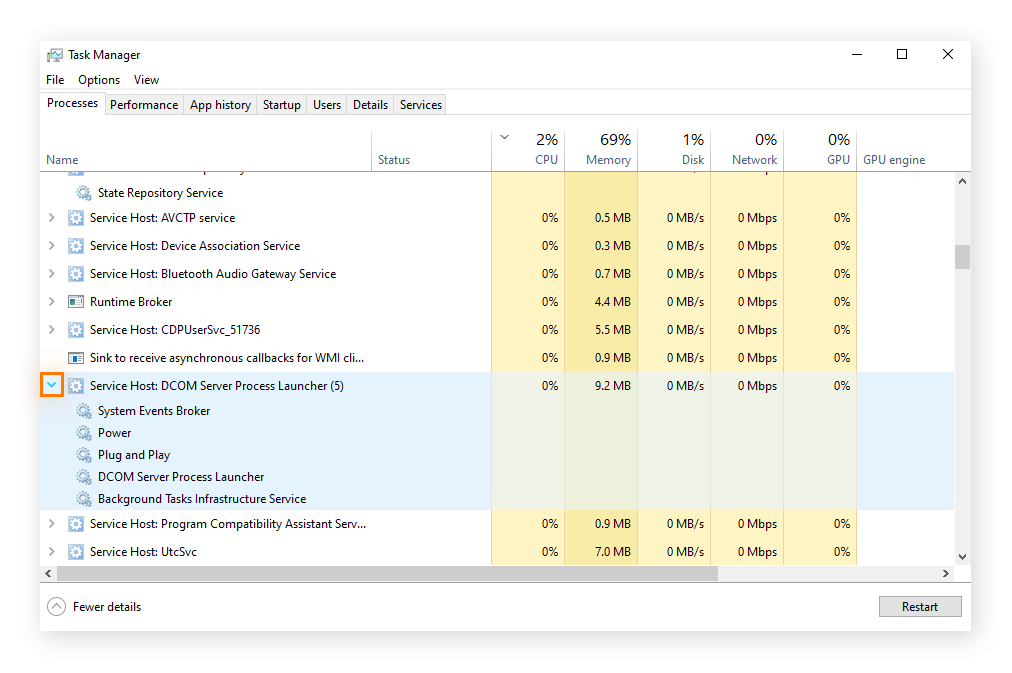
That is why you see so many copies of it. Open Task Manager and you might count ten, twenty, or more svchost entries. On a modern PC with plenty of memory, Windows deliberately gives many services their own separate instance, so a long list is normal and by design, not a sign of infection.
High CPU happens when one of the hosted services gets busy or stuck. The most common reason is Windows Update scanning for or installing patches, which is expected and passes on its own. A less friendly reason is a service caught in a loop: a damaged update cache, a corrupt system file, or a background task that keeps retrying and never finishes. The process name stays the same either way, so the label alone does not tell you which service is at fault.
Key idea: svchost.exe is just the messenger. Your job is to find the service inside it that is doing the work, then fix that service.
Is svchost.exe a virus?
No. The real svchost.exe is a core Windows file, and you should never delete or rename it. Windows will not start properly without it.
There is a catch, though. Malware sometimes copies the name to hide in plain sight. A miner or bot needs raw processing power, and disguising itself as a trusted process is an easy way to blend in. So the name is safe, but you still want to confirm the file is genuine when CPU use looks strange.
Two quick checks tell you if a svchost entry is the real thing:
- Location. In Task Manager, right-click the entry and choose Open file location. The genuine file lives in C:\Windows\System32. A copy sitting in your Downloads folder, your user profile, or anywhere else is a red flag.
- Signature. The real file is digitally signed by Microsoft. A legitimate service host also does not keep chatting with unknown servers around the world when you are idle.
If either check looks wrong, skip ahead to the malware section. If both look fine, the cause is a normal Windows service that needs attention, which is the far more likely case.
How to find which service is causing high CPU
This is the step most people skip, and it is the one that actually solves the problem. Task Manager shows the busy process, but you need to drill into the specific service. Here is the fastest way in Windows 10 and 11.

- Open Task Manager. Press Ctrl + Shift + Esc.
- Expand the busy entry. On the Processes tab, find the Service Host line using the most CPU. Click the arrow next to it to see the child services grouped underneath. Often one service inside stands out, and that is your suspect.
- Confirm with the PID. If the group has several services and the culprit is not obvious, switch to the Details tab. Right-click the column header, choose Select columns, and tick PID. Sort by CPU, note the process ID of the busy svchost.exe, then open the Services tab and look for the service with the same PID.
- Match the short name to a real name. Service names can be cryptic. Press Win + R, type services.msc, and press Enter. Double-click a service to see its plain-English display name. For example, wuauserv is Windows Update and bits is Background Intelligent Transfer Service.
For a cleaner view, Resource Monitor helps too. Press Win + R, type resmon, and press Enter. The CPU tab lists services under each svchost process and updates live, so you can watch which one climbs.
Do not stop services at random. Ending the wrong one can cut your internet, mute audio, or break sign-in. Identify the culprit first, then act on that single service.
Microsoft’s own performance team documents this PID-to-service method, and you can read their walkthrough on identifying the process ID in the
Microsoft high CPU svchost guide if you want the deeper technical version.
The usual culprits behind svchost high CPU
Once you know the service name, you can aim your fix. A handful of services cause the large majority of cases. Here is what they are and what to do about each.
| Service | What it does | What to do |
|---|---|---|
| wuauserv (Windows Update) | Checks for and installs updates. The most common cause of svchost spikes. | Let it finish, or reset the update cache (Fix 1). |
| BITS | Downloads updates and other files in the background. | Reset alongside Windows Update if it stays busy. |
| SysMain (Superfetch) | Pre-loads apps into memory to speed them up. | Safe to disable on an SSD if it is the culprit (Fix 2). |
| DoSvc (Delivery Optimization) | Shares update files with other PCs to save bandwidth. | Turn off peer sharing in Settings if memory climbs. |
| WMI (Winmgmt) | Handles system management and monitoring queries. | Repair, do not disable. Check Event Viewer for the app triggering it. |
The netsvcs group deserves a special mention. It is one of the busiest svchost instances and hosts several network-related services at once, including Windows Update and BITS. When people see “svchost.exe (netsvcs)” spiking, the real offender is usually one of the services inside that group, most often Windows Update.
Fix 1: Let Windows Update finish, or reset it
Windows Update is the number one cause, so start here. If the spike is tied to wuauserv, BITS, or Delivery Optimization, the update system is likely scanning, downloading, or retrying.

First, just wait. Give it fifteen to thirty minutes with the PC plugged in. A normal update check finishes and CPU use falls back to a few percent. Let it run overnight if you can.
If the spike never ends, or comes back within minutes every time, the update cache is probably corrupt and stuck in a retry loop. Resetting it forces Windows to rebuild a clean cache. Open Command Prompt as administrator (search cmd, right-click, Run as administrator) and run these lines one at a time:
net stop wuauserv
net stop bits
net stop cryptsvc
ren %systemroot%\SoftwareDistribution SoftwareDistribution.old
net start wuauserv
net start bits
net start cryptsvc
That stops the update services, renames the cache folder so Windows makes a fresh one, and starts the services again. Restart the PC, then let Windows Update run once more. In most stuck-update cases, CPU use returns to normal after the cache rebuilds.
You can also run the built-in troubleshooter, which does much of this for you. Go to Settings, then System, then Troubleshoot, then Other troubleshooters, and run Windows Update.
Tip: Do not leave Windows Update disabled as a permanent fix. It patches security holes. Reset it or schedule it, but keep it on.
Fix 2: Turn off the service that is stuck
Some services are safe to disable if they are the clear cause and you do not need them. The best example is SysMain (older Windows called it Superfetch). It pre-loads apps into memory to speed them up. On a machine with a modern SSD, the benefit is small, and if it is stuck at high CPU you can turn it off with little downside. On an older hard-drive-only PC, leave it on, since it genuinely helps load times there.
To disable a service safely:
Press Win + R, type services.msc, and press Enter.
Find the service by its display name, such as SysMain.
Double-click it, set Startup type to Disabled, click Stop, then OK.
Restart and check whether the CPU use is gone.
Delivery Optimization is another candidate. It shares update files with other PCs to save bandwidth, but on a low-memory machine it can grow heavy. You can turn off its sharing under Settings, Windows Update, Advanced options, Delivery Optimization, and switch off the peer download option without disabling updates themselves.
Be conservative here. Only disable a service you have confirmed is the culprit and that you understand. Core services like Windows Management Instrumentation should be repaired, not switched off, because other features depend on them.
Fix 3: Repair corrupt system files
If no single service stands out, or the same one keeps breaking after a reset, damaged system files may be the root cause. Windows includes two tools that check and repair its own files. Run them in this order from an administrator Command Prompt.
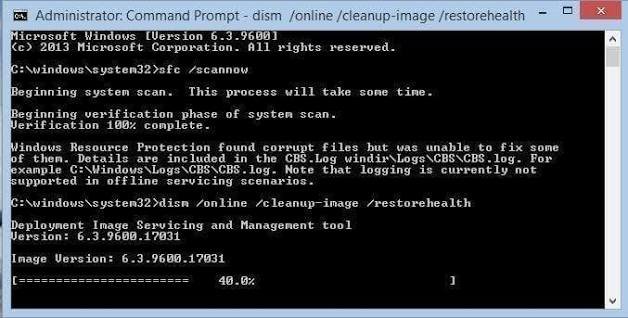
Start with the System File Checker:
sfc /scannow
It scans protected system files and replaces broken ones. Let it reach 100 percent, which can take several minutes. If it reports it could not fix everything, run the deployment image tool next, which repairs the underlying component store that SFC pulls from:
DISM /Online /Cleanup-Image /RestoreHealth
This one needs an internet connection because it can download clean files from Windows Update. When it finishes, run sfc /scannow once more, then restart. Together these often clear a stubborn svchost spike that no amount of service tweaking would fix, because they repair the files the service was choking on.
Fix 4: Rule out and remove malware
If the file location or signature looked wrong earlier, or CPU stays high even with no internet activity and no update running, treat malware as a real possibility. Fake svchost processes and hijacked services are a classic sign of a miner quietly using your machine.
Run a full scan, not a quick one:
- Windows Security. Open Windows Security, go to Virus & threat protection, choose Scan options, and run a Full scan. For stubborn threats, use Microsoft Defender Offline scan, which runs before Windows loads and can catch things that hide during normal use.
- A second opinion. A reputable on-demand scanner from a trusted vendor can catch what your main tool misses. Only download it from the vendor’s official site.
If a scan flags a specific service or file, follow its removal steps, then reboot and recheck CPU use. Once the machine is clean, run the system file repair in Fix 3 to undo any damage the malware left behind.
Frequently asked questions
Why are there so many svchost.exe processes running?
It is normal. Windows groups background services and runs them inside svchost.exe, and modern PCs with plenty of memory give many services their own instance. Ten, twenty, or more entries is by design, not a sign of a problem.
Can I just end the svchost.exe task in Task Manager?
It is risky. svchost hosts core services, so ending the wrong one can drop your internet, mute audio, or break sign-in. Find the busy service inside it and fix or stop that single service instead.
What is svchost.exe (netsvcs) and why is it using high CPU?
netsvcs is a busy service group that hosts several network services at once, including Windows Update and BITS. High CPU there usually traces back to one service inside it, most often Windows Update scanning or stuck in a loop.
How do I know if svchost.exe is a virus?
Check the file location and signature. The real one lives in C:\Windows\System32 and is signed by Microsoft. A copy in another folder, or one with steady traffic to unknown servers while idle, points to malware. Run a full scan if unsure.
Is it safe to delete the SoftwareDistribution folder?
Yes, when done right. Stop the update services first, rename or clear the folder, then restart them. Windows rebuilds a fresh update cache automatically. It is a common fix for a Windows Update service stuck at high CPU.
Conclusion
High svchost.exe CPU is almost never svchost’s fault. It is a service running inside it that is busy or stuck. Find that service using Task Manager and the PID trick, confirm the file is genuine, then match the fix to the cause: let Windows Update finish or reset its cache, disable a safe service like SysMain if it is the culprit, repair system files with SFC and DISM, and scan for malware if anything looks off. A healthy result is svchost sitting near idle, usually under five percent, once the real service is sorted.
Recommended Articles:
How to Increase CPU Memory (What It Really Means and What Actually Works)
Endpoint Protection Service Using High CPU? Here’s How to Find the Cause and Fix It
100% CPU Usage While Gaming: What It Means and How to Fix It
Plex “Not Enough CPU for Conversion of This Item”: Causes and Fixes