

A normal CPU temperature is about 30 to 50°C (86 to 122°F) when the computer is idle, and 65 to 85°C (149 to 185°F) when it’s under load, such as gaming, rendering video, or compiling code. Short spikes toward 90 to 100°C during heavy work are also normal on many current processors and are not, by themselves, a sign of a problem.
That said, the exact safe ceiling depends on which CPU you own, since AMD and Intel each set a different maximum for their own chips. Below is a quick reference, followed by the details on how to read your own numbers correctly.
What is a normal CPU temperature? Quick reference
| Activity | Typical range (°C) | Typical range (°F) |
|---|---|---|
| Idle (desktop, nothing running) | 30-50°C | 86-122°F |
| Light use (browsing, documents) | 40-55°C | 104-131°F |
| Gaming or sustained load | 65-85°C | 149-185°F |
| Heavy load peaks (rendering, stress test) | 85-95°C | 185-203°F |
These are typical readings for a healthy system with the stock or a reasonable aftermarket cooler. A CPU that is quietly sitting 5 to 10 degrees outside these bands isn’t necessarily broken. What matters more is the ceiling built into your specific chip, which is the next thing worth understanding.
Why there is no single normal number for every CPU
Every processor has a published maximum safe temperature, usually called TjMax (thermal junction maximum) or Tjunction. It’s the point where the chip automatically cuts clock speed and voltage to protect itself, a process called thermal throttling. Below that line, the CPU can run at very high temperatures for years without any damage. It’s an engineered limit, not a warning sign.
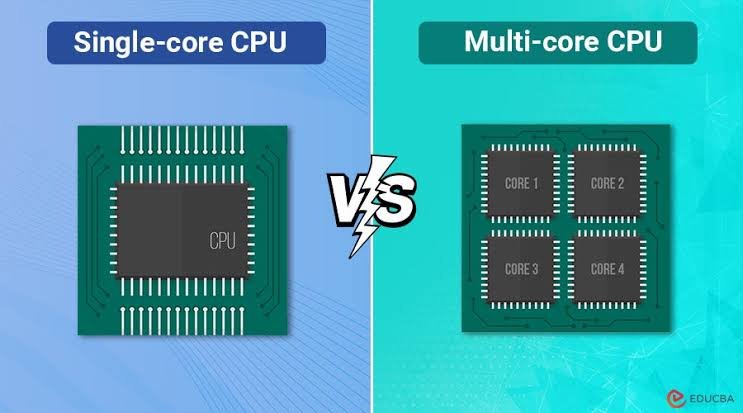
Manufacturers set this number by testing how their transistors behave as heat rises. Past a certain point, a chip’s electrical signals become less reliable and its long-term lifespan starts to shorten, so the company picks a ceiling with real margin built in before that happens. That’s why running at 90°C for years on a CPU rated for it causes no measurable harm, while the same number on a chip rated for less would slowly wear it down.
Current desktop chips do not share one TjMax. Most AMD Ryzen 5000, 7000, and 9000 series desktop processors, including the popular X3D gaming chips, are rated for 95°C, and some 3D V-Cache models sit slightly lower at 89°C. You can confirm the figure for your own chip on AMD’s product page or in the Ryzen Master utility, which reads the real TjMax reported by the silicon rather than a generic estimate.
Intel’s recent Core and Core Ultra desktop chips are typically rated between 100°C and 105°C, and some Core Ultra models go as high as 110°C. Intel publishes the exact figure, called Tjunction, on each processor’s own specification page, and explains how to read it on its processor temperature support page. Look up your processor model, open Package Specifications, and check the Tjunction or Max Operating Temperature field rather than relying on a generic number.
This is why a 95°C reading is a real problem on one chip and completely intended behavior on another. A Ryzen 9000 series CPU gaming at 90 to 95°C is running exactly as designed and squeezing out its full boost clock. An older CPU from before 2021 hitting the same number is usually pushing well past what it was built for. The number alone tells you nothing until you know the ceiling for your specific chip.
Two figures show up on spec sheets and they aren’t interchangeable. Tjunction, or TjMax, is measured at the hottest point inside the processor die and is the number your monitoring software reads. Tcase is measured at the outer metal lid, the integrated heat spreader, and is meant for engineers designing coolers, not for everyday temperature checks. If a spec page lists both, the one that matches what Core Temp or HWMonitor shows you is Tjunction.
Quick check: look up your exact CPU model and note its published TjMax or Tjunction. Everything else in this guide is a general pattern, but that one number is the real limit for your machine.
What is a normal idle CPU temperature?
At idle, meaning the desktop is showing with no demanding programs open, most desktop CPUs settle between 30°C and 50°C. Laptops often idle a little warmer, closer to 35°C to 55°C, because their coolers are smaller and their chassis holds heat more easily.
Room temperature matters more at idle than at any other time, since there’s so little heat being generated that ambient conditions make up a larger share of the reading. A machine sitting in a warm room in summer can idle 5 to 10 degrees higher than the same machine in a cool room, with nothing else different.
An idle temperature that stays above 60°C on a desktop, with nothing running in the background, usually points to a cooling issue: dried-out thermal paste, a cooler that isn’t seated correctly, or dust blocking airflow. It’s worth checking Task Manager first, since a runaway background process can easily masquerade as a cooling problem.
Idle readings also vary by motherboard settings that most people never touch. Some boards enable a power-saving state that lets the CPU park itself at its lowest voltage and frequency the moment it’s not needed, which shows up as a very low, stable idle number. Others favor faster wake-up over maximum power saving and idle a few degrees warmer as a result. Neither setting is wrong, and the difference rarely matters outside of a spec comparison between two machines.
What is a normal CPU temperature under load or while gaming?
Under sustained load, whether that’s gaming, video editing, or compiling software, 65°C to 85°C is the normal working range for most modern desktop CPUs with decent cooling. Many current chips are designed to boost right up toward their TjMax during short bursts, so seeing 90°C for a few seconds while a game loads a new area isn’t unusual.
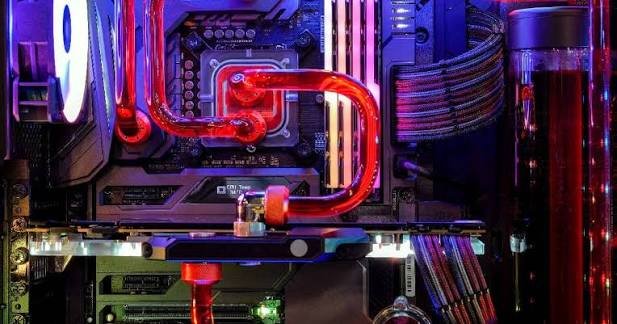
The distinction that matters is sustained versus brief. A temperature that touches 90°C for a moment and then settles back into the 70s is normal thermal behavior. A temperature that sits at 90 to 95°C for the entire length of a long gaming session, on a CPU rated for that ceiling, is also fine, if less common on air cooling. The same number sustained on a CPU with a lower TjMax means the system is throttling constantly, which shows up as small stutters or lower, less consistent frame rates rather than any visible warning.
A rough guide by workload:
- Web browsing and office work: 40-55°C
- 1080p to 1440p gaming: 65-80°C
- Demanding AAA gaming or ray tracing: 75-90°C
- Video rendering, 3D rendering, or a full CPU stress test: 80-95°C, depending on the chip’s TjMax
If your numbers land inside these bands and your frame rates or render times feel normal, the CPU is doing what it’s supposed to do.
It helps to separate two things that often get lumped together: temperature and power draw. A CPU pulling 150 watts under a heavy multi-threaded task will run hotter than the same chip pulling 65 watts while gaming, even though gaming can feel more demanding to the person using the computer. Games mostly lean on a handful of fast cores, while rendering and compiling spread the load across every core at once, which is why render and stress-test temperatures tend to sit at the higher end of the range while gaming settles a bit lower.
Does a laptop CPU run at a different temperature than a desktop CPU?
Yes. Laptop CPUs are built and tuned to run hotter than their desktop counterparts, because a laptop cooler has far less room for airflow and heat pipes than a desktop tower. It’s common and expected for a gaming laptop’s CPU to sit at 80°C to 95°C during a demanding game, even on a well-maintained machine with clean fans.
Manufacturers account for this in the chip’s design, and thin laptops in particular are tuned to hold a steady, slightly lower clock speed rather than boost hard and hit their thermal ceiling. If a laptop is shutting down unexpectedly, or the fan is at full speed just to check email, that’s outside the range this pattern describes and points to blocked vents or a cooling system that needs cleaning, not to a CPU problem.
The physical setup a laptop sits on changes its temperature more than most people expect. A laptop resting on a bed, cushion, or lap blocks the intake vents on its underside, which are usually where most of the cool air comes in. The same laptop on a hard, flat desk with a couple of inches of clearance underneath can run 5 to 15 degrees cooler under identical load, with no other change at all. A basic cooling pad with its own fan helps for the same reason.
How do you check your CPU temperature?
The simplest way is a free monitoring tool that reads the sensor built into the CPU itself. Two of the most widely used are HWMonitor and Core Temp, both of which show a live reading for each core in Celsius or Fahrenheit as soon as they open, with no setup needed.
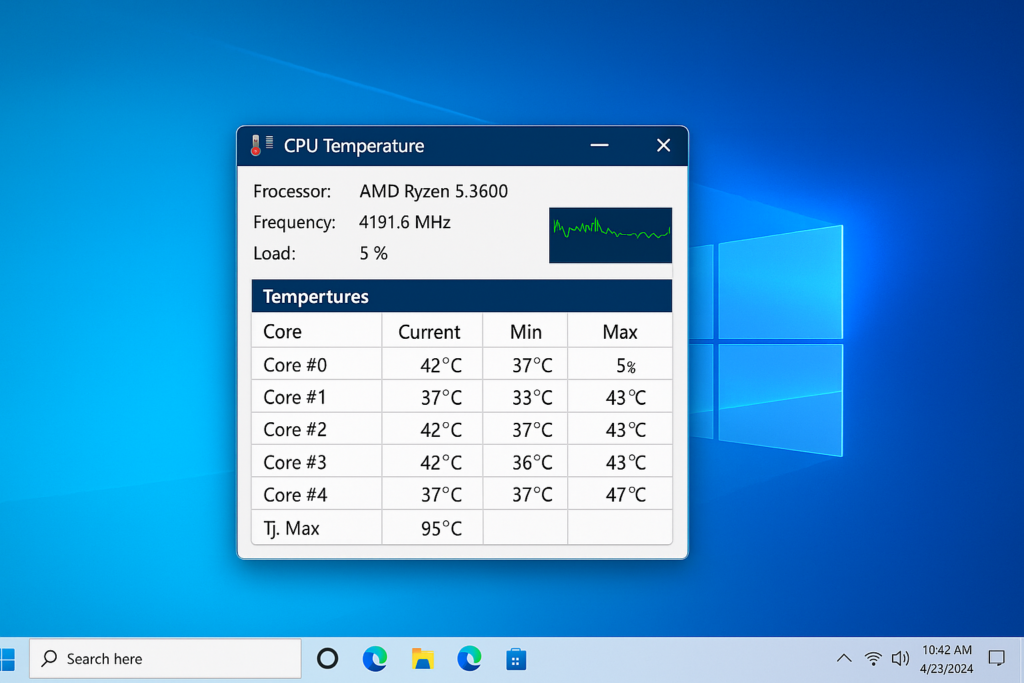
To get a reading:
- Download and install a monitoring tool such as HWMonitor or Core Temp.
- Open it and let the reading settle for about a minute while the system is idle. This is your idle baseline.
- Open a game or another demanding task and watch the reading climb. This is your load temperature.
- Compare both numbers against the TjMax for your specific CPU model, not against a generic average.
You can also check temperature in the BIOS or UEFI setup screen, reached by pressing F2, F10, or Delete during startup depending on the motherboard. This shows an idle-only reading, since nothing is running under load at that point, so it’s most useful as a quick sanity check rather than a full picture.
Most monitoring tools show a separate number for each core rather than one combined figure, and it’s normal for cores to differ by a few degrees from each other under the same workload. This comes down to small physical differences in how each core sits relative to the cooler and the rest of the die. Watch the highest core reading, since that’s the one your CPU’s thermal throttling responds to, not the average across all of them.
When is a CPU temperature too high?
A CPU temperature is a genuine concern when it sits at or above its TjMax for extended periods rather than touching it briefly, or when the system starts showing symptoms alongside the high reading.
Signs worth acting on:
- Stuttering, sudden frame rate drops, or slower render times during long sessions
- The system shutting down or restarting on its own under load
- Fans running at full speed even during light, everyday tasks
- Idle temperatures that have crept up noticeably over months of use
A single spike to 95°C or 100°C during a heavy moment, followed by the temperature dropping back down once the task eases, is the thermal control system doing its job. A CPU that lives at that ceiling for the whole session, especially paired with any of the symptoms above, has a cooling setup that isn’t keeping up with the chip’s output.
There’s a difference worth knowing between throttling and shutting down. Throttling is the CPU protecting itself by working slower, and it happens quietly, often without any on-screen warning beyond the drop in performance. A full shutdown or restart under load means the system hit an even higher emergency limit, usually a few degrees above TjMax, that exists specifically to prevent physical damage. Repeated shutdowns under load are a clearer, more urgent signal than throttling and are worth addressing before doing any other demanding work on the machine.
How do you lower a high CPU temperature?
Most high CPU temperatures come down to one of a handful of causes, and most have a straightforward fix.

Clean out dust first. Dust buildup on the cooler’s fins and fans is the single most common cause of rising temperatures over time. Compressed air through the vents and heatsink every few months keeps airflow where it belongs.
Check the case airflow. A case needs a clear path for cool air in and warm air out. Blocked front vents, cables tangled in front of intake fans, or a case pushed flush against a wall can all trap heat inside.
Reapply thermal paste. The paste between the CPU and its cooler dries out over three to five years and loses its ability to transfer heat. Reapplying it is a common fix for a machine that’s slowly gotten hotter with age.
Confirm the cooler is seated properly. A cooler that isn’t making full, even contact with the CPU, sometimes from a loose mount or a missed step during a rebuild, can cause temperatures well above normal even when everything else is fine.
Consider a better cooler. Stock coolers that ship with a CPU are built to keep it safe, not to keep it cool and quiet under sustained heavy load. A mid-range aftermarket air cooler or an all-in-one liquid cooler often drops load temperatures by 10 to 20 degrees.
Undervolting, which reduces the voltage the CPU uses to hit a given clock speed, is another option for anyone comfortable digging into BIOS settings. It can meaningfully lower temperatures with little to no performance loss, though it takes some testing to find a stable setting for your specific chip.
Frequently asked questions
Is 70°C a normal CPU temperature?
Yes, for a CPU under load. 70°C is well within the typical gaming or working range for most modern desktop processors and sits comfortably below every current chip’s safe limit. At idle it would be on the warm side and worth a quick check.
Is 80°C too hot for a CPU while gaming?
No. 80°C is a common and expected gaming temperature on many CPUs, especially laptops and compact builds. It only becomes a concern if it climbs close to your specific chip’s TjMax and stays there for the whole session.
What CPU temperature is dangerous?
A temperature that sits at or above your processor’s published TjMax, typically 95°C for AMD Ryzen or 100-105°C for recent Intel chips, for sustained periods rather than a brief spike. Sustained time at that ceiling means the cooling isn’t keeping up.
Why is my CPU temperature high even when idle?
An idle temperature above 60°C on a desktop usually points to a background process using more CPU than expected, a cooler that isn’t seated well, dried thermal paste, or blocked airflow. Check Task Manager first, then the cooler and vents.
How do I find the safe maximum temperature for my exact CPU?
Look up your processor model on the manufacturer’s own product or specification page. AMD lists TjMax on each Ryzen product page, and Intel lists Tjunction under Package Specifications on its ARK site for each processor.
Conclusion
A normal CPU temperature is roughly 30 to 50°C at idle and 65 to 85°C under load, with brief spikes toward 90 to 100°C being expected on many current chips. The number that actually matters is your specific processor’s published TjMax, since AMD and Intel each set that ceiling differently by model. Check your reading with a tool like HWMonitor or Core Temp, compare it against your CPU’s own limit, and treat sustained time at that ceiling, not a brief spike, as the real signal that your cooling needs attention.
Recommeded Article:
How to Check How Much Voltage Your Computer Is Using
What Performance Specification Does 2 GHz Refer To?
AMD Audio Drivers: What They Are and How to Install Them
What Is a Normal CPU Temp While Gaming?
Why Is My CPU Clock Speed So High? What It Means and When to Worry